

Microsoft OneDrive has become an essential cloud storage solution for millions of users worldwide, offering seamless file synchronization, secure storage, and easy access across devices. However, like any software, OneDrive is not immune to problems. From synchronization issues to login errors, users sometimes encounter frustrating situations that disrupt their workflow. In this article, we will explore 10 common OneDrive problems and provide practical solutions to get your OneDrive back up and running efficiently.
1. OneDrive Won’t Sync Files
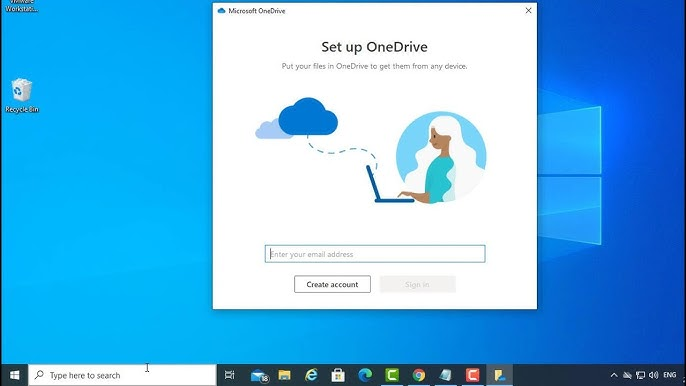
One of the most common complaints is that OneDrive stops syncing files. This can manifest as files not updating on other devices, or files being stuck in “Pending” status.
Possible Causes:
- Unstable internet connection
- Conflicts with other cloud storage services
- Corrupt OneDrive cache
- Outdated OneDrive version
Solutions:
- Check your internet connection: Ensure you have stable connectivity. Try restarting your router if necessary.
- Restart OneDrive: Right-click the OneDrive icon in the system tray and select Exit, then reopen the app.
- Reset OneDrive: Press
Win + R, type%localappdata%\Microsoft\OneDrive\onedrive.exe /reset, and hit Enter. - Update OneDrive: Go to the OneDrive settings and ensure the app is updated to the latest version.
- Clear cache: Sometimes clearing the OneDrive cache fixes synchronization issues.
2. OneDrive Not Launching
Occasionally, users find that OneDrive won’t even open on their computer.
Possible Causes:
- Corrupted application files
- Conflicting programs
- Insufficient system resources
Solutions:
- Repair OneDrive: Go to Settings > Apps > Apps & features, find OneDrive, and select Repair.
- Reinstall OneDrive: Download the latest installer from Microsoft and reinstall.
- Check system requirements: Make sure your PC meets the minimum requirements to run OneDrive.
- Disable conflicting apps: Antivirus or firewall software may prevent OneDrive from launching. Temporarily disable them to test.
3. OneDrive Login Issues
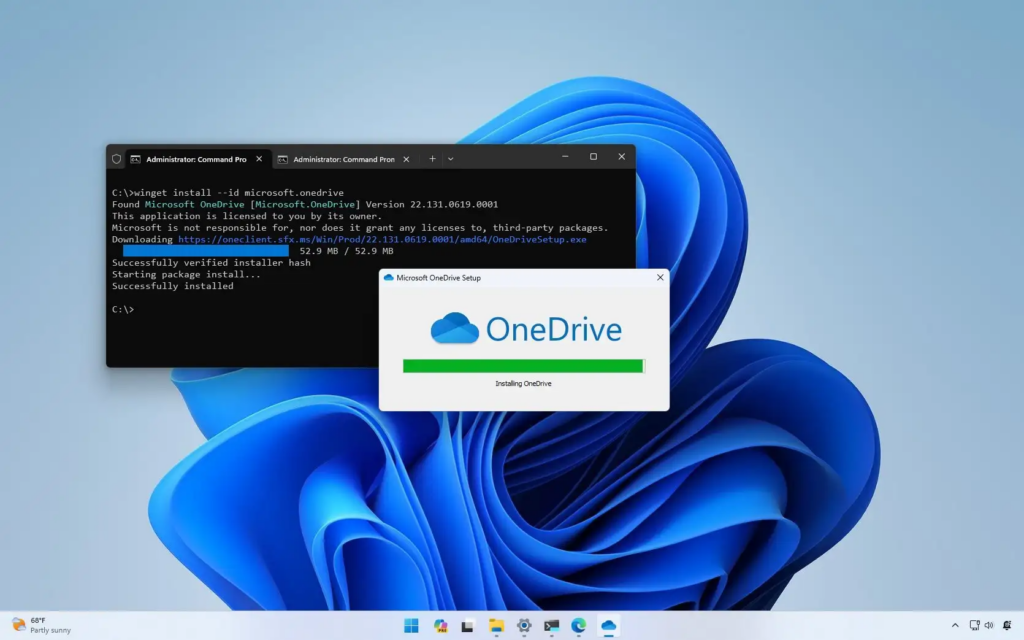
Being unable to log in is another frustrating scenario, often accompanied by errors like “We can’t connect to OneDrive.”
Possible Causes:
- Incorrect credentials
- Expired session
- Two-factor authentication issues
- Account restrictions
Solutions:
- Verify credentials: Double-check your Microsoft account email and password.
- Sign out and back in: Right-click the OneDrive icon > Settings > Account > Unlink this PC, then log in again.
- Check account permissions: Ensure your account is active and not restricted by your organization.
- Use the web version: Sometimes logging in via OneDrive.com helps identify account issues.
4. OneDrive Stuck on “Processing Changes”
Some users notice OneDrive stuck on “Processing changes,” often without progress.
Possible Causes:
- Large number of files pending
- File type conflicts
- Files open in another program
Solutions:
- Pause and resume syncing: Right-click the OneDrive icon > Pause syncing, wait a few minutes, then Resume syncing.
- Move large files: If a single file is too large, move it out of OneDrive, sync the rest, then re-add it.
- Close other programs: Ensure no other applications are using files in OneDrive.
5. Insufficient Storage Space
When OneDrive stops syncing, it might be due to running out of storage.
Possible Causes:
- Exceeding OneDrive storage limit
- Insufficient local disk space
Solutions:
- Free up OneDrive space: Delete unnecessary files or upgrade your storage plan.
- Check local storage: Ensure the local drive where OneDrive stores files has enough free space.
- Use selective sync: Only sync necessary folders by adjusting settings in OneDrive > Settings > Choose folders.
6. Files Deleted or Missing
Sometimes, users find files missing or accidentally deleted from OneDrive.
Possible Causes:
- Accidental deletion
- Sync conflicts
- Malware or ransomware attacks
Solutions:
- Check OneDrive Recycle Bin: Deleted files can be restored from the Recycle Bin within 30 days.
- Check version history: Right-click a file > Version history to restore an earlier version.
- Use the web interface: Sometimes files appear in the web version but not locally.
- Run antivirus scans: Ensure no malware is causing file deletion.
7. OneDrive Slow Performance
If OneDrive is syncing but extremely slowly, productivity can be affected.
Possible Causes:
- Slow internet speed
- Large files or folders
- High CPU usage
Solutions:
- Limit upload/download rate: Go to OneDrive > Settings > Network and adjust the bandwidth settings.
- Pause other internet-heavy tasks: Streaming, online games, or large downloads can slow sync.
- Split large uploads: Upload large files in smaller batches for faster processing.
- Upgrade internet plan: A faster connection will improve sync performance.
8. File Name or Path Issues
OneDrive can fail to sync files if the file names or paths contain invalid characters.
Possible Causes:
- Unsupported characters like
* ? : " < > | - File path too long (over 400 characters)
- Reserved file names like
CON,PRN, etc.
Solutions:
- Rename files: Remove invalid characters and shorten the path.
- Move files to root directory: Place files closer to the root folder to reduce path length.
- Check OneDrive restrictions: Microsoft provides a list of unsupported characters and reserved names.
9. OneDrive Conflicts with Office Apps
Sometimes, OneDrive conflicts with Microsoft Office, causing sync errors or version conflicts.
Possible Causes:
- Co-authoring errors
- Cached Office credentials
- Incorrect file versions
Solutions:
- Update Office apps: Make sure Word, Excel, or PowerPoint are updated.
- Clear Office cache: Go to %localappdata%\Microsoft\Office\16.0\Licensing and clear cached credentials.
- Use OneDrive Files On-Demand: This reduces conflicts by downloading files only when needed.
- Close Office files before syncing: Ensure no document is open when OneDrive tries to sync.
10. OneDrive Crashes or Freezes
Occasionally, OneDrive may crash or freeze unexpectedly, making it unusable.
Possible Causes:
- Corrupted app files
- Conflicting third-party software
- Outdated Windows OS
Solutions:
- Update Windows: Install the latest updates via Settings > Update & Security.
- Run OneDrive in safe mode: This can help identify if third-party software is causing conflicts.
- Check Event Viewer: Look for specific errors under Windows Logs > Application.
- Reinstall OneDrive: A clean reinstall often resolves persistent crashes.
Bonus Tips for Smooth OneDrive Usage
- Enable Files On-Demand: Saves space by downloading files only when accessed.
- Regularly back up files: Use an external drive or alternative cloud service to prevent data loss.
- Monitor sync status: Always check the OneDrive icon for warnings or errors.
- Keep OneDrive updated: Both the app and Windows updates ensure maximum compatibility.
- Avoid long file paths: Helps prevent path length errors and sync failures.
Conclusion
OneDrive is a powerful tool for cloud storage, but like any software, it comes with potential challenges. From sync errors to login problems, many issues can disrupt your workflow. Fortunately, most OneDrive problems are solvable with simple troubleshooting steps, whether it’s resetting the app, updating software, or managing files carefully.
By understanding these 10 common OneDrive problems and their solutions, you can minimize downtime and ensure that your files remain accessible and secure across all devices. Consistent monitoring, maintenance, and good file management practices can prevent most issues before they become major headaches.
Leave a Reply