

Keeping your HP printer driver up to date ensures smooth printing, improved performance, and better compatibility with your operating system. Automatic driver updates help fix bugs, resolve connectivity problems, and enhance security without requiring manual downloads.
What Is an HP Printer Driver?
An HP printer driver is software that allows your computer to communicate with your HP printer. Without the correct driver, your printer may not function properly. Automatic driver updates ensure your printer stays compatible with Windows or macOS updates and continues delivering optimal performance.
Updating the driver automatically helps:
- Improve print speed and quality
- Fix common printing errors
- Enhance wireless connectivity
- Prevent compatibility issues
- Improve overall system stability
Methods to Update HP Printer Driver Automatically
There are multiple ways to update your HP printer driver automatically. Below are the most reliable methods.
1. Update HP Printer Driver via Windows Update
Windows automatically detects and installs updated drivers for most HP printers.
Steps:
- Open Settings on your Windows computer.
- Click Update & Security.
- Select Windows Update.
- Click Check for Updates.
- If an HP driver update is available, Windows will automatically download and install it.
Restart your computer after installation to complete the process.
2. Update HP Printer Driver Using HP Smart App
4
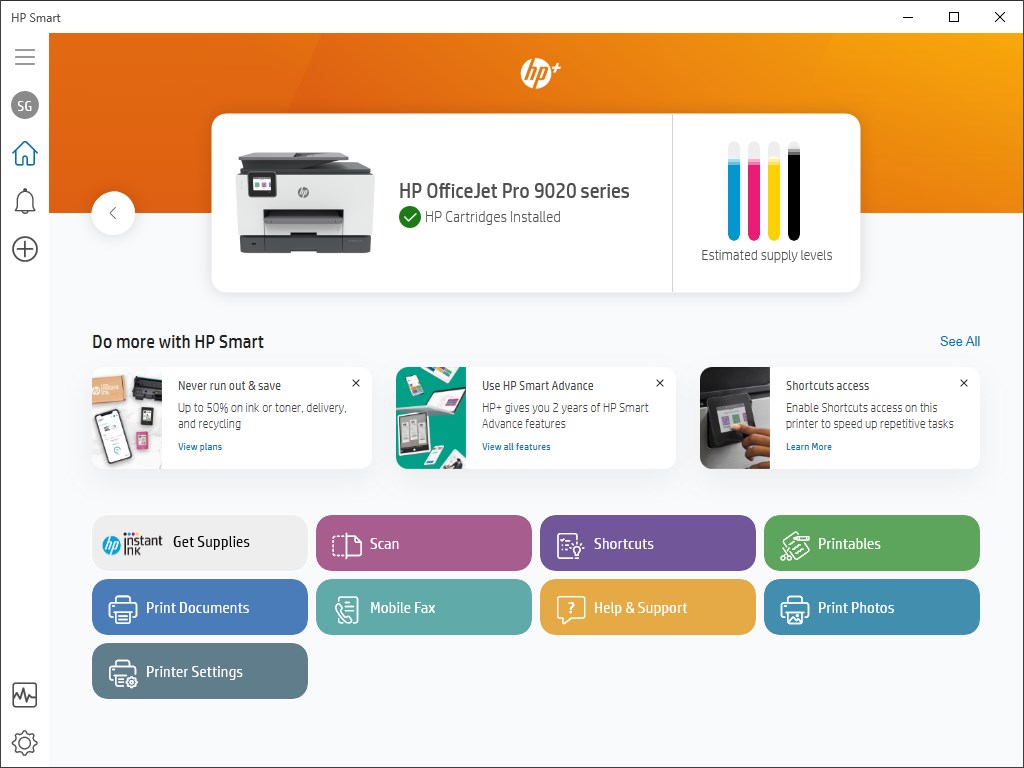
The HP Smart app is an official tool that helps manage printer settings, updates, and troubleshooting.
Steps to update automatically:
- Download and install HP Smart from the Microsoft Store or official HP source.
- Open the HP Smart app.
- Add your printer if not already added.
- Go to Printer Settings.
- Select Advanced Settings or Tools.
- Check for firmware or driver updates.
- Follow on-screen instructions to complete installation.
HP Smart automatically notifies you when updates are available.
3. Update HP Printer Driver via Device Manager
Device Manager can automatically search for updated drivers online.
Steps:
- Press Windows + X and select Device Manager.
- Expand Printers or Print Queues.
- Right-click your HP printer model.
- Select Update Driver.
- Choose Search automatically for drivers.
Windows will locate and install the latest compatible version if available.
4. Enable Automatic Updates in HP Printer Settings
Some HP printers allow automatic firmware and driver updates directly through printer settings.
Steps:
- Access your printer’s control panel.
- Navigate to Settings.
- Select Printer Maintenance or Web Services.
- Enable Automatic Updates.
This ensures the printer updates itself when connected to the internet.
Benefits of Updating HP Printer Driver Automatically
- Saves time compared to manual downloads
- Reduces technical errors
- Keeps printer secure from vulnerabilities
- Improves print quality and efficiency
- Ensures compatibility with new operating systems
Automatic updates are especially useful for home and office users who rely on uninterrupted printing.
HP Printer Driver Update Not Working? Troubleshooting Guide
If your HP printer driver is not updating automatically, try these solutions:
Check Internet Connection
Ensure your computer and printer are connected to a stable internet network.
Restart Printer and Computer
Turn off both devices, wait 60 seconds, and restart them.
Run Windows Troubleshooter
- Open Settings
- Go to Update & Security
- Select Troubleshoot
- Run the Printer Troubleshooter
Reinstall HP Printer Driver
If automatic updates fail:
- Uninstall the current driver from Device Manager.
- Restart your computer.
- Allow Windows to reinstall the driver automatically.
Disable Antivirus Temporarily
Security software may block driver installations. Temporarily disable it during the update process.
How to Install HP Printer Driver After Automatic Update
After the driver downloads automatically:
- Restart your computer.
- Connect your HP printer via USB or Wi-Fi.
- Allow Windows to detect and configure the printer.
- Print a test page to confirm successful installation.
HP Printer Customer Support and Service
If automatic updates fail repeatedly or your printer is still not working:
- Contact HP Customer Support for technical guidance.
- Use the HP Smart app diagnostic tool.
- Visit authorized HP service centers for hardware-related issues.
HP support can help with activation, driver conflicts, login issues in HP Smart, and connectivity problems.
Conclusion
Updating your HP printer driver automatically is the easiest way to maintain optimal printer performance. Whether using Windows Update, Device Manager, or the HP Smart app, automatic updates ensure your printer remains secure and fully functional. If you experience issues, simple troubleshooting steps can quickly restore proper functionality.
Leave a Reply