

Setting up an HP printer without a wireless router is simple and convenient. Many modern HP printers support Wireless Direct, USB setup, and Wi-Fi Direct connections, allowing you to print even when no internet router is available. Whether you are installing a new printer, reinstalling drivers, or troubleshooting connectivity issues.
What Does It Mean to Set Up HP Printer Without a Router?
When you set up an HP printer without a wireless router, you are connecting your computer, laptop, or mobile device directly to the printer instead of through a Wi-Fi network. This can be done using:
- HP Wireless Direct / Wi-Fi Direct
- USB cable connection
- Temporary direct network connection
This method is useful in homes without internet service, small offices, travel situations, or when your router is not working.
Methods to Set Up HP Printer Without Wireless Router
1. Using HP Wi-Fi Direct
4
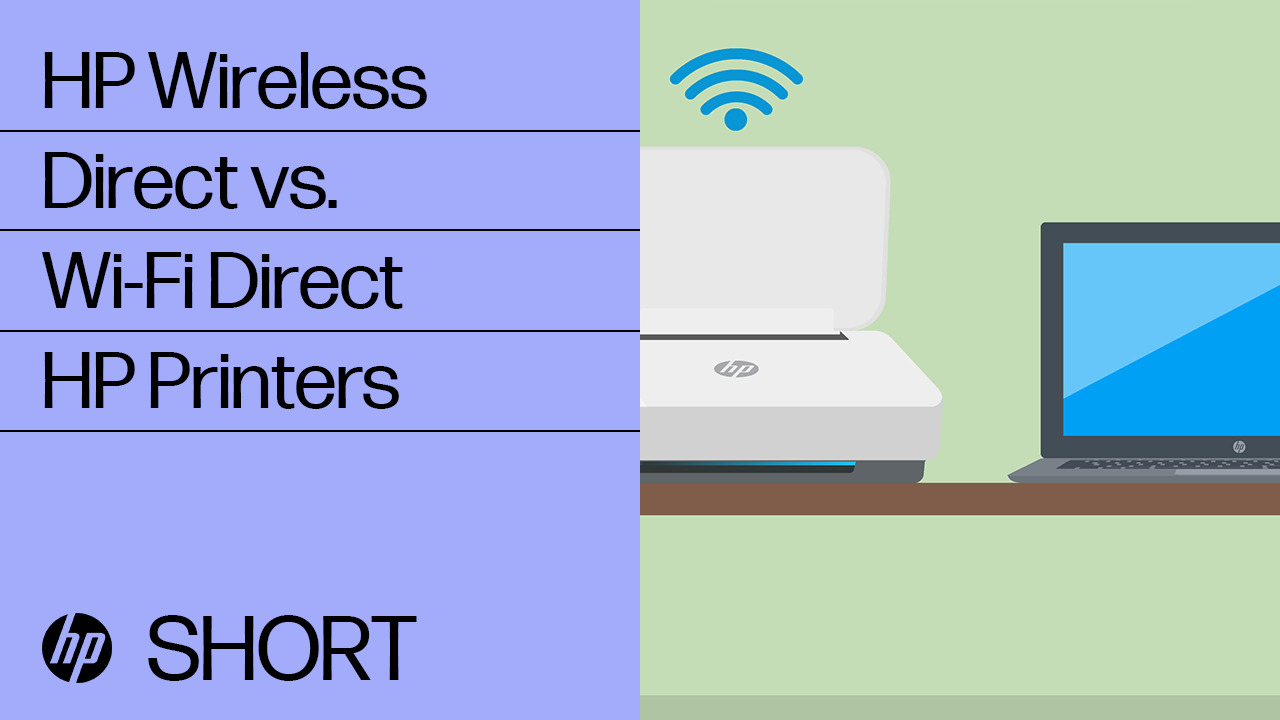
Wi-Fi Direct allows your device to connect directly to the printer without needing a router.
Steps:
- Turn on your HP printer.
- Enable Wi-Fi Direct from the printer control panel.
- On your computer or smartphone, open Wi-Fi settings.
- Select the printer’s Wi-Fi Direct name (usually starts with DIRECT-HP).
- Enter the Wi-Fi Direct password shown on the printer screen.
- Install or open the HP printing software.
- Complete the setup process.
Once connected, you can print wirelessly without internet access.
2. Using USB Cable Setup


4
A USB cable provides a stable and quick setup option.
Steps:
- Plug the USB cable into your printer and computer.
- Turn on the printer.
- Your system may automatically detect the printer.
- Download and install the latest HP printer drivers.
- Follow on-screen instructions to complete installation.
This method is ideal if wireless setup fails or Wi-Fi Direct is unavailable.
HP Printer Login and Account Setup
To manage your printer, access updates, or use scanning features, you may need to sign in to your HP account.
Steps to Login or Sign Up:
- Open the HP printer software on your device.
- Click Sign In.
- Enter your registered email and password.
- If you don’t have an account, choose Create Account.
- Verify your email and complete registration.
- Add your printer to your account dashboard.
Creating an account helps manage warranty, services, and support requests.
How to Download and Install HP Printer Software
To ensure smooth functionality, always install the latest drivers and setup software.
Download and Installation Steps:
- Identify your printer model.
- Search for the latest compatible driver.
- Download the software package.
- Run the installer file.
- Accept license agreements.
- Choose connection type (USB or Wireless Direct).
- Complete installation.
- Restart your computer if prompted.
After installation, your printer is ready for activation and use.
How to Activate HP Printer
Printer activation ensures your device is properly registered and ready for operation.
Activation Steps:
- Turn on your printer.
- Connect via USB or Wi-Fi Direct.
- Open the installed HP software.
- Follow activation prompts.
- Print a test page to confirm setup.
Activation confirms the printer is recognized and functioning correctly.
HP Printer Customer Support and Service Options
If you face issues during setup or installation, customer support services are available.
Support options include:
- Online troubleshooting assistant
- Driver update assistance
- Warranty claim support
- Remote technical support
- Printer servicing guidance
Before contacting support, keep your printer model number and serial number ready.
HP Printer Not Working Without Router – Fixes
If your HP printer is not working without a router, try these solutions:
- Ensure Wi-Fi Direct is enabled.
- Restart both printer and computer.
- Reconnect to the printer’s direct network.
- Reinstall printer drivers.
- Check USB cable for damage.
- Run printer troubleshooting tool on your computer.
Often, resetting the printer network settings resolves connection issues.
Updating HP Printer Drivers
Keeping your drivers updated prevents compatibility issues and improves performance.
Steps to Update Drivers:
- Open printer software.
- Go to Settings or Tools.
- Select Check for Updates.
- Download available updates.
- Install and restart your system.
Updated drivers improve connectivity and fix bugs.
Troubleshooting Common Setup Problems
Here are common issues and quick fixes:
Printer Not Detected
- Ensure printer is powered on.
- Reconnect USB cable.
- Restart your computer.
Wi-Fi Direct Not Showing
- Reset printer network settings.
- Move device closer to printer.
- Disable and re-enable Wi-Fi.
Installation Fails
- Run installer as Administrator.
- Disable antivirus temporarily.
- Download fresh setup file.
Activation Error
- Verify login credentials.
- Ensure printer is properly connected.
Benefits of Setting Up HP Printer Without Router
- No need for internet connection.
- Direct and secure connection.
- Faster setup process.
- Ideal for temporary setups.
- Convenient for remote locations.
Conclusion
Setting up an HP printer without a wireless router is easy using Wi-Fi Direct or USB connection. With proper login, driver download, installation, and activation steps, you can quickly start printing without needing internet access. Regular updates and troubleshooting help maintain smooth performance and extend printer lifespan.
Leave a Reply