

Wireless printing makes your workflow smooth and cable-free. If you recently purchased an HP printer or want to connect it to your Windows 10 laptop over Wi-Fi.
What is HP Wireless Printing on Windows 10?
HP wireless printing allows you to print documents and photos from your Windows 10 laptop without using a USB cable. By connecting both your laptop and HP printer to the same Wi-Fi network, you can easily send print jobs from anywhere within your network range.
Most modern HP printers support wireless setup through:
- Wi-Fi Direct
- Wireless network connection
- HP Smart App
- Automatic driver installation in Windows 10
Wireless printing is ideal for homes, offices, and shared workspaces.
Requirements Before Setting Up HP Printer Wireless Printing
Before starting the setup process, make sure you have:
- A Windows 10 laptop with active Wi-Fi
- A compatible HP wireless printer
- Stable internet connection
- Wi-Fi network name and password
- Printer powered ON
Ensure your printer is placed within range of your Wi-Fi router for stable connectivity.
How to Connect HP Printer to Wi-Fi Network

Follow these steps to connect your HP printer to Wi-Fi:
Step 1: Turn On the Printer
Power on your HP printer and wait until it becomes idle.
Step 2: Access Wireless Setup
On the printer control panel:
- Go to Wireless Settings
- Select Wireless Setup Wizard
Step 3: Select Your Wi-Fi Network
Choose your network name from the list and enter the Wi-Fi password.
Step 4: Confirm Connection
Once connected, the blue wireless light will remain steady.
Your printer is now connected to the network.
How to Download and Install HP Printer on Windows 10
To enable wireless printing, you must install the printer driver or HP Smart software.
Method 1: Automatic Setup via Windows 10
- Open Start Menu
- Go to Settings
- Click Devices
- Select Printers & Scanners
- Click Add a Printer or Scanner
- Choose your HP printer from the list
- Click Install
Windows 10 will automatically download and install the required drivers.
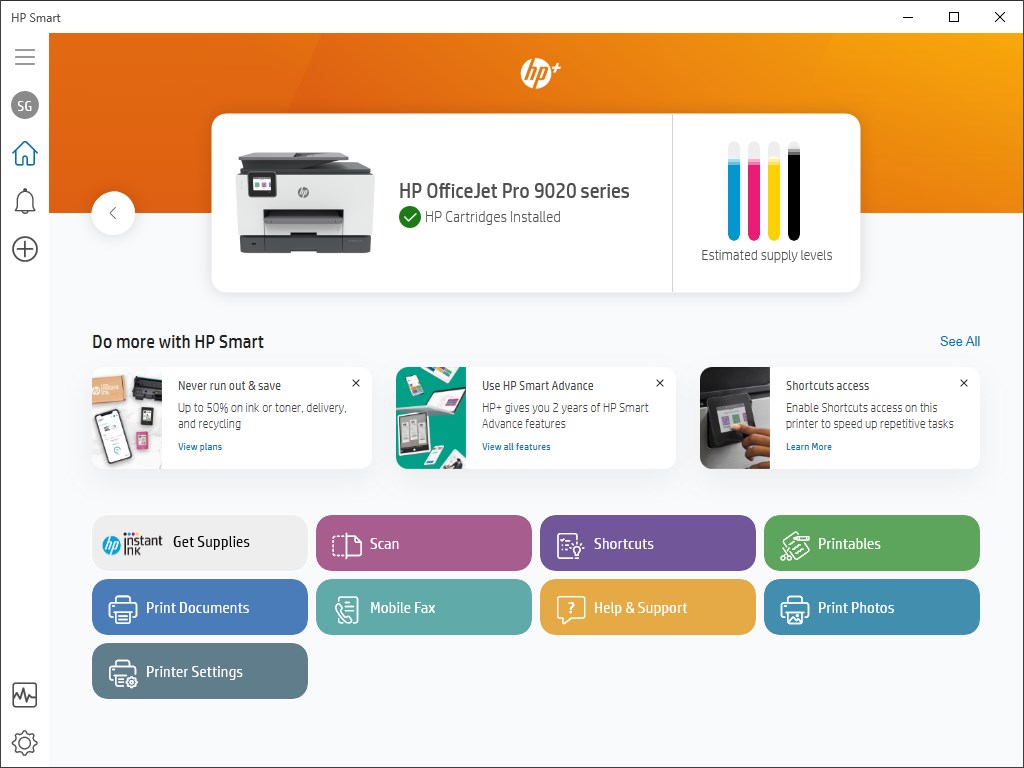
Method 2: Install Using HP Smart App

4
You can also use HP Smart:
- Download HP Smart from Microsoft Store
- Open the app
- Click Add Printer
- Follow on-screen instructions
HP Smart helps manage printing, scanning, and troubleshooting.
How to Login and Sign Up for HP Account
An HP account allows you to access cloud printing, firmware updates, and printer management tools.
To Sign Up:
- Open HP Smart
- Click Sign In
- Select Create Account
- Enter your email and password
- Verify your email
To Login:
- Open HP Smart
- Enter your registered email and password
- Click Sign In
Once logged in, your printer can be registered and activated.
How to Activate HP Printer on Windows 10
After installation:
- Open HP Smart
- Select your printer
- Click Printer Settings
- Complete registration (if required)
- Enable web services if available
Activation ensures your printer is fully functional with updates and connected services.
How to Update HP Printer Drivers on Windows 10
Keeping your printer updated ensures smooth performance.
Update via Windows:
- Go to Device Manager
- Expand Printers
- Right-click your HP printer
- Click Update Driver
Update via HP Smart:
- Open HP Smart
- Check for firmware updates
- Install if available
Regular updates improve compatibility and fix bugs.
HP Printer Not Working on Windows 10? Troubleshooting Guide
If your HP printer is not printing wirelessly, try these fixes:
1. Restart Devices
Restart your printer, router, and laptop.
2. Check Wi-Fi Connection
Ensure both devices are connected to the same network.
3. Set as Default Printer
Go to:
Settings → Devices → Printers & Scanners
Select your printer → Click Set as Default
4. Run Windows Printer Troubleshooter
- Go to Settings
- Click Update & Security
- Select Troubleshoot
- Run Printer Troubleshooter
5. Reinstall Printer
Remove the printer and add it again.
HP Printer Showing Offline on Windows 10
If your printer shows offline:
- Open Printers & Scanners
- Click your HP printer
- Select Open Queue
- Click Printer
- Uncheck Use Printer Offline
Also ensure your network signal is strong.
HP Customer Support and Service Options
If issues persist, you can contact official HP support:
- Use HP Smart diagnostic tools
- Access built-in troubleshooting in the app
- Check warranty status
- Schedule repair service
HP provides technical support for installation, activation, updates, and hardware issues.
Benefits of Wireless HP Printer Setup
- Cable-free printing
- Print from anywhere in your home
- Easy installation on Windows 10
- Access to cloud and mobile printing
- Quick troubleshooting using HP Smart
Conclusion
Setting up HP printer wireless printing on a Windows 10 laptop is simple when you follow the correct steps. From connecting to Wi-Fi and installing drivers to activating your device and troubleshooting common issues, this guide covers everything you need.
Leave a Reply