

A network printer connection timeout error occurs when your HP printer fails to communicate with your computer or network within a specified time. This issue is common in wireless setups and can interrupt printing, scanning, and other services. Fortunately, most timeout errors can be resolved with proper troubleshooting and configuration.
Understanding HP Printer Network Connection Timeout Error
A connection timeout usually happens when:
- The printer is not properly connected to Wi-Fi
- The printer and computer are on different networks
- The printer has an incorrect IP address
- Firewall or antivirus software blocks communication
- Outdated printer drivers cause connectivity issues
When this error appears, your computer may show messages like:
- “Printer not responding”
- “Connection timed out”
- “Unable to communicate with printer”
Resolving the issue requires checking both network and software settings.
Check HP Printer Network Connection
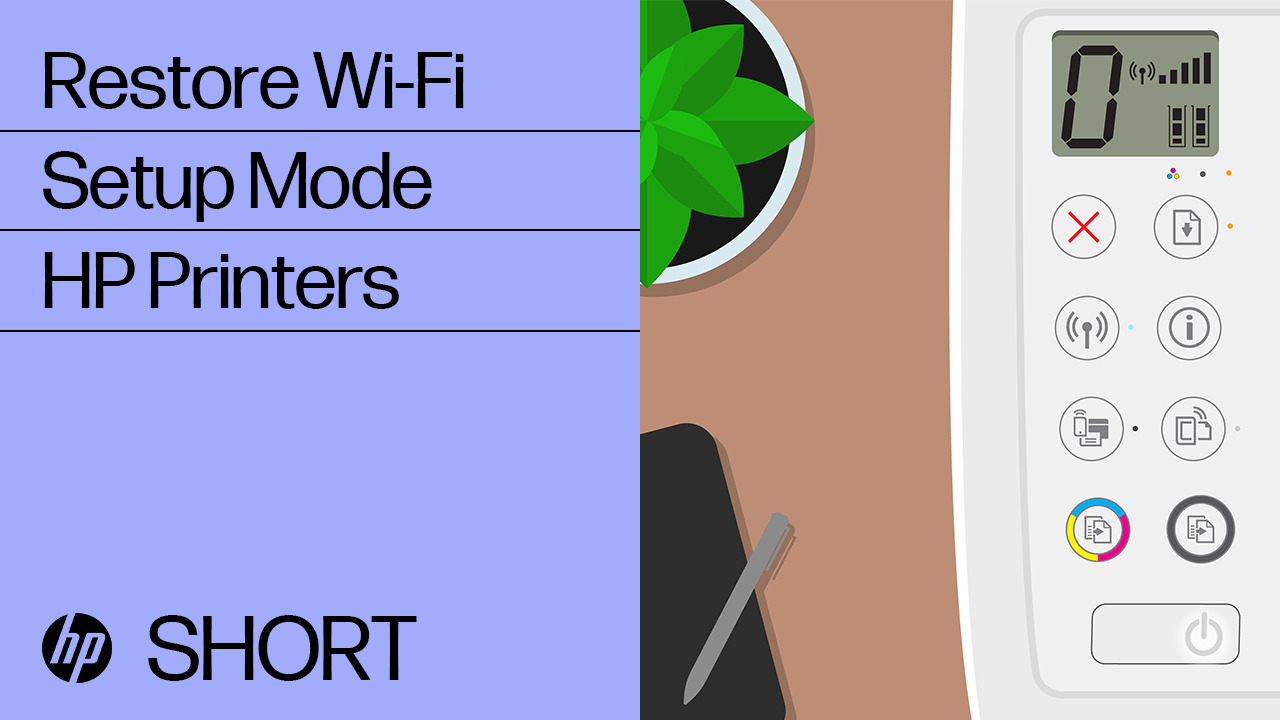
Start by verifying that your HP printer is properly connected to your Wi-Fi network.
Steps:
- Turn on the printer.
- Go to the printer control panel.
- Open Network Settings or Wireless Settings.
- Confirm the printer is connected to the correct Wi-Fi network.
- Print a Network Configuration Page to check the IP address.
If the printer is not connected, reconnect it to your wireless network using the Wireless Setup Wizard.
Restart Devices to Fix Timeout Errors
A simple restart often resolves network communication issues.
- Turn off your HP printer.
- Restart your Wi-Fi router.
- Restart your computer.
- Turn the printer back on after the router reconnects to the internet.
This refreshes the network and clears temporary communication glitches.
Assign a Static IP Address to the HP Printer
Connection timeouts can occur if the printer’s IP address changes.
To fix this:
- Access your router’s admin settings.
- Locate the connected devices list.
- Assign a static IP address to your HP printer.
- Update the printer port settings on your computer using the new IP.
This ensures stable communication between the printer and your system.
Update HP Printer Drivers
Outdated drivers are a common cause of network errors.


4
Steps to update drivers:
- Open Device Manager on your computer.
- Locate your HP printer.
- Right-click and select “Update Driver.”
- Follow on-screen instructions.
Alternatively, reinstall the printer software completely to remove corrupted files.
HP Printer Login and Account Setup
Some HP network features require login through an HP account using the HP Smart app.
To log in or sign up:
- Install HP Smart on your computer or mobile device.
- Open the app.
- Sign in with your HP account credentials.
- If you don’t have an account, create one by selecting “Sign Up.”
- Verify your email and complete account setup.
Logging in ensures access to cloud printing and remote services.
Install and Activate HP Printer Services
After installing drivers and connecting to Wi-Fi:
- Open HP Smart.
- Add your printer.
- Complete printer activation steps.
- Enable web services if required.
- Confirm the printer status shows “Ready.”
Activation ensures proper communication between your printer and HP services.
Adjust Firewall and Antivirus Settings
Firewall software may block printer communication.
To fix this:
- Temporarily disable antivirus software.
- Allow HP printer software through Windows Firewall.
- Add printer IP address as an exception if needed.
After adjusting settings, test the printer again.
Reset HP Printer Network Settings
If the problem persists:
- Open the printer control panel.
- Navigate to Network Settings.
- Select “Restore Network Defaults.”
- Reconnect the printer to Wi-Fi.
This clears incorrect configurations causing timeout errors.
HP Printer Not Working? Advanced Troubleshooting
If your printer still shows connection timeout:
- Reinstall printer software completely.
- Use a USB cable temporarily to reconfigure wireless setup.
- Ensure both printer and computer are on the same Wi-Fi band (2.4 GHz or 5 GHz).
- Check for router firmware updates.
- Run Windows Printer Troubleshooter.
These steps resolve most persistent network communication issues.
Contact HP Customer Support and Service
If none of the troubleshooting methods work, contact official HP customer support.
They can assist with:
- Network configuration issues
- Hardware-related problems
- Printer firmware updates
- Service and repair options
Before contacting support, keep your printer model number and serial number ready.
Keep HP Printer Updated
Regular updates help prevent connection timeout errors.
- Update printer firmware periodically.
- Keep HP Smart app updated.
- Install the latest Windows or macOS updates.
- Ensure router firmware is current.
Keeping software and firmware updated improves network stability and performance.
Conclusion
HP Printer Network Printer Connection Timeout Errors are usually caused by Wi-Fi configuration issues, outdated drivers, or blocked network communication. By checking network connections, assigning a static IP, updating drivers, and adjusting firewall settings, you can quickly restore printer functionality.
Leave a Reply