

HP printers are designed to provide seamless wireless printing for homes and offices. However, sometimes users may encounter the issue where their HP printer is unable to join the network. This problem can occur due to incorrect Wi-Fi credentials, router issues, outdated firmware, or network configuration errors.
Why Is My HP Printer Unable to Join the Network?
There are several reasons why your HP printer may fail to connect to your Wi-Fi network:
- Incorrect Wi-Fi password
- Weak or unstable wireless signal
- Router compatibility issues
- Outdated printer firmware
- Disabled wireless feature on the printer
- Network security settings blocking the device
Identifying the root cause is the first step toward resolving the issue effectively.
Check HP Printer Wireless Settings

Make sure the wireless feature is turned on:
- Go to the printer control panel.
- Navigate to Wireless or Network Settings.
- Ensure Wireless is enabled.
- Run the Wireless Setup Wizard.
- Select your correct Wi-Fi network name (SSID).
- Enter the correct Wi-Fi password carefully.
If the printer still cannot connect, move to the next step.
Restart Printer and Router
Network glitches can often be resolved by restarting devices:
- Turn off the HP printer.
- Unplug the router and modem.
- Wait 60 seconds.
- Plug the router back in and allow it to fully restart.
- Turn the printer back on.
- Try reconnecting to Wi-Fi.
This simple reset clears temporary communication errors.
Ensure Network Compatibility
HP printers generally support 2.4 GHz networks. If your router is set to 5 GHz only:
- Enable 2.4 GHz band on your router.
- Connect the printer to the 2.4 GHz network.
- Make sure the printer is within range of the router.
Avoid connecting to guest networks, as they often block device communication.
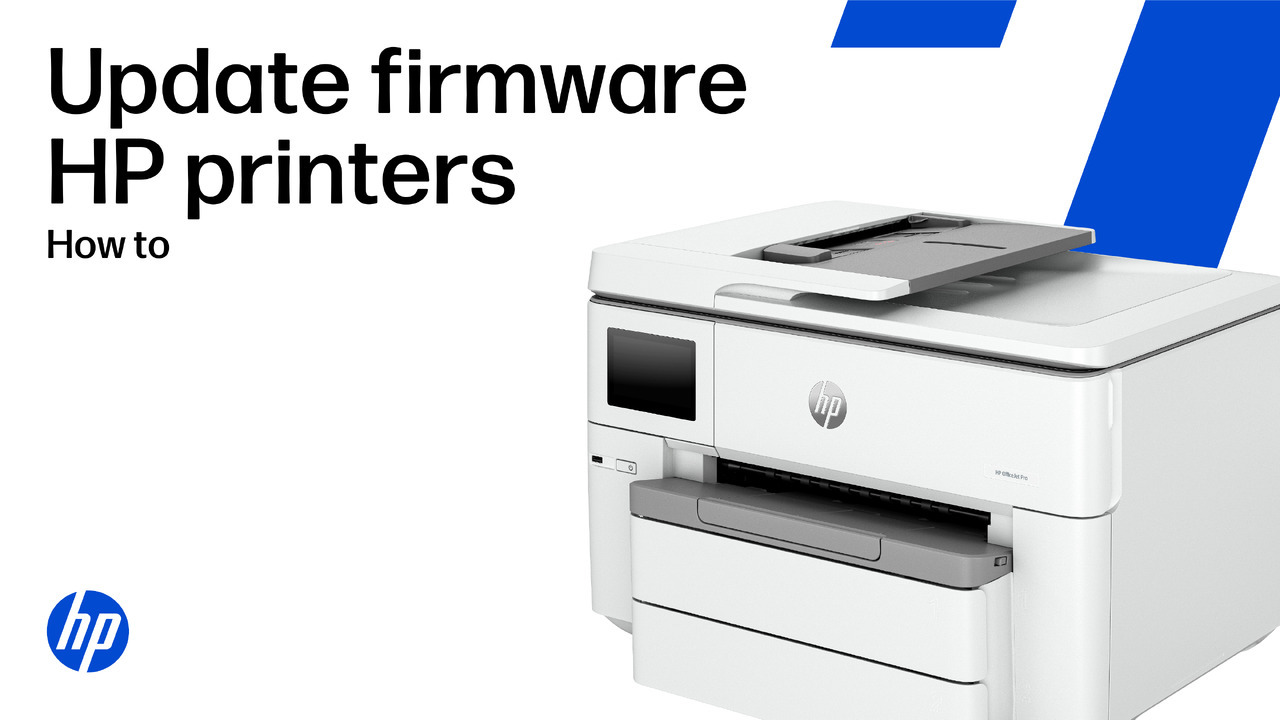
Update HP Printer Firmware
Outdated firmware can prevent proper network connection.
4
To update firmware:
- Connect the printer to your computer via USB (if Wi-Fi is not working).
- Open HP printer software on your computer.
- Go to Printer Settings or Tools.
- Select Update Printer.
- Install any available firmware updates.
- Restart the printer after updating.
Firmware updates improve compatibility and fix known bugs.
Reinstall HP Printer Drivers
Corrupted or outdated drivers can cause network connection issues.
- Go to your computer’s Control Panel.
- Remove the existing HP printer driver.
- Restart your computer.
- Download the latest driver version compatible with your operating system.
- Install the driver and set up the wireless connection again.
Ensure your operating system is updated for better compatibility.
Reset HP Printer Network Settings
If the printer still cannot join the network, reset its network settings:
- Access the printer control panel.
- Go to Network Settings.
- Select Restore Network Defaults.
- Confirm the reset.
- Restart the printer.
- Run the Wireless Setup Wizard again.
This clears incorrect network configurations.
Check Router Security Settings
Some router settings may block the printer:
- Disable MAC address filtering temporarily.
- Ensure WPA2 security is enabled.
- Avoid complex firewall rules.
- Restart router after changes.
After adjusting settings, try reconnecting the printer.
HP Printer Login and Setup Configuration
To complete wireless setup and device management:
- Install HP printer software on your computer.
- Log in to your HP account through the setup interface.
- Register your printer during installation.
- Complete network configuration steps.
Account login helps with firmware updates, cloud printing, and remote troubleshooting.
HP Printer Activation and Service Setup
After successful network connection:
- Complete printer activation through setup software.
- Enable Web Services if available.
- Configure email and mobile printing settings.
- Verify printer appears online in devices list.
Activation ensures full functionality and remote services.
HP Printer Not Working After Network Setup?
If your HP printer connects but still does not print:
- Check printer status (Online/Offline).
- Set printer as default device.
- Clear print queue.
- Restart print spooler service.
- Reconnect printer to the same network as your computer.
Network mismatches can prevent printing even when connected.
HP Printer Troubleshooting Tips
Here are additional troubleshooting methods:
- Move printer closer to router.
- Avoid interference from microwaves or cordless phones.
- Assign a static IP address to the printer.
- Update router firmware.
- Try connecting using WPS button method.
These steps resolve most wireless connectivity problems.
When to Contact HP Customer Support
If none of the above steps fix the issue:
- The printer repeatedly fails to detect networks.
- Wireless hardware appears damaged.
- Error messages persist after reset.
- Firmware update fails.
Contact HP customer support for professional assistance. Provide your printer model number, operating system details, and error messages for faster resolution.
Conclusion
The issue of an HP printer being unable to join the network is common but usually easy to fix. By checking wireless settings, restarting devices, updating firmware, reinstalling drivers, and resetting network configurations, you can restore your printer’s connection quickly. Regular updates and proper network maintenance help prevent future connectivity problems and ensure smooth wireless printing.
Leave a Reply