

Horizontal lines on printed pages are a common issue with HP printers. These lines can appear as faint streaks, dark bands, or missing sections across text and images. The problem is usually related to clogged printheads, low ink levels, incorrect alignment, outdated drivers, or software issues.
What Causes HP Printer Printing Horizontal Lines?
Horizontal lines typically occur due to:
- Clogged or dirty printheads
- Low or dried ink cartridges
- Printhead misalignment
- Incorrect print settings
- Outdated HP printer drivers
- Paper quality issues
Understanding the cause helps you apply the correct fix and restore print quality quickly.
Check Ink Levels and Cartridge Condition


4
Low or empty cartridges often cause horizontal streaks.
Steps to check ink levels:
- Open the HP printer control panel.
- Navigate to Ink Levels or Printer Maintenance.
- Replace any low or empty cartridges.
- Use genuine HP cartridges for best results.
If cartridges are old or dried out, replacing them can immediately resolve line issues.
Clean the Printhead to Remove Clogs
Clogged printheads are the most common reason for horizontal lines.
How to clean printhead:
- Go to Printer Settings on your computer.
- Select Maintenance.
- Click Clean Printhead.
- Print a test page.
If lines remain, run the deep cleaning option. Avoid excessive cleaning as it consumes ink.
Align the Printhead for Accurate Printing
Misalignment can create uneven or banded prints.
Steps to align printhead:
- Open HP printer software.
- Select Tools or Printer Maintenance.
- Choose Align Printhead.
- Follow on-screen instructions.
Print a test page after alignment to check improvement.
Adjust Print Quality Settings
Incorrect print settings may produce horizontal banding.
- Select High Quality or Best Mode.
- Ensure correct paper type is selected.
- Avoid draft mode for important documents.
This improves ink distribution and print clarity.
Update HP Printer Drivers
Outdated drivers can cause printing errors.
4
Steps to update drivers:
- Open Device Manager on your computer.
- Locate your HP printer.
- Click Update Driver.
- Install the latest version.
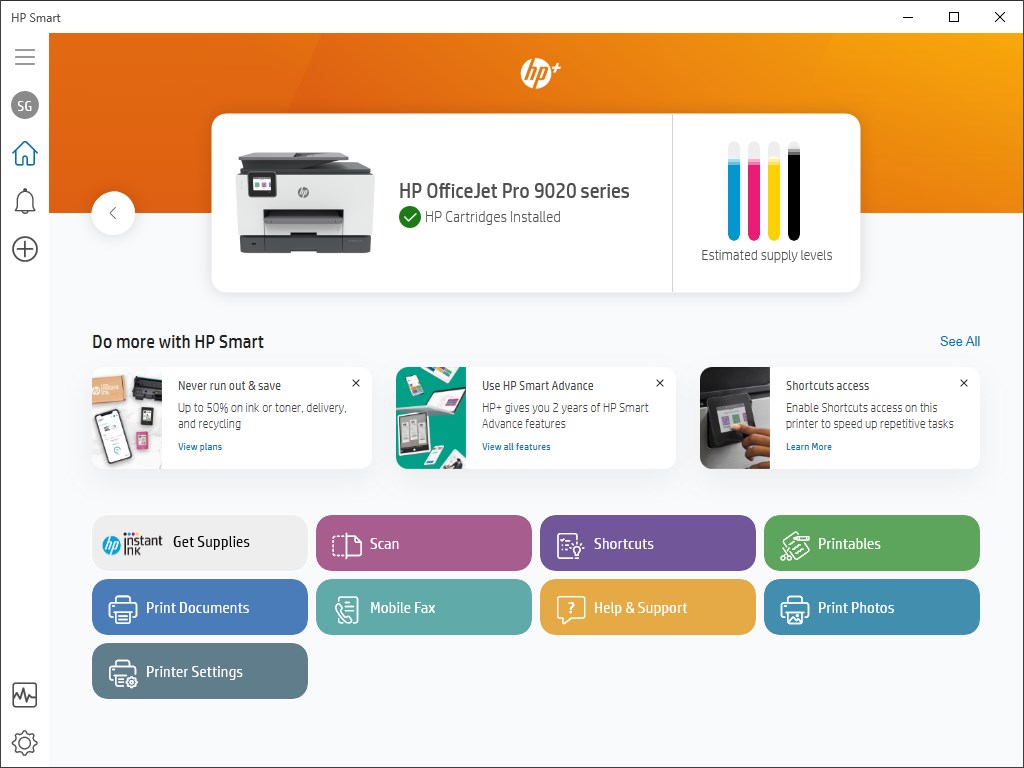
You can also use the HP Smart application for automatic updates.
Download and Install HP Printer Software
Proper installation ensures smooth performance.
Download and Install Steps:
- Visit the official HP support page.
- Enter your printer model.
- Download the latest driver package.
- Run the setup file.
- Follow installation instructions.
- Restart your computer.
After installation, print a test page to confirm the issue is resolved.
HP Printer Login and Account Setup
Some HP printers require login through HP Smart for advanced features.
How to Sign Up and Login:
- Install HP Smart app.
- Create a new HP account.
- Verify email address.
- Login to manage printer settings.
- Add your printer to the dashboard.
Account login allows firmware updates, troubleshooting tools, and remote management.
HP Printer Activation and Setup
If your printer is new or recently reset:
- Connect printer to Wi-Fi.
- Install HP Smart.
- Sign in to your HP account.
- Follow activation instructions.
- Complete alignment and setup process.
Proper activation prevents print quality issues.
HP Printer Not Working? Complete Troubleshooting Guide
If horizontal lines continue:
- Restart printer and computer.
- Disconnect and reconnect USB/Wi-Fi.
- Check paper quality.
- Reset printer to factory settings.
- Reinstall printer drivers.
These steps often resolve persistent banding issues.
Reset HP Printer to Fix Horizontal Lines
Resetting clears temporary errors.
Basic Reset Method:
- Turn off the printer.
- Unplug power cord.
- Wait 60 seconds.
- Plug back in and turn on.
Print a diagnostic page after reset.
Prevent Horizontal Lines in Future
- Use genuine HP ink cartridges.
- Print regularly to prevent ink drying.
- Perform monthly printhead cleaning.
- Keep printer firmware updated.
- Store paper in dry conditions.
Regular maintenance improves long-term performance.
HP Printer Customer Support and Service
If the issue persists, contact HP customer support for professional assistance.
Support services include:
- Remote troubleshooting
- Driver reinstallation help
- Printhead replacement guidance
- Warranty repair service
- Firmware update assistance
Certified technicians can diagnose hardware-level problems if cleaning and updates do not fix the issue.
Conclusion
Horizontal lines in HP printers are usually caused by clogged printheads, low ink, misalignment, or outdated drivers. By cleaning the printhead, aligning cartridges, updating software, and performing proper maintenance, you can restore excellent print quality quickly. Regular updates, proper login setup, and routine servicing ensure your HP printer continues working smoothly without print defects.
Leave a Reply