

HP printers are widely known for delivering reliable and high-quality printing performance. However, many users face an issue where PDF documents print with cropped edges, missing margins, or cut-off content. This problem can occur due to incorrect print settings, outdated drivers, scaling errors, or paper size mismatches.
Common Reasons Why HP Printer Prints Cropped PDF Files
Before applying fixes, it’s important to understand why this happens:
- Incorrect paper size settings
- Improper scaling (Actual Size instead of Fit to Page)
- Outdated or corrupted printer drivers
- Incorrect margin configuration
- PDF viewer print settings issue
- HP printer firmware not updated
Resolving these issues usually requires adjusting settings in both the PDF software and the printer driver.
Check PDF Print Settings (Most Common Fix)
The most common reason for cropped PDF files is incorrect scaling settings.
Steps to Fix:
- Open the PDF file.
- Press Ctrl + P to open Print settings.
- Under Page Sizing & Handling, select:
- Fit or Shrink Oversized Pages
- Ensure the correct paper size (A4, Letter, etc.) is selected.
- Click Print.
If “Actual Size” is selected, it may cut off margins. Always use “Fit to Page” for proper scaling.
Verify HP Printer Paper Size Settings
Incorrect paper size settings in the printer driver can cause content cropping.
How to Check:
- Go to Control Panel
- Click Devices and Printers
- Right-click your HP printer → Select Printing Preferences
- Confirm paper size matches your document (A4, Letter, etc.)
- Apply settings and print again
If the paper tray is set to a different size than the PDF document, cropping will occur.
Update HP Printer Drivers
Outdated or corrupted drivers can cause formatting issues while printing PDFs.

4
Steps to Update HP Printer Driver:
- Open Device Manager
- Expand Printers
- Right-click your HP printer
- Select Update Driver
- Choose “Search automatically for drivers”
You can also download the latest driver using the HP Smart app for automatic updates and configuration.
Updating drivers often resolves PDF cropping and scaling issues instantly.
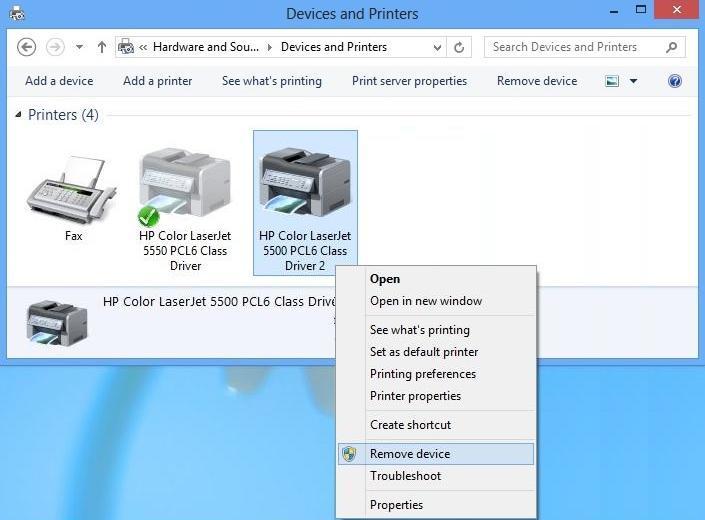
Reinstall HP Printer (Download & Install Again)
If updating doesn’t work, reinstalling the printer may help.
Steps:
- Go to Devices and Printers
- Remove the HP printer
- Restart your computer
- Download the latest driver
- Install and reconnect your printer
Reinstallation resets corrupted print configurations that may cause cropping.
Check HP Smart Login and Printer Setup
Sometimes incorrect account configuration or printer sync issues can affect print settings.
Steps:
- Open HP Smart
- Login to your HP account
- Remove and re-add your printer
- Complete setup again
- Try printing the PDF
Logging in ensures your printer firmware and settings sync correctly.
Update HP Printer Firmware
Firmware updates improve compatibility with PDF formatting.
How to Update:
- Open HP Smart
- Go to Printer Settings
- Select Advanced Settings
- Check for Firmware Update
- Install if available
Outdated firmware may cause scaling and page layout issues.
Adjust Margins in PDF Before Printing
If cropping continues, manually adjust margins:
- Open PDF in print preview
- Choose Custom Scale (95–98%)
- Enable “Print as Image” (Advanced settings)
- Print again
Printing as an image prevents rendering errors that sometimes cause cropping.
HP Printer Not Working While Printing PDFs?
If your printer is not responding while printing PDF files:
- Restart printer and computer
- Clear print queue
- Ensure printer is set as default
- Check USB/Wi-Fi connection
- Disable firewall temporarily
PDF rendering sometimes conflicts with network delays or driver errors.
Troubleshooting HP Printer Cropped Print Issues
Here’s a quick checklist:
✔ Use “Fit to Page”
✔ Match paper size
✔ Update drivers
✔ Reinstall printer
✔ Update firmware
✔ Print as image
✔ Check margins
Following these steps fixes most cropped PDF printing problems.
HP Printer Customer Support & Service Options
If the issue persists after troubleshooting:
- Use HP Smart diagnostic tool
- Contact HP customer support
- Schedule service for hardware inspection
- Check warranty status in HP account
HP service centers can inspect alignment sensors and internal hardware if the issue is mechanical.
Prevent Future Cropped Printing Issues
To avoid PDF cropping problems in the future:
- Always verify paper size before printing
- Keep printer drivers updated
- Update firmware regularly
- Use latest PDF reader software
- Avoid changing scaling settings frequently
Regular maintenance ensures consistent and accurate print formatting.
Conclusion
If your HP printer is printing cropped PDF files, the issue is usually related to scaling settings, paper size mismatch, outdated drivers, or firmware problems. By adjusting PDF print settings, updating drivers, reinstalling the printer, and ensuring proper setup through HP Smart login, you can quickly resolve the problem.
Leave a Reply