

If your HP printer is printing pages with a black background, dark shading, or inverted colors, it can waste ink and ruin print quality. This issue is usually caused by incorrect print settings, driver problems, cartridge faults, or software glitches.
Why Is My HP Printer Printing a Black Background?
A black background problem typically occurs due to:
- Incorrect print color settings
- Corrupted or outdated printer drivers
- Faulty or leaking black ink cartridge
- Printhead issues
- Software configuration errors
- Incorrect document or PDF settings
Before contacting support, try the troubleshooting steps below.
Check Printer Color Settings
Sometimes the issue is caused by incorrect color configuration.
Steps to Verify Print Settings:
- Open the document you want to print.
- Click File > Print.
- Select your HP printer.
- Open Printer Properties.
- Ensure:
- “Print in Grayscale” is disabled
- “Negative Image” is unchecked
- Paper type matches your paper
- Save settings and print a test page.
If the problem continues, move to the next step.
Clean the Printhead
Clogged or misfiring printheads can cause excess black ink output.
How to Clean Printhead:
- Open Control Panel on your computer.
- Go to Devices and Printers.
- Right-click your HP printer.
- Select Printer Properties > Maintenance.
- Click Clean Printhead.
- Print a test page.
You may need to run cleaning 2–3 times for best results.
Check and Replace Ink Cartridges
A leaking or faulty black cartridge can cause background flooding.

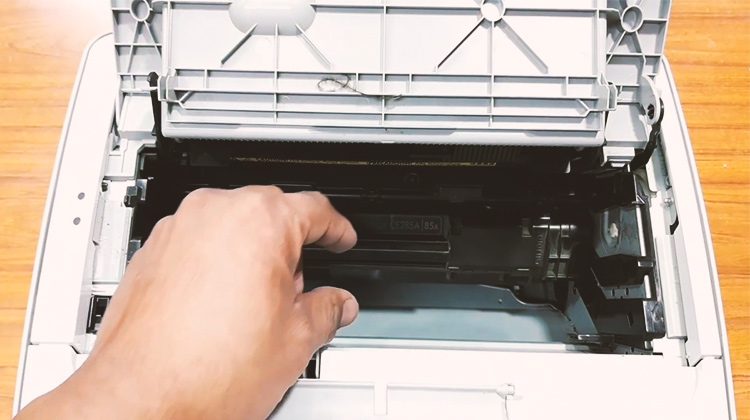

4
Steps:
- Remove the black ink cartridge.
- Check for ink leakage or damage.
- Clean copper contacts with a lint-free cloth.
- Reinstall properly.
- Replace cartridge if necessary.
- Run cartridge alignment after replacement.
Update HP Printer Drivers
Outdated drivers can cause inverted or dark background printing issues.
How to Update HP Printer Drivers:
- Open Device Manager.
- Expand Printers.
- Right-click your HP printer.
- Click Update Driver.
- Select Search automatically for drivers.
Alternatively, download the latest driver from HP’s official support portal and install it manually.
Download and Install HP Printer Software
Installing full-feature HP printer software can fix configuration errors.
Steps to Download & Install:
- Visit HP Support (official website).
- Enter your printer model number.
- Download full feature driver package.
- Run installer.
- Follow on-screen instructions.
- Restart your computer.
After installation, print a test page.
Reset HP Printer to Default Settings
Resetting restores factory configuration and resolves internal glitches.
Basic Reset Method:
- Turn off the printer.
- Unplug power cable.
- Wait 60 seconds.
- Plug it back in.
- Turn printer ON.
For advanced reset, use printer control panel settings (varies by model).
Check PDF or Document Settings
Sometimes the issue comes from the file itself.
- Open PDF in a different viewer.
- Check if background color is set to black.
- Print a different document for testing.
- Convert PDF to another format and print again.
Run HP Printer Troubleshooting Tool
Windows includes built-in troubleshooting tools.
Steps:
- Open Settings.
- Click Update & Security.
- Select Troubleshoot.
- Choose Printer.
- Click Run the Troubleshooter.
Follow on-screen instructions.
HP Printer Firmware Update
Outdated firmware may cause printing errors.
How to Update Firmware:
- Open HP printer software.
- Go to Printer Updates.
- Check for firmware updates.
- Install latest version.
- Restart printer.
Firmware updates improve compatibility and fix bugs.
HP Printer Login & Account Setup
Creating an HP account helps manage your printer, firmware updates, and support services.
How to Sign Up:
- Visit HP official website.
- Click Sign Up.
- Enter email and create password.
- Verify email.
- Register your printer model.
Login Benefits:
- Access driver downloads
- Get firmware updates
- Track service requests
- Contact support easily
When to Contact HP Customer Support
If none of the above solutions work, the issue may be hardware-related.
Contact HP Support if:
- Printer continuously prints full black pages
- Cartridge replacement did not fix issue
- Printer shows internal error codes
- Printhead is physically damaged
Provide your:
- Printer model
- Serial number
- Error message details
- Troubleshooting steps already attempted
HP support may guide you through advanced diagnostics or recommend servicing.
Common HP Printer Black Background Troubleshooting Summary
| Problem | Possible Fix |
|---|---|
| Black background on every page | Check color settings |
| Dark shaded prints | Clean printhead |
| Ink flooding | Replace cartridge |
| Inverted colors | Update drivers |
| Random dark printing | Reset printer |
Conclusion
The HP printer printing black background issue is usually caused by incorrect settings, clogged printheads, outdated drivers, or cartridge problems. By following the troubleshooting steps in this guide—cleaning the printhead, updating drivers, reinstalling software, and resetting the printer—you can resolve the issue quickly.
If the problem persists after all troubleshooting steps, contacting HP customer service is the best option to prevent further damage and ensure professional assistance.
Leave a Reply