

HP printers are widely known for their reliability, print quality, and advanced features. However, like any printer, users may sometimes face issues such as paper not feeding properly. This problem can interrupt printing tasks and reduce productivity.
What Does “HP Printer Paper Not Feeding Properly” Mean?
When your HP printer fails to pick up paper from the tray, pulls multiple sheets at once, or jams frequently, it indicates a paper feeding issue. This can happen due to dirty rollers, incorrect paper loading, outdated drivers, or hardware misalignment.
Common symptoms include:
- Printer not picking up paper
- Multiple sheets feeding at once
- Paper jamming repeatedly
- Grinding noise while printing
- Error message related to paper feed
Understanding the root cause helps in resolving the issue effectively.
Common Causes of HP Printer Paper Feed Problems
Several factors can cause HP printer paper not feeding properly:
1. Dirty or Worn-Out Rollers
Over time, paper dust accumulates on pickup rollers, reducing grip.
2. Incorrect Paper Loading
Overfilled trays or misaligned paper stacks can block smooth feeding.
3. Low-Quality or Damaged Paper
Moist, curled, or thin paper may prevent proper pickup.
4. Driver or Software Issues
Outdated drivers can cause communication errors between the printer and system.
5. Printer Firmware Needs Update
An outdated firmware version can lead to performance glitches.
Step-by-Step Guide to Fix HP Printer Paper Not Feeding Properly
Step 1: Check and Reload Paper Properly
- Turn off the printer.
- Remove all paper from the input tray.
- Tap the stack on a flat surface to align edges.
- Reload paper without overfilling.
- Adjust paper width guides to fit snugly.
Make sure you use recommended paper size and type for your HP printer model.
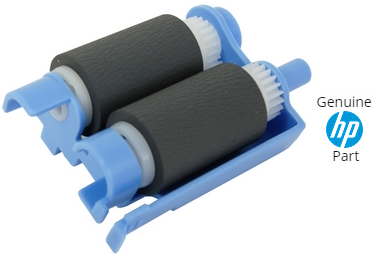
Step 2: Clean the Pickup Rollers


4
Dirty rollers are one of the most common causes of feeding problems.
How to clean:
- Turn off and unplug the printer.
- Open the input tray or rear access panel.
- Locate the rubber rollers.
- Use a lint-free cloth lightly dampened with distilled water.
- Gently wipe the rollers and rotate them manually.
- Allow rollers to dry completely before reconnecting power.
Regular cleaning improves grip and paper movement.
Step 3: Check for Paper Jam or Obstructions
Open all printer access doors and carefully inspect for:
- Torn paper pieces
- Dust accumulation
- Foreign objects
Remove any blockage carefully to avoid damaging internal components.
Step 4: Update HP Printer Drivers
Outdated drivers can cause feeding and printing errors.
To update:
- Open Device Manager on your computer.
- Locate your HP printer under Printers.
- Right-click and choose Update Driver.
- Follow on-screen instructions.
You can also reinstall drivers completely if the issue persists.
Step 5: Update Printer Firmware
Firmware updates improve printer stability and fix known bugs.
- Access printer settings from control panel.
- Check for firmware update option.
- Install latest updates if available.
Keeping firmware updated prevents recurring performance issues.
HP Printer Setup, Login, and Activation Guide
Many HP printers require account login and activation during setup, especially wireless models.
HP Printer Signup and Login Process
- Install HP printer software on your system.
- Create an HP account if required.
- Sign in using your credentials.
- Complete printer activation and wireless configuration.
This ensures full access to printer features, cloud printing, and remote services.
HP Printer Installation and Download Support
Proper installation helps prevent hardware and feeding issues.
How to Install HP Printer Correctly
- Connect printer via USB or Wi-Fi.
- Download and install the correct driver package.
- Follow setup wizard instructions.
- Print a test page after installation.
Correct driver installation ensures smooth communication between printer and system.
HP Printer Not Working – Advanced Troubleshooting
If paper still does not feed after basic fixes:
Reset the Printer
- Turn off the printer.
- Disconnect power cable.
- Wait 60 seconds.
- Reconnect and power on.
Perform Printer Maintenance
Most HP printers include maintenance options like:
- Cleaning page
- Roller cleaning mode
- Alignment calibration
Run these from the printer’s control panel.
When to Contact HP Printer Customer Support
If none of the above solutions fix the problem, it may indicate:
- Worn-out pickup rollers
- Internal hardware failure
- Sensor malfunction
In such cases, contact HP printer customer service for professional assistance or service repair. Providing your printer model and error details will speed up the support process.
Preventing HP Printer Paper Feeding Issues
To avoid future problems:
- Use high-quality paper
- Avoid overloading the paper tray
- Store paper in a dry environment
- Clean rollers every few months
- Keep printer firmware updated
Preventive maintenance significantly improves printer lifespan.
Conclusion
HP printer paper not feeding properly is a common but manageable issue. In most cases, cleaning the rollers, reloading paper correctly, updating drivers, or performing a reset resolves the problem. Proper installation, regular updates, and timely troubleshooting ensure smooth printer performance.
Leave a Reply