

If your HP printer is not printing from USB, it can be frustrating—especially when you need urgent documents. USB printing issues are common and usually related to driver problems, connection errors, outdated firmware, or incorrect printer settings.
What Causes HP Printer Not Printing from USB?
Before fixing the issue, it’s important to understand the possible causes:
- Faulty or loose USB cable
- Corrupted or outdated HP printer drivers
- Printer not set as default
- Print spooler service error
- Firmware issues
- USB port malfunction
- Incomplete printer installation
- Windows update conflicts
Identifying the root cause helps resolve the issue faster.
Step-by-Step: How to Fix HP Printer Not Printing from USB
1. Check USB Cable and Connection


- Ensure the USB cable is firmly connected to both the printer and computer.
- Try a different USB cable.
- Switch to another USB port on your computer.
- Avoid using USB hubs during troubleshooting.
A damaged cable is one of the most common causes of USB printing failure.
2. Restart Printer and Computer
- Turn off your HP printer.
- Disconnect the USB cable.
- Restart your computer.
- Reconnect the USB and power the printer back on.
This refreshes the system and resolves temporary glitches.
3. Set HP Printer as Default
- Open Control Panel.
- Go to Devices and Printers.
- Right-click your HP printer.
- Select Set as Default Printer.
If another printer is set as default, your documents may not print correctly.
4. Update or Reinstall HP Printer Drivers


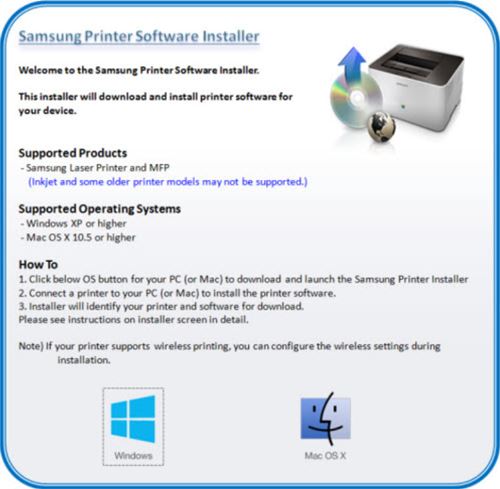
Outdated or corrupted drivers can prevent USB printing.
To Update Drivers:
- Open Device Manager
- Expand Printers
- Right-click your HP printer
- Click Update Driver
To Reinstall Drivers:
- Uninstall the printer from Device Manager
- Restart your computer
- Reinstall the latest HP printer driver
- Reconnect the USB cable when prompted
Proper driver installation ensures smooth USB communication.
5. Restart Print Spooler Service
- Press Windows + R
- Type
services.msc - Find Print Spooler
- Right-click and select Restart
The print spooler manages print jobs. Restarting it fixes queue-related issues.
6. Run HP Print and Scan Doctor
HP provides a built-in diagnostic tool that detects and fixes common printing problems automatically.
- Install and launch HP diagnostic utility
- Select your printer
- Run automatic troubleshooting
This tool often resolves USB detection errors instantly.
How to Download and Install HP Printer Software
Proper installation is critical for USB functionality.
Download Process:
- Identify your HP printer model.
- Download the latest compatible driver for your Windows or macOS version.
- Save the setup file to your computer.
Installation Steps:
- Double-click the setup file.
- Follow on-screen instructions.
- Connect USB only when prompted.
- Complete installation and restart the system.
Always install full-feature software for complete printer functionality.
How to Activate and Register HP Printer
Activating and registering your HP printer ensures:
- Warranty validation
- Firmware updates
- Customer support access
- Service tracking
Activation Steps:
- Complete software installation
- Create or sign in to your HP account
- Register printer details (model & serial number)
- Enable automatic updates
Activation helps maintain optimal performance.
HP Printer Login and Account Setup
Creating an HP account allows you to:
- Manage printers
- Download drivers
- Schedule service
- Access troubleshooting tools
- Check warranty status
Signup Steps:
- Provide email address
- Create password
- Verify account
- Add printer to dashboard
Account access simplifies printer management and support.
HP Printer Firmware Update (Important Fix)
Outdated firmware may cause USB recognition issues.
Update Steps:
- Open HP printer software
- Navigate to Printer Maintenance
- Select Firmware Update
- Install latest version
Firmware updates improve device compatibility and fix bugs.
Advanced Troubleshooting If HP Printer USB Still Not Working
If basic fixes don’t work, try these advanced solutions:
✔ Disable USB Selective Suspend (Windows)
- Go to Power Options
- Disable USB selective suspend
- Restart computer
✔ Check Windows Updates
Pending updates may interfere with printing. Install all system updates.
✔ Try Printer on Another Computer
If the printer works on another PC, the issue is system-related.
✔ Factory Reset Printer
Reset printer settings from control panel to clear configuration errors.
HP Printer Customer Support & Service Options
If the issue persists:
- Contact HP customer support
- Schedule hardware inspection
- Request warranty service
- Get remote technical assistance
Professional support is recommended if USB ports are physically damaged.
Preventive Tips to Avoid USB Printing Issues
- Use original USB cables
- Keep drivers updated
- Install firmware updates regularly
- Avoid unplugging USB during printing
- Clean printer ports carefully
Regular maintenance ensures uninterrupted performance.
Conclusion
If your HP printer is not printing from USB, the issue is usually related to driver problems, connection errors, outdated firmware, or incorrect system settings. By checking the USB cable, reinstalling drivers, restarting the print spooler, and updating firmware, you can quickly resolve most issues.
Proper installation, regular updates, account registration, and preventive maintenance help ensure long-term printer performance and reliability.
Leave a Reply