

When you change your Wi-Fi router, network name (SSID), or password, your HP printer may suddenly stop printing. This happens because the printer is still connected to the old network settings.
Why HP Printer Stops Printing After Network Change
When your wireless network changes:
- The printer remains connected to the old Wi-Fi.
- The saved IP address becomes invalid.
- The computer cannot locate the printer.
- HP Smart app may show the printer as offline.
- Driver or firmware conflicts may occur.
To fix this, you must reconnect the printer to the new network and update settings on your computer or mobile device.
Step 1: Reset HP Printer Network Settings
Before reconnecting, reset the printer’s wireless settings.
How to Reset Network on Most HP Printers:
- Turn on the printer.
- Press and hold the Wireless + Cancel buttons together for 5 seconds (varies by model).
- The blue light will start blinking (Setup Mode enabled).
This prepares the printer for fresh Wi-Fi configuration.
Step 2: Reconnect HP Printer to New Wi-Fi Network
Method 1: Using HP Smart App (Recommended)
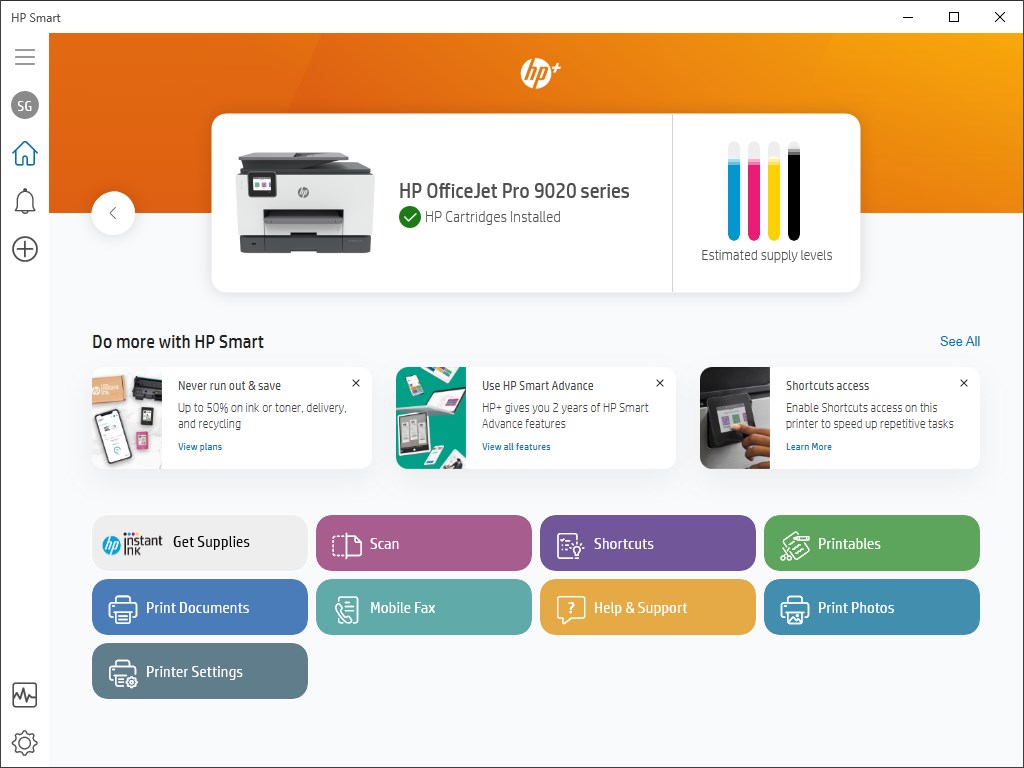


- Install or open HP Smart on your computer or phone.
- Click Add Printer.
- Select your printer in setup mode.
- Enter your new Wi-Fi password.
- Complete the connection process.
Make sure your computer is connected to the same new Wi-Fi network.
Method 2: Using WPS Button (If Supported)
- Press the WPS button on your router.
- Within 2 minutes, press the Wireless button on your HP printer.
- Wait until the wireless light becomes solid.
Step 3: Remove and Re-Add Printer on Computer
After network change, your computer may still remember the old printer IP.
On Windows:
- Go to Control Panel > Devices and Printers.
- Remove the old HP printer.
- Click Add Printer.
- Select the newly connected printer.
On Mac:
- Go to System Settings > Printers & Scanners.
- Delete the old printer.
- Click Add Printer and select the updated one.
Step 4: Update HP Printer Drivers
Outdated drivers can cause printing issues after a network change.
- Open HP Smart
- Go to Printer Settings
- Check for driver or firmware updates
- Install the latest version
Updated drivers ensure compatibility with the new network configuration.
Step 5: Restart All Devices
Sometimes the simplest fix works best:
- Turn off printer.
- Restart Wi-Fi router.
- Restart computer.
- Turn printer back on.
This refreshes the network and assigns a new IP address.
HP Printer Login and Signup for Account Setup
To manage your printer online, you may need an HP account.
Create HP Account (Signup)
- Open HP Smart.
- Click Sign In / Create Account.
- Enter email and password.
- Verify email.
- Add your printer to your account.
HP Login Benefits
- Access remote printing
- Manage ink subscription
- Check printer status
- Contact customer support
HP Printer Download and Install Guide
If your printer is not detected:
- Uninstall old printer software.
- Restart computer.
- Install the latest HP printer software.
- Connect printer during setup.
- Complete installation.
Always install software after connecting the printer to the correct Wi-Fi network.
Activate HP Printer After Setup
After installation:
- Print a test page.
- Confirm printer status shows Ready.
- Check HP Smart for “Connected” status.
- Enable Web Services if required.
Activation ensures full printer functionality including scanning and mobile printing.
HP Printer Not Working After Network Change – Common Fixes
If still not printing:
- Ensure printer and computer are on same Wi-Fi.
- Check printer is not set to “Use Printer Offline.”
- Assign manual IP address if needed.
- Disable firewall temporarily to test.
- Check ink levels and paper tray.
HP Printer Troubleshooting Tips
Here are quick troubleshooting steps:
- Run HP Print and Scan Doctor (Windows).
- Reset router.
- Reinstall printer drivers.
- Check wireless signal strength.
- Perform factory reset if required.
Factory reset should be used only if other steps fail.
HP Printer Customer Support and Service Options
If your HP printer still does not print:
- Use HP Smart app support section.
- Check warranty status.
- Request repair service.
- Contact HP customer care via official support channels.
Keep your printer model number ready before contacting support.
Prevent Future Network Issues
To avoid printing problems after changing Wi-Fi:
- Always reconnect printer immediately after router update.
- Keep printer firmware updated.
- Avoid frequent network name changes.
- Use stable 2.4GHz network (if printer doesn’t support 5GHz).
Conclusion
If your HP printer not printing after network change, the issue is usually related to Wi-Fi reconnection or outdated driver settings. Reset the network settings, reconnect via HP Smart, update drivers, and remove old printer entries from your system.
Following these steps will restore printing quickly and ensure smooth performance going forward.
Leave a Reply