

Ink smudging is a common issue that affects print quality and can make documents look unprofessional. If your HP printer is leaving wet ink marks, streaks, or smears on paper, the problem is usually related to paper type, print settings, printhead condition, or maintenance needs.
Common Reasons Why HP Printer Ink Smudges
Before fixing the issue, it’s important to understand what causes ink smearing:
- Incorrect paper type selected in printer settings
- Using low-quality or glossy paper not supported by your printer
- Excess ink due to high ink density settings
- Dirty or misaligned printhead
- Slow drying ink
- Outdated printer drivers
- Cartridge leakage or overfilled cartridges
1. Check Paper Type and Print Settings


One of the main causes of ink smudging is incorrect paper settings.
Steps to Fix:
- Open Printer Properties on your computer.
- Go to Paper/Quality settings.
- Select the correct paper type (Plain Paper, Photo Paper, etc.).
- Reduce print quality from “Best” to “Normal” if necessary.
- Disable “High Ink Density” or similar options.
Using the correct settings ensures the printer releases the right amount of ink.
2. Clean the Printhead


Clogged printheads can cause excess ink buildup and smearing.
How to Clean:
- Go to Printer Settings from the control panel.
- Select Tools or Maintenance.
- Choose Clean Printhead.
- Print a test page after cleaning.
If smudging continues, run a second cleaning cycle.
3. Align the Printhead Properly
Misalignment can cause overlapping ink lines.
Steps:
- Open printer maintenance menu.
- Select Align Printhead.
- Follow on-screen instructions.
- Print alignment page.
Alignment improves print accuracy and reduces smearing.
4. Update HP Printer Drivers
Outdated drivers can cause incorrect ink calibration and printing errors.
How to Update:
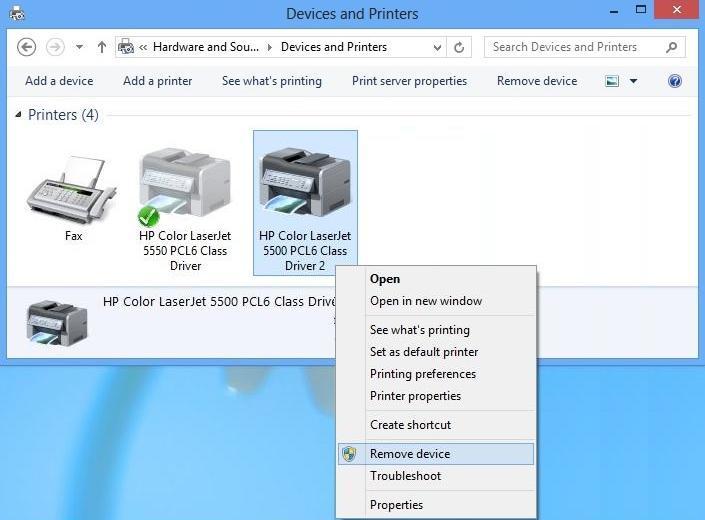
- Open Device Manager on your PC.
- Locate your HP printer.
- Right-click and select Update Driver.
- Install latest updates.
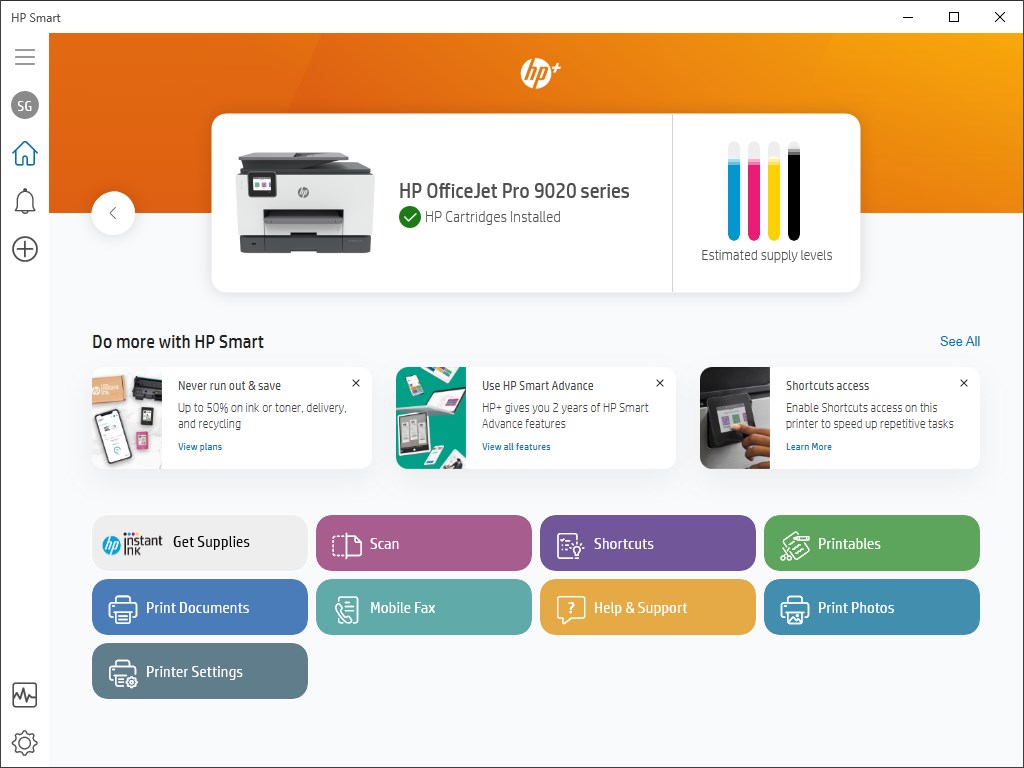
Alternatively, use the HP Smart App to check for firmware updates.
5. Check Ink Cartridges
- Remove cartridges and inspect for leaks.
- Ensure cartridges are genuine and properly installed.
- Replace old or overfilled cartridges.
- Clean cartridge contacts with a lint-free cloth.
Improper cartridges can release too much ink onto paper.
6. Allow Proper Drying Time
If you’re printing photos or heavy graphics:
- Wait a few seconds before handling prints.
- Avoid stacking freshly printed pages.
- Use recommended HP paper types.
7. Reinstall HP Printer Software
If the problem persists, reinstalling the software can reset internal settings.
Steps:
- Uninstall HP printer software from Control Panel.
- Restart your computer.
- Install latest HP printer software.
- Reconfigure printer settings.
HP Printer Login & Signup for Support
To manage your printer and get support:
- Visit HP account portal.
- Create an HP account (Signup).
- Login to register your printer.
- Access warranty status and service options.
- Download latest drivers and firmware.
Registering your printer ensures faster support access.
HP Printer Download & Install Guide
To ensure optimal performance:
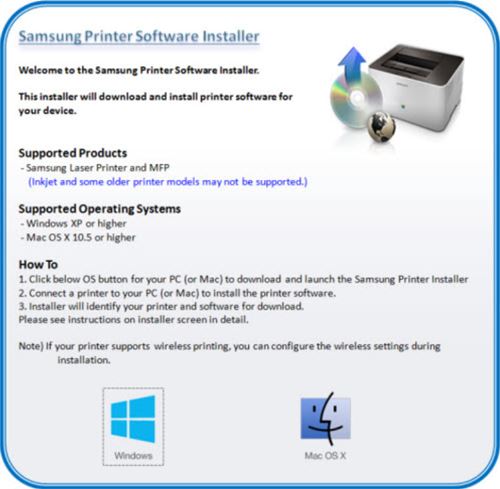
- Download the correct software for your model.
- Run installer as Administrator.
- Connect printer when prompted.
- Complete wireless or USB setup.
- Perform test print.
Proper installation reduces ink-related issues.
Activate HP Printer Customer Support & Service
If troubleshooting doesn’t solve the issue:
- Contact HP customer support.
- Request remote assistance.
- Schedule service appointment.
- Check warranty eligibility.
- Use online virtual assistant for quick help.
Professional servicing may be required if internal components are damaged.
Advanced Troubleshooting for HP Printer Not Working
If your printer continues smudging:
- Perform a full printer reset.
- Check firmware updates.
- Clean internal rollers.
- Inspect paper path for ink buildup.
- Replace maintenance kit (if applicable).
Persistent smearing may indicate worn internal parts.
Prevent Ink Smudging in the Future
✔ Use high-quality paper
✔ Store paper in dry area
✔ Update printer regularly
✔ Run maintenance monthly
✔ Avoid touching wet prints
✔ Use recommended print settings
Conclusion
Ink smudging on HP printers is usually caused by incorrect settings, clogged printheads, or outdated software. By adjusting paper settings, cleaning and aligning the printhead, updating drivers, and checking cartridges, you can quickly restore clean and sharp prints.
Leave a Reply