

Secure wireless printing is essential for protecting sensitive documents and preventing unauthorized access to your printer. Modern HP printers offer advanced wireless security features that allow users to safeguard print jobs, manage access, and maintain data privacy across home and office networks.
Understanding HP Printer Secure Wireless Printing
Secure wireless printing allows users to:
- Protect print jobs with authentication
- Prevent unauthorized access to the printer
- Encrypt wireless communication
- Secure network connections
- Control user permissions
HP provides secure print features through tools such as:
- HP Smart App
- Embedded Web Server (EWS)
- Wi-Fi Protected Setup (WPS)
- WPA2/WPA3 encryption
- Secure Print with PIN
These features help ensure that confidential documents are only printed when authorized.
HP Printer Login and Signup Setup
Before enabling secure wireless printing, you need to configure your HP account.
Step 1: Create or Sign Up for HP Account
- Visit the official HP setup page.
- Click on Sign Up.
- Enter your email address and create a password.
- Verify your email to activate the account.
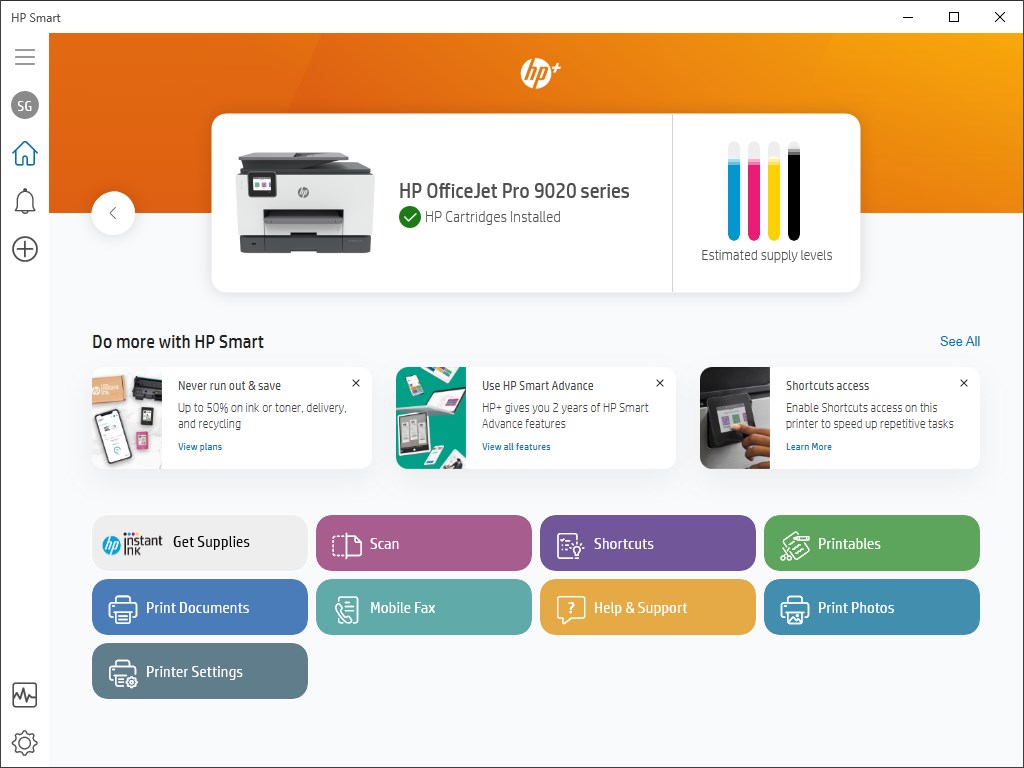
Step 2: Login to HP Smart
- Open the HP Smart App on your computer or mobile device.
- Click Sign In.
- Enter your registered email and password.
- Select your connected printer.
Signing in ensures that you can manage printer security settings and cloud-based print services securely.
Download and Install HP Printer Software
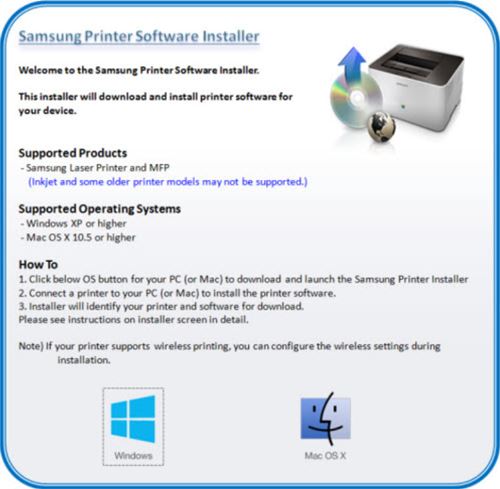
To enable secure wireless printing, make sure your HP printer software is installed properly.
4
Steps to Download and Install:
- Go to the official HP support page.
- Enter your printer model number.
- Download the latest HP Smart App or full-feature driver.
- Run the installer file.
- Follow on-screen instructions to complete installation.
- Connect your printer to Wi-Fi during setup.
After installation, restart your system for proper configuration.
Activate Secure Wireless Printing on HP Printer
Once installed, follow these steps to activate secure printing:
Method 1: Enable Wireless Encryption
- Access the printer’s control panel.
- Go to Network Settings.
- Select Wireless Setup Wizard.
- Choose your Wi-Fi network.
- Enter your WPA2/WPA3 password.
- Confirm encryption is enabled.
Method 2: Enable Secure Print with PIN
- Open HP Smart App.
- Select Advanced Settings.
- Access the Embedded Web Server (EWS).
- Go to Security Settings.
- Enable Secure Print.
- Set a PIN for print jobs.
- Save changes.
Now, documents will only print after entering the correct PIN at the printer.
HP Printer Customer Support and Service
If you encounter issues while enabling secure wireless printing, HP provides customer assistance through:
- Live chat support
- Phone support
- Virtual assistant
- Service center appointments
Before contacting support, keep the following details ready:
- Printer model number
- Serial number
- Operating system version
- Error message (if any)
HP service experts can guide you through secure network setup and activation.
HP Printer Not Working After Enabling Secure Printing?
Sometimes enabling security features may temporarily interrupt connectivity. Here are quick fixes:
Restart Devices
- Turn off printer and router.
- Wait 60 seconds.
- Restart router first, then printer.
Reconnect to Wi-Fi
- Run Wireless Setup Wizard again.
- Ensure correct password is entered.
Disable Firewall Temporarily
- Some firewalls block printer communication.
- Temporarily disable and test printing.
Reset Network Settings
- Restore network defaults from printer settings.
- Reconfigure wireless setup.
HP Printer Secure Wireless Printing Troubleshooting
Common issues and solutions:
Issue 1: Printer Offline
- Set printer as default.
- Check network connection.
- Restart Print Spooler service.
Issue 2: Incorrect PIN Error
- Re-enter correct PIN.
- Reset Secure Print settings via EWS.
Issue 3: Slow Wireless Printing
- Move printer closer to router.
- Reduce network congestion.
- Update firmware.
Issue 4: Cannot Access Security Settings
- Ensure you are logged in as administrator.
- Update printer firmware.
Update HP Printer for Better Security
Keeping your printer updated improves security and performance.
Steps to Update:
- Open HP Smart App.
- Select your printer.
- Go to Advanced Settings.
- Click Printer Updates.
- Install available firmware updates.
- Restart printer after update.
Firmware updates often include improved encryption protocols and security patches.
Benefits of Enabling HP Secure Wireless Printing
- Protects confidential documents
- Prevents unauthorized access
- Enhances network security
- Reduces data breach risks
- Improves office compliance standards
- Ensures safe remote printing
Secure printing is especially important in shared office environments and businesses handling sensitive data.
Best Practices for HP Wireless Security
- Use strong Wi-Fi passwords
- Enable WPA3 encryption if available
- Change default admin password
- Regularly update firmware
- Disable unused network features
- Monitor connected devices
Implementing these practices ensures long-term security and smooth printer performance.
Conclusion
Enabling HP Printer Secure Wireless Printing Feature is an important step in protecting your documents and maintaining a secure network environment. By properly installing the printer software, logging into your HP account, activating encryption, enabling PIN-based printing, and keeping firmware updated, you can ensure safe and reliable wireless printing.
Leave a Reply