

Secure Scan to Cloud Storage is a powerful feature available on many modern HP printers that allows users to scan documents directly to cloud services like Google Drive, Dropbox, OneDrive, and other supported platforms. If you are using a Mac and want to enable secure cloud scanning on your HP printer.
What is HP Printer Secure Scan to Cloud on Mac?
HP Secure Scan to Cloud is a feature that allows you to scan documents directly from your HP printer and upload them securely to your cloud storage account. This eliminates the need to scan to your computer first and manually upload files.
This feature is commonly configured using:
- HP Smart App on macOS
- HP Embedded Web Server (EWS)
- HP cloud services integration
It ensures encrypted transfer of scanned documents and secure login authentication.
Requirements to Enable Secure Scan to Cloud on Mac
Before starting, make sure you have:
- A compatible HP printer with cloud scan capability
- A Mac computer running the latest macOS version
- HP Smart app installed
- Active internet connection
- Valid cloud storage account (Google Drive, OneDrive, Dropbox, etc.)
- HP account login credentials
Download and Install HP Smart on Mac
4
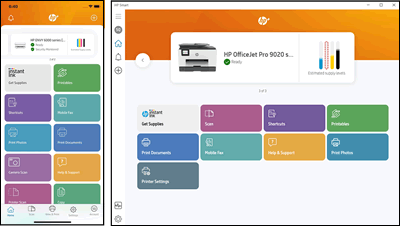
To enable Secure Scan to Cloud, you must install HP Smart on your Mac.
Step 1: Download HP Smart
- Open the Mac App Store.
- Search for HP Smart.
- Click Download and install the app.
Step 2: Install and Launch
- Open HP Smart after installation.
- Click “Add Printer.”
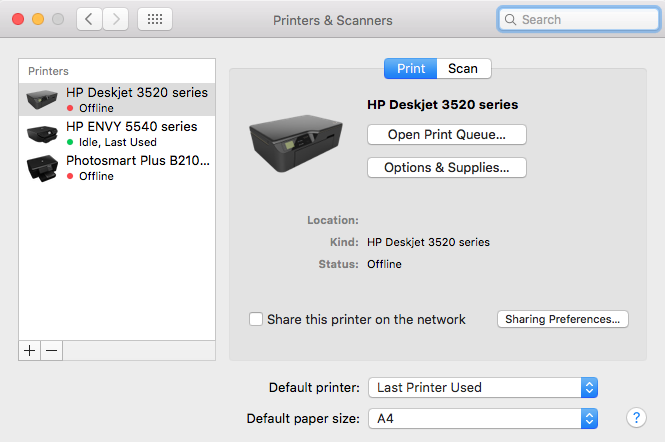
- Select your HP printer from the list.
- Complete the connection process.
Make sure your printer and Mac are connected to the same Wi-Fi network.
HP Account Login and Signup for Cloud Scanning
Secure cloud scanning requires an HP account.
How to Login
- Open HP Smart.
- Click the profile icon.
- Enter your HP account email and password.
- Complete verification if prompted.
How to Signup
- Click “Create Account.”
- Enter your name, email, and password.
- Verify your email address.
- Sign in to activate cloud services.
Once logged in, cloud scanning features will become available.
How to Enable Secure Scan to Cloud Storage on Mac
Follow these steps carefully:
Step 1: Open HP Smart
Launch the HP Smart app on your Mac.
Step 2: Select Scan
Click on the “Scan” tile from the dashboard.
Step 3: Choose “Scan to Cloud”
Select the Scan to Cloud option.
Step 4: Connect Cloud Storage Account
- Choose your preferred cloud service.
- Sign in with your cloud credentials.
- Grant necessary permissions.
Step 5: Enable Secure Authentication
You may be prompted to:
- Verify your identity
- Enable two-factor authentication
- Confirm device authorization
Step 6: Save Settings
Once connected, your printer will now securely scan documents directly to your selected cloud storage.
Activate HP Printer Secure Scan Feature
To activate cloud scanning fully:
- Ensure Web Services are enabled on your HP printer.
- Access printer settings via control panel.
- Navigate to Web Services or Cloud Services.
- Enable and confirm activation.
Some printers may require firmware updates before enabling this feature.
Update HP Printer for Cloud Compatibility
If Secure Scan to Cloud is not visible:
- Open HP Smart.
- Go to Printer Settings.
- Select Advanced Settings.
- Check for Firmware Updates.
- Install available updates.
Keeping firmware updated ensures cloud integration works properly.
HP Printer Secure Scan Not Working on Mac – Troubleshooting
If you face issues, try the following solutions:
Check Internet Connection
Ensure both your Mac and printer are connected to a stable Wi-Fi network.
Restart Devices
Restart:
- HP printer
- Mac computer
- Wi-Fi router
Re-login HP Account
Sign out of HP Smart and log in again.
Reconnect Cloud Account
Remove and re-add your cloud storage account in HP Smart.
Reset Web Services
Disable and re-enable Web Services from printer settings.
Update macOS
Ensure your Mac is running the latest version of macOS.
Common Error Issues and Fixes
| Issue | Solution |
|---|---|
| Scan to Cloud option missing | Update firmware and HP Smart app |
| Authentication error | Re-login to HP account |
| Cloud upload failed | Check cloud storage permissions |
| Printer offline | Reconnect to Wi-Fi |
HP Printer Customer Support and Service Options
If Secure Scan to Cloud still does not work, contact HP Support.
Support options include:
- Online chat support
- Phone support
- Virtual assistant
- Authorized service centers
Before contacting support, keep ready:
- Printer model number
- macOS version
- HP account email
- Error message details
Benefits of Enabling Secure Scan to Cloud on Mac
- Secure encrypted document transfer
- Direct cloud upload without manual steps
- Time-saving workflow
- Access documents from anywhere
- Ideal for remote work and business use
Conclusion
Enabling HP Printer Secure Scan to Cloud Storage on Mac is a simple but powerful way to improve document management and workflow efficiency. By installing HP Smart, logging into your HP account, activating Web Services, and connecting your cloud storage, you can securely scan and store documents directly from your printer.
If you encounter issues, troubleshooting steps like updating firmware, reconnecting accounts, and restarting devices usually resolve the problem. For persistent issues, HP customer support is available to assist.
Leave a Reply