

Enabling HP Printer Secure Scan to Cloud Storage on Mac allows you to scan documents directly from your HP printer to cloud services like Google Drive, Dropbox, or OneDrive. This feature is part of HP’s cloud-based printing ecosystem and works through your HP account and Web Services.
What Is HP Secure Scan to Cloud?
HP Secure Scan to Cloud is a feature that allows users to scan documents securely from their HP printer and send them directly to cloud storage accounts. It works with supported HP printers that have Web Services enabled.
This feature is managed through:
- HP Smart
- HP Easy Start
- HP Inc.
With Secure Scan to Cloud, your documents are encrypted during transmission, ensuring safe and private document handling.
Requirements to Enable HP Secure Scan to Cloud on Mac
Before you begin, make sure you have:
- A compatible HP printer with Web Services support
- A Mac running the latest macOS version
- Active internet connection
- An HP account
- HP Smart installed
- Cloud storage account (Google Drive, Dropbox, etc.)
Step 1: Create or Login to Your HP Account
To enable Secure Scan to Cloud, you must sign up or log in to your HP account.
How to Sign Up
- Open HP Smart on your Mac.
- Click Sign In.
- Select Create Account.
- Enter your email and create a password.
- Verify your email address.
How to Login
- Launch HP Smart.
- Enter your registered email and password.
- Click Sign In.
Your HP account connects your printer to cloud services securely.
Step 2: Download and Install HP Smart on Mac
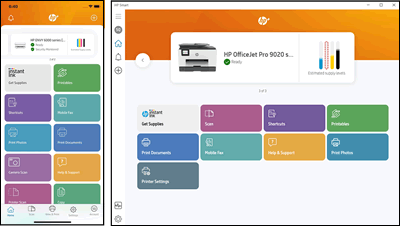
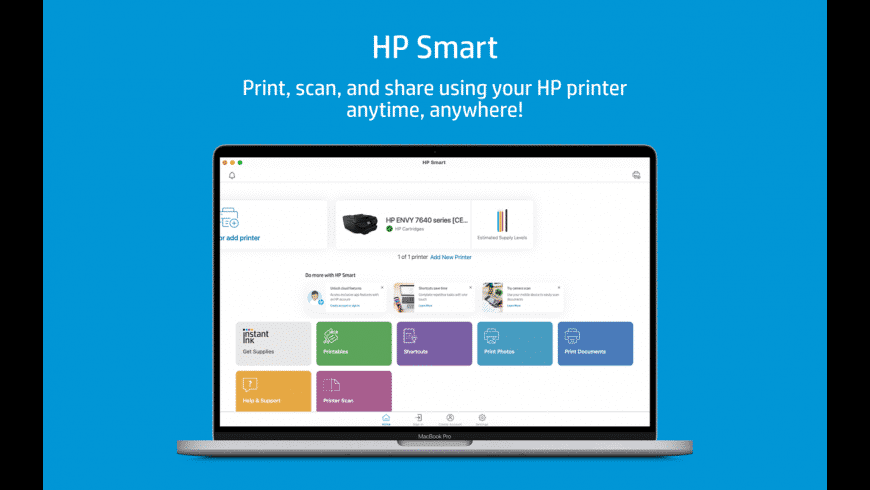
If you haven’t installed HP Smart, follow these steps:
Download HP Smart
4
- Open the Mac App Store.
- Search for HP Smart.
- Click Download.
- Install the application.
You can also use HP Easy Start to automatically detect and install necessary drivers.
Step 3: Enable HP Printer Web Services
Secure Scan to Cloud requires Web Services to be enabled.
How to Activate Web Services
- Turn on your HP printer.
- Open the printer’s control panel.
- Navigate to Settings > Web Services Setup.
- Select Enable Web Services.
- Accept the terms and connect to the internet.
Once enabled, your printer registers with HP cloud services.
Step 4: Activate Secure Scan to Cloud on Mac
After logging in and enabling Web Services:
- Open HP Smart.
- Select your printer.
- Click Scan.
- Choose Scan to Cloud.
- Select your cloud storage provider.
- Sign in to your cloud account.
- Grant necessary permissions.
Your HP printer is now activated for secure cloud scanning.
Step 5: Connect Cloud Storage Accounts
HP Secure Scan to Cloud supports:
- Google Drive
- Dropbox
- OneDrive
After selecting a provider:
- Enter login credentials.
- Authorize access.
- Choose default save folder.
- Set file format (PDF or JPEG).
Now your scanned files will automatically upload to your selected cloud location.
How to Update HP Printer and HP Smart on Mac
Keeping software updated prevents errors.
Update HP Smart
- Open Mac App Store.
- Click Updates.
- Install latest version if available.
Update Printer Firmware
- Open HP Smart.
- Go to Printer Settings.
- Select Advanced Settings.
- Check for firmware updates.
- Install available updates.
Updates improve cloud connectivity and security.
Troubleshooting HP Secure Scan to Cloud Not Working
If Secure Scan to Cloud is not working, try these solutions:
1. Check Internet Connection
Ensure both your Mac and printer are connected to the same Wi-Fi network.
2. Restart Devices
Restart your printer, router, and Mac.
3. Re-enable Web Services
Turn Web Services off and on again from printer settings.
4. Sign Out and Sign Back In
Log out of HP Smart and log back in.
5. Reinstall HP Smart
Uninstall and reinstall the app to fix corrupted files.
6. Check Firewall Settings
Ensure macOS firewall is not blocking HP Smart.
HP Printer Customer Support and Service
If troubleshooting does not resolve the issue:
- Contact HP customer support via HP Smart app.
- Use virtual assistant inside the app.
- Schedule printer service if required.
- Check warranty status through your HP account dashboard.
HP support can help with activation errors, login issues, and cloud connection failures.
Benefits of Enabling HP Secure Scan to Cloud
- Secure encrypted scanning
- Direct cloud storage access
- No need for USB transfers
- Faster document sharing
- Remote accessibility
- Improved workflow efficiency
Common Issues and Quick Fixes
| Issue | Solution |
|---|---|
| Scan to Cloud option missing | Enable Web Services |
| Login error | Reset HP account password |
| Cloud upload failed | Reconnect cloud account |
| Printer offline | Reconnect to Wi-Fi |
| Activation failed | Update firmware |
Conclusion
Enabling HP Printer Secure Scan to Cloud Storage on Mac is a simple yet powerful way to streamline document management. By installing HP Smart, logging into your HP account, enabling Web Services, and connecting your cloud storage, you can securely scan and store documents in just a few clicks.
If the feature is not working, basic troubleshooting steps like updating software, restarting devices, or reconnecting accounts usually resolve the issue. For advanced support, HP customer service is always available to help.
Leave a Reply