


Protecting a Mac is no longer optional in today’s connected world. While macOS is known for its strong built-in security, cyber threats such as malware, phishing attacks, ransomware, and spyware continue to evolve. That is where Intego Antivirus for Mac becomes an essential tool. Designed specifically for macOS, this antivirus solution offers real-time protection and advanced security features tailored for Apple devices.
This comprehensive guide explains how to download Intego Antivirus for Mac safely and correctly, ensuring that your system remains secure from the start.
Understanding Intego Antivirus for Mac
4
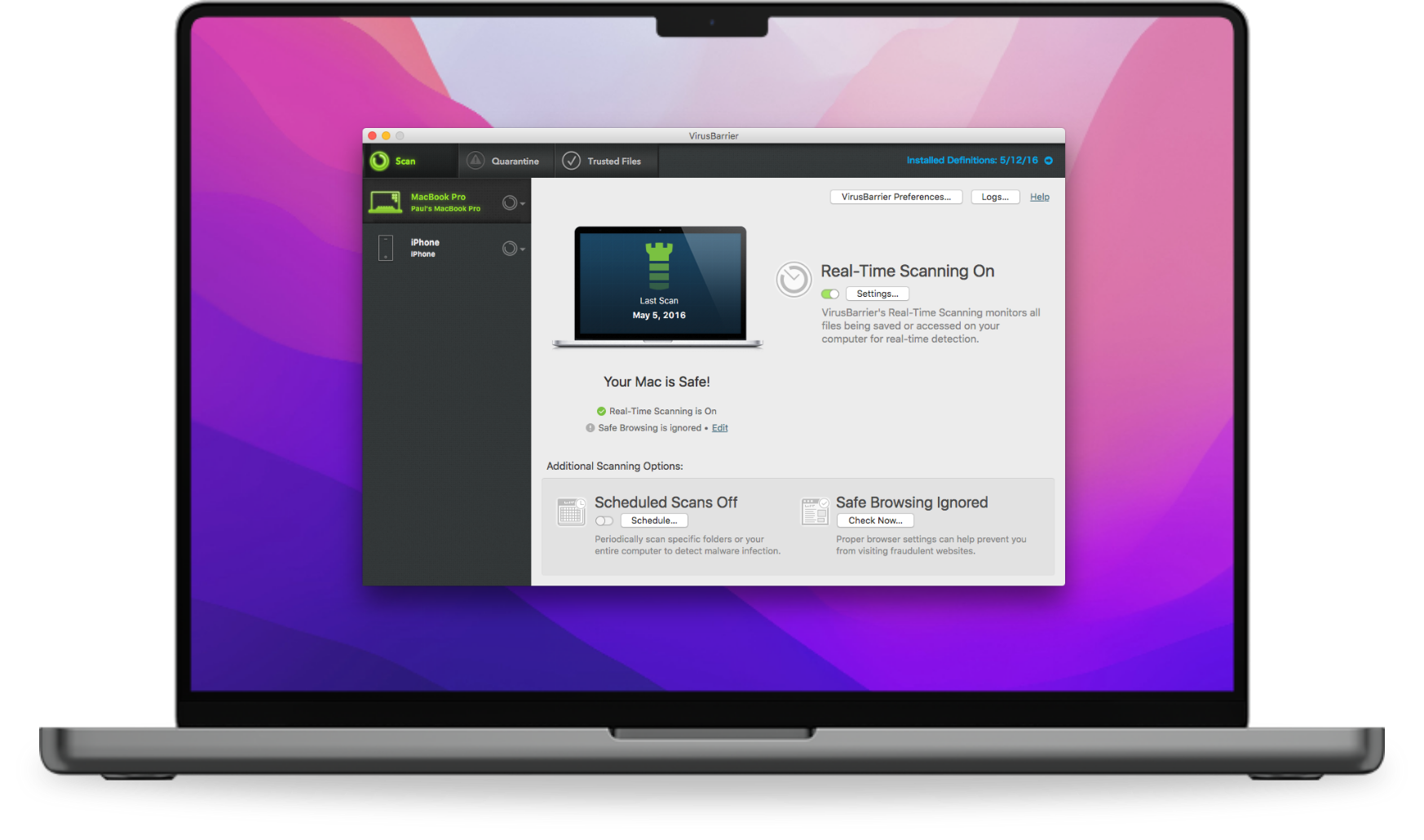
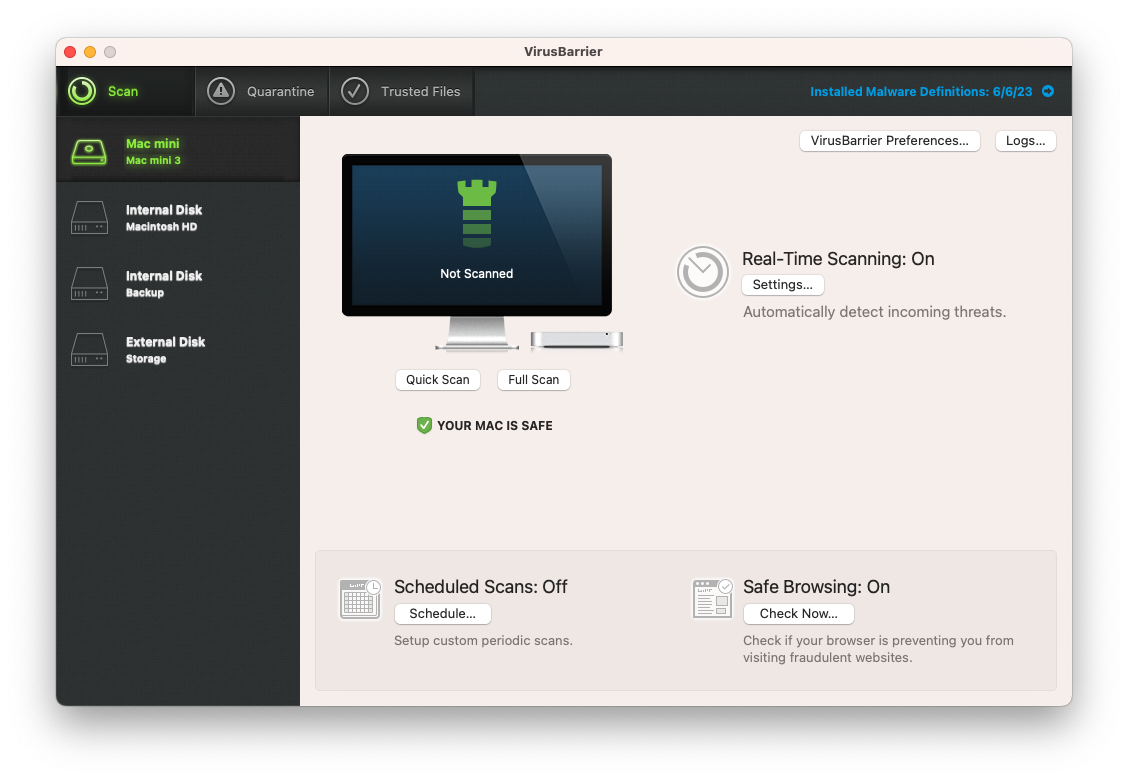
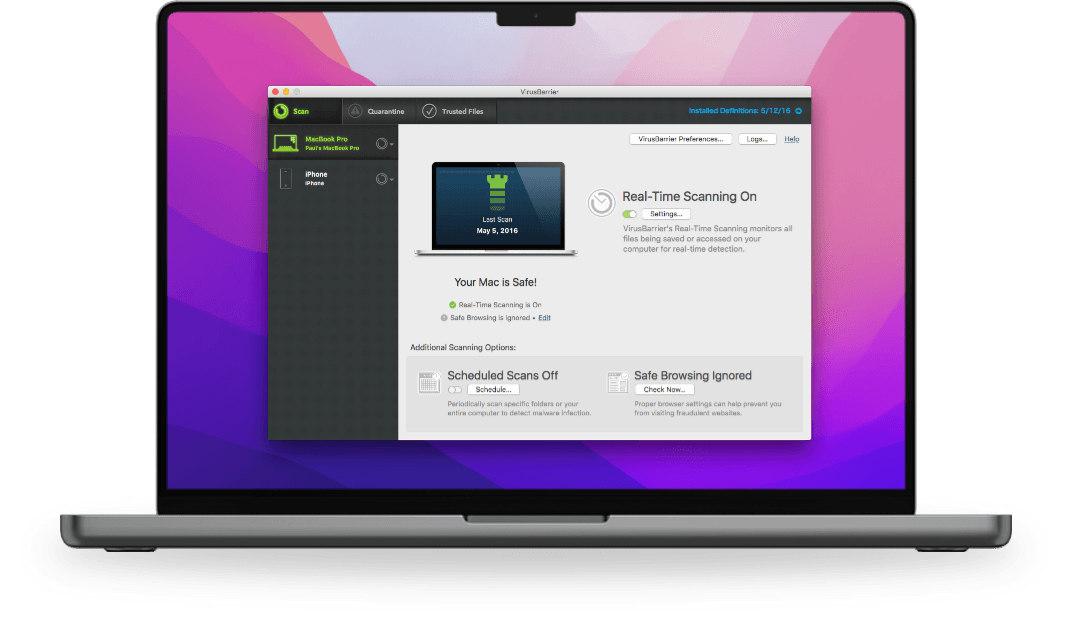
Before downloading any security software, it is important to understand what it offers. Intego Antivirus for Mac is part of a broader Mac security suite developed specifically for Apple systems. Unlike generic antivirus programs that are primarily designed for Windows, Intego focuses entirely on macOS.
Key features typically include:
Real-time malware protection
Automatic virus definition updates
Ransomware detection
Phishing protection
Scheduled scans
External device scanning
Because it is optimized for Mac architecture, it integrates smoothly with macOS without slowing down performance.
Why You Should Download Intego Antivirus for Mac
Many users assume that Macs are immune to viruses. While macOS has strong built-in security layers, cybercriminals continue to target Apple users with increasingly sophisticated attacks. Downloading Intego Antivirus provides an additional layer of defense.
It helps in detecting malicious software before it can cause harm. It also scans email attachments, downloads, and external drives such as USB devices. If you frequently browse the internet, shop online, or download files, antivirus protection becomes even more critical.
Moreover, Intego is known for its user-friendly interface, making it suitable for beginners and advanced users alike.
Preparing Your Mac Before Downloading
Before starting the download process, it is wise to ensure that your Mac meets the necessary system requirements. Most modern versions of macOS are supported, but checking compatibility ensures a smooth installation process.
Make sure:
Your macOS version is updated
You have a stable internet connection
You have sufficient storage space available
You are logged in with administrative privileges
Closing unnecessary applications before downloading can also prevent interruptions.
Steps to Download Intego Antivirus for Mac
4
Downloading Intego Antivirus for Mac is straightforward when done through the official source. Follow these carefully structured steps for a safe experience.
Visit the Official Website
Open your preferred web browser on your Mac. Navigate to the official Intego website. Always ensure that you are downloading software directly from the company’s official platform to avoid counterfeit or malicious copies.
Locate the Antivirus Product Page
Once on the website, find the Mac antivirus product section. You may see options such as VirusBarrier or a complete Mac protection suite. Select the version that best suits your needs.
Choose Your Plan
Intego often offers multiple subscription plans depending on the number of devices and features required. Select the plan that matches your usage needs.
Create or Sign Into an Account
You may be required to create an account using your email address. If you already have an account, simply log in. This account will help you manage your subscription and downloads.
Download the Installer
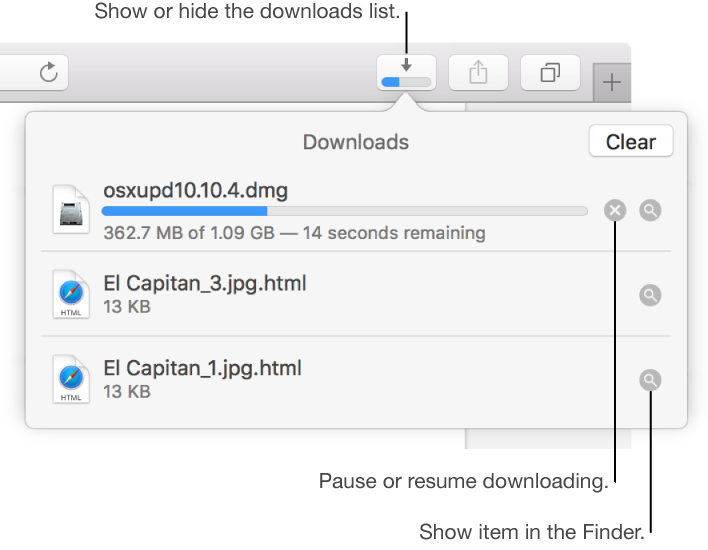
After completing the purchase or selecting a trial version, click the download button. The installer file, usually in .dmg format, will begin downloading automatically to your Downloads folder.
Wait for the download to finish completely before proceeding to installation.
Installing Intego Antivirus on Mac
4
Once the download is complete, the next step is installation.
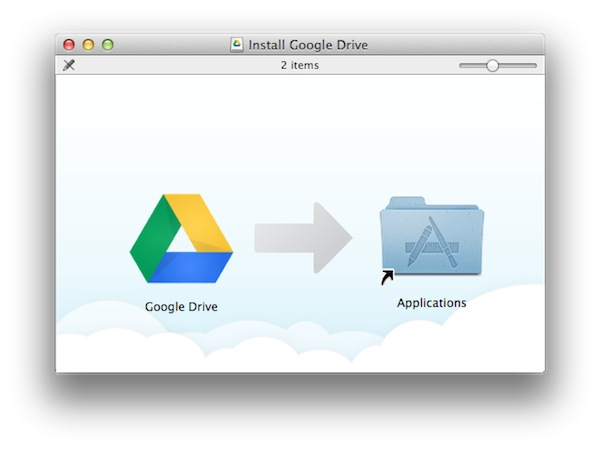
Open the Downloads folder and locate the downloaded .dmg file. Double-click the file to open it. A new window will appear displaying the Intego installer.
Follow the on-screen instructions carefully. In most cases, you will need to drag the application into your Applications folder. After that, launch the software.
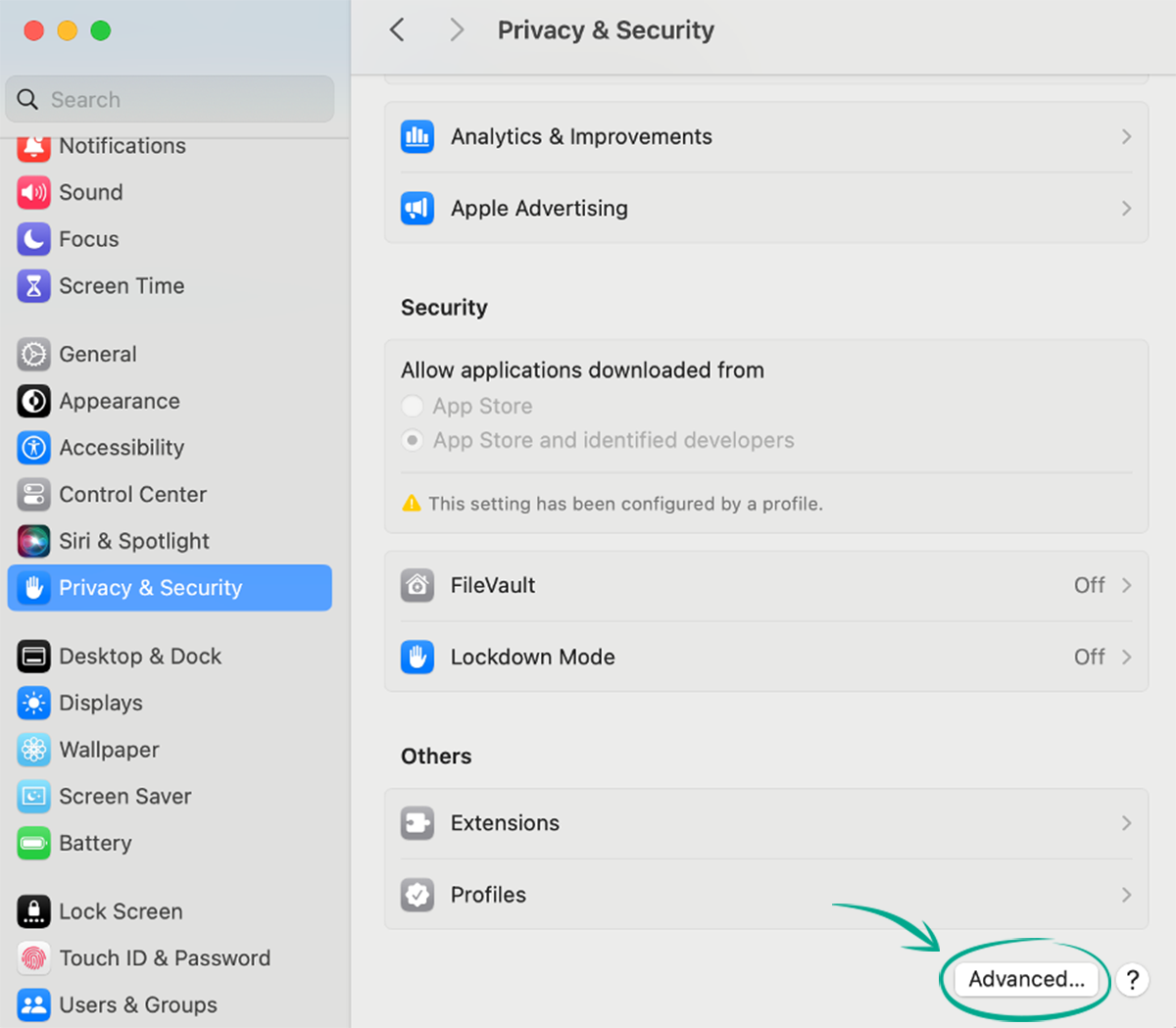
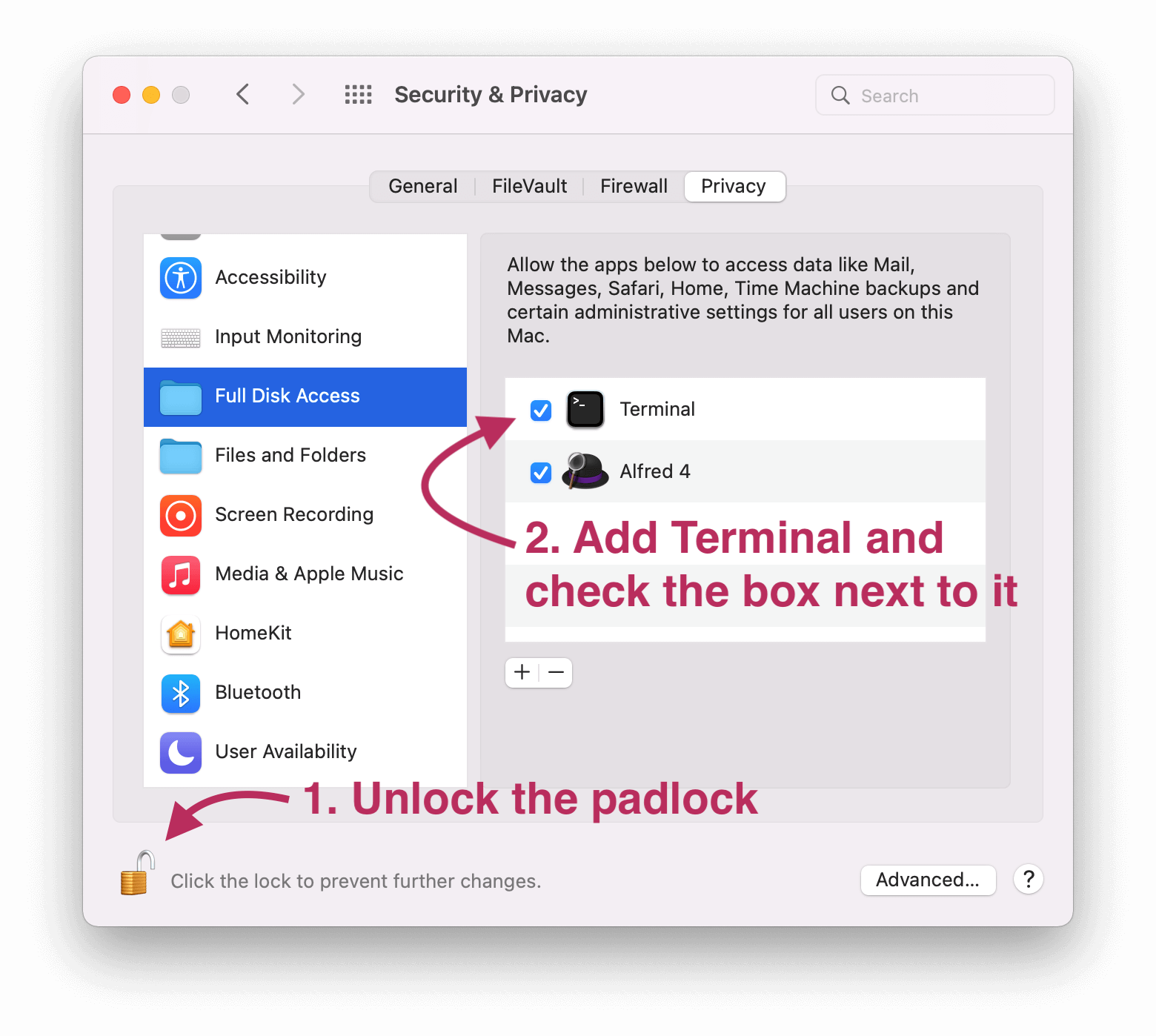
macOS may prompt you to grant certain permissions, such as Full Disk Access or System Extensions approval. These permissions are necessary for the antivirus to function properly. Open System Settings and allow the requested permissions.
After granting access, the installation wizard will complete the setup process.
Activating Your Antivirus
After installation, open Intego Antivirus from the Applications folder. You will be prompted to log in using your registered account credentials.
Once logged in, the software may automatically activate your subscription. If required, enter your license key to activate the product.
Activation ensures that your antivirus receives regular updates and provides real-time protection.
Running the First Scan
After activation, it is highly recommended to run an initial full system scan. This ensures that your Mac is free from any existing threats.
Open the dashboard and select the full scan option. The first scan may take some time depending on the number of files stored on your device.
Once completed, review the results and follow any recommended actions to remove detected threats.
Keeping Intego Updated
Cyber threats constantly evolve. That is why antivirus updates are crucial. Intego typically updates virus definitions automatically, but it is good practice to check for updates periodically.
Enable automatic updates within the settings panel to ensure continuous protection. Keeping your macOS updated alongside your antivirus software strengthens your overall security.
Troubleshooting Common Download Issues
Sometimes users encounter minor problems during download or installation. Here are some common solutions.
If the download does not start, check your internet connection and browser settings. Clearing the browser cache can also help.
If macOS blocks the installation, open System Settings, navigate to Privacy and Security, and allow the app manually.
If the installer fails to open, re-download the file from the official website to ensure it is not corrupted.
Restarting your Mac can also resolve temporary system glitches.
Tips for Safe Download Practices
When downloading antivirus software, security begins at the source. Always avoid third-party download websites, as they may bundle unwanted programs or malware.
Verify that the website address is correct before entering payment details. Look for secure payment methods when purchasing a subscription.
Never share your activation key publicly. Keep your account credentials secure.
Benefits of Using Intego on Mac
Intego stands out because it is built specifically for Mac users. Its lightweight design ensures minimal impact on system performance.
It also offers additional tools such as firewall protection and parental controls when included in broader plans.
With cyber threats becoming more advanced, having dedicated Mac antivirus software provides peace of mind.
Final Thoughts
Intego Antivirus download for Mac is a straightforward process that significantly enhances your Mac’s protection. By visiting the official website, selecting the appropriate plan, downloading the installer, and completing the setup carefully, you can secure your device in just a few steps.
While macOS offers built-in security features, adding a specialized antivirus solution strengthens your defense against modern cyber threats. Regular updates, routine scans, and safe browsing habits will ensure that your Mac remains protected for years to come.
Taking proactive steps today can prevent serious security issues tomorrow. With the right approach, downloading and installing Intego Antivirus for Mac becomes an essential and simple investment in your digital safety.
Leave a Reply