

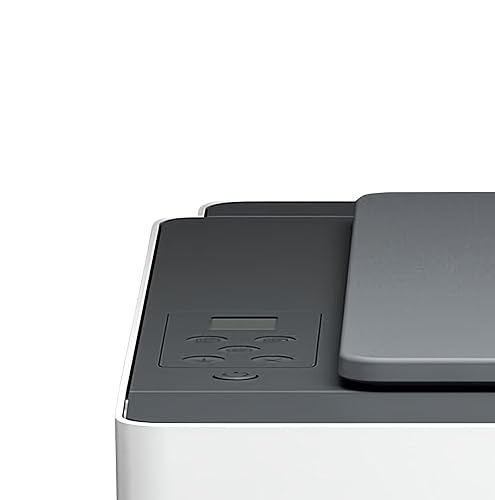
Connecting an HP printer without a touchscreen display to Wi-Fi may seem difficult, but it’s actually simple when you follow the correct setup method. Many HP DeskJet, ENVY, and LaserJet models do not include a control panel screen, yet they fully support wireless printing through software tools and mobile apps.
What Does It Mean to Connect HP Printer Without a Screen?
Printers without a screen rely on:
- Wi-Fi Protected Setup (WPS)
- HP Smart App
- USB temporary connection setup
- Wireless setup mode reset
Instead of entering Wi-Fi credentials manually on the printer, the setup is completed through a computer or smartphone.
Methods to Connect HP Printer to Wi-Fi Without Screen
1. Connect Using HP Smart App (Recommended Method)


4
The easiest method is through the official HP Smart App.
Step 1: Download HP Smart
- Install the HP Smart app on Windows, Mac, Android, or iPhone.
- Complete login or sign up with your HP account.
Step 2: Put Printer in Setup Mode
- Turn the printer on.
- Press and hold the Wireless and Cancel buttons together for 5 seconds.
- The blue light should start blinking.
Step 3: Add Printer
- Open HP Smart.
- Click Add Printer.
- Select your printer from the list.
- Enter your Wi-Fi network name and password.
Step 4: Activate and Complete Setup
- The app will configure and activate wireless printing.
- Print a test page to confirm connection.
This method works for most HP printers without display panels.
2. Connect HP Printer Using WPS Button Method
If your router has a WPS button:
- Press the WPS button on your router.
- Within 2 minutes, press and hold the printer’s Wireless button for 5 seconds.
- Wait until the blue light becomes solid.
Your HP printer will connect automatically without needing a screen.
3. Connect HP Printer via USB Setup (Alternative Method)
If Wi-Fi setup fails:
- Connect printer to computer using USB cable.
- Open HP Smart.
- Choose “Set up a new printer.”
- Follow on-screen instructions.
- Remove USB cable after Wi-Fi connection completes.
This method is useful if the printer is not detected wirelessly.
HP Printer Login, Signup & Account Activation
To manage your printer:
- Create an HP account during HP Smart installation.
- Use the same login credentials across devices.
- Activate printer services like cloud printing and firmware updates.
- Register printer for warranty and service support.
Account login ensures seamless updates and device management.
HP Printer Driver Download and Installation
For smooth wireless functionality:
- Download the latest HP printer driver.
- Install the software package.
- Restart your system after installation.
- Launch HP Smart and verify connectivity.
Keeping drivers updated prevents network detection issues.
HP Printer Not Connecting to Wi-Fi? Troubleshooting Guide
If your HP printer is not working or not connecting:
Check Wireless Light
- Blinking Blue = Setup Mode
- Solid Blue = Connected
- No Light = Wireless Off
Restart Devices
- Turn off printer and router.
- Wait 60 seconds.
- Restart router first, then printer.
Reset Network Settings
Press and hold:
- Wireless + Cancel button for 5 seconds
This resets wireless configuration.
Update Printer Firmware
Outdated firmware may block Wi-Fi connection. Use HP Smart to check updates.
Move Printer Closer to Router
Weak signal can prevent successful setup.
HP Printer Update & Maintenance
To keep your printer running smoothly:
- Enable automatic firmware updates.
- Keep HP Smart updated.
- Clean printhead regularly.
- Restart printer weekly to refresh network connection.
Regular updates prevent “printer offline” and connectivity errors.
HP Printer Customer Support & Service Help
If troubleshooting fails:
- Contact HP customer support.
- Use HP Smart diagnostics tool.
- Check warranty status through account login.
- Request service if hardware issue persists.
Professional support is recommended for persistent network failures.
Common Issues and Quick Fixes
| Problem | Solution |
|---|---|
| Printer not found | Reset wireless mode |
| HP Smart not detecting printer | Reinstall app |
| Wi-Fi light not blinking | Factory reset printer |
| Printer offline | Reconnect to same Wi-Fi network |
| Setup fails repeatedly | Use USB setup method |
Final Thoughts
Connecting an HP printer to Wi-Fi without a screen is simple when using the right method. Whether through HP Smart, WPS, or USB setup, you can quickly activate wireless printing without needing a display panel.
By following proper installation, login, activation, and troubleshooting steps, you can ensure smooth printing, easy updates, and long-term performance.
Leave a Reply