

Connecting your HP printer to a MacBook Air is a simple process when you follow the correct steps. Whether you are setting up a new printer, reconnecting after a Wi-Fi change, or troubleshooting connection issues.
Understanding HP Printer Compatibility with MacBook Air
HP Inc. printers are fully compatible with macOS, including MacBook Air models running the latest operating systems. Most modern HP printers support:
- Wireless (Wi-Fi) connection
- USB setup
- AirPrint support
- HP Smart app integration
Before starting, ensure:
- Your MacBook Air is connected to Wi-Fi
- The printer is powered on
- Both devices are on the same wireless network
Methods to Connect HP Printer to MacBook Air
1️⃣ Connect HP Printer Using Wi-Fi (Recommended)

4
Step-by-Step Wireless Setup:
- Turn on your HP printer.
- On the printer control panel, open Wireless Settings.
- Select Wireless Setup Wizard.
- Choose your Wi-Fi network and enter the password.
- On your MacBook Air:
- Open System Settings
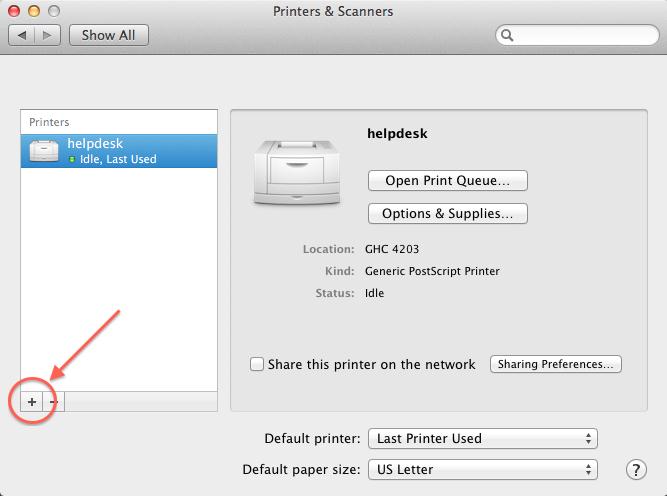
- Click Printers & Scanners
- Select Add Printer
- Choose your HP printer from the list.
- Click Add to install and activate the printer.
Once added, your printer is ready to print wirelessly.
2️⃣ Connect HP Printer via USB Cable


4
If Wi-Fi setup is not working:
- Connect the printer to your MacBook Air using a USB cable (you may need a USB-C adapter).
- Open System Settings → Printers & Scanners.
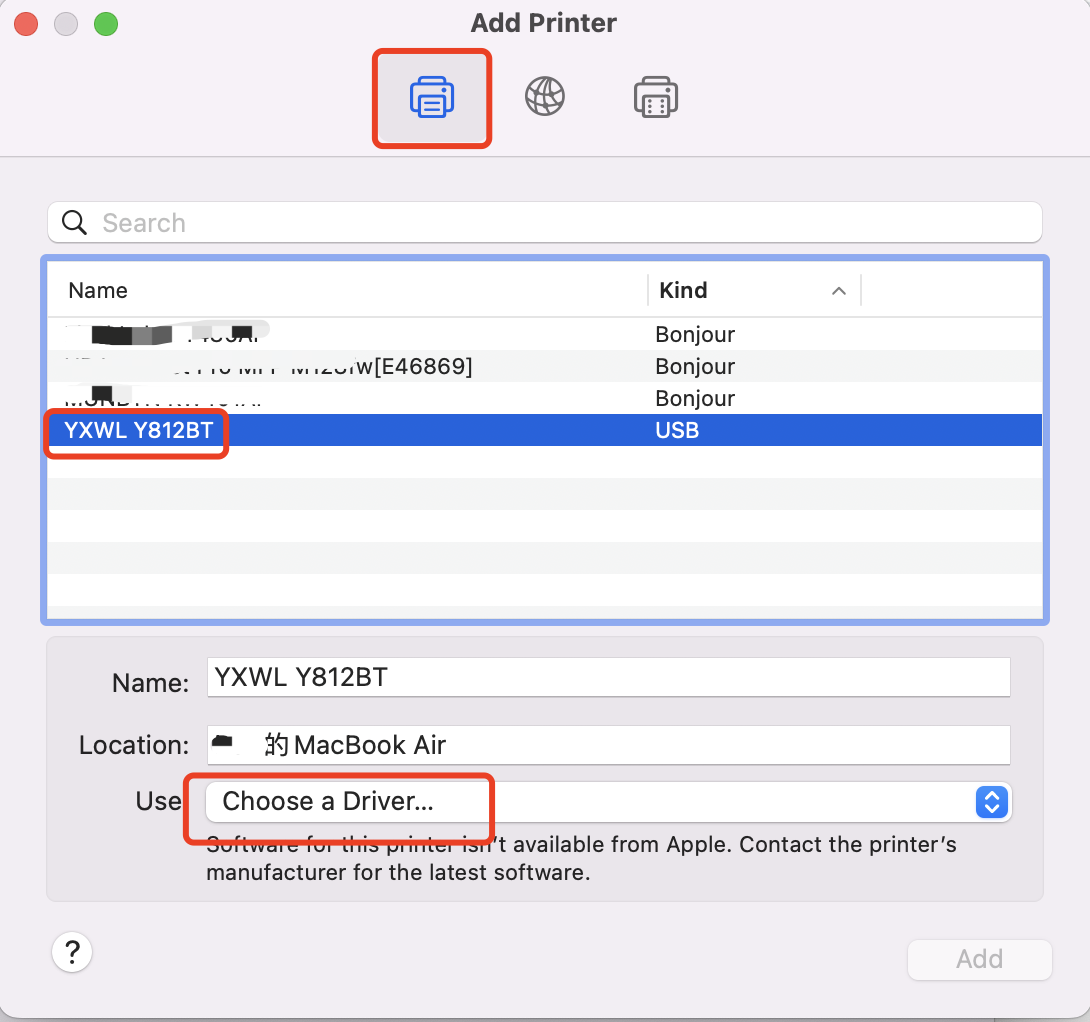
- Click Add Printer.
- Select the printer shown under USB devices.
- Click Add to complete installation.
After setup, you may disconnect USB if you want to switch to wireless later.
Download and Install HP Printer Drivers on Mac
Most HP printers automatically install drivers through macOS. However, if your printer is not detected:
How to Download HP Printer Driver:
- Open your browser.
- Visit HP support page.
- Enter your printer model.
- Select your macOS version.
- Download the latest printer driver.
- Install the file by double-clicking it.
- Restart your MacBook Air.
After installation, return to Printers & Scanners and add the printer again.
HP Smart Login and Signup on Mac
HP Smart helps manage printing, scanning, and troubleshooting.
How to Login or Sign Up:
- Download HP Smart from the Mac App Store.
- Open the app.
- Click Sign In.
- Enter your HP account credentials.
- If you don’t have an account, click Sign Up and create one.
- Add your printer inside the app.
This activates full printer features and cloud printing options.
Activate HP Printer on MacBook Air
Activation ensures your printer is properly configured.
Activation Steps:
- Connect printer to Wi-Fi.
- Install drivers or HP Smart.
- Add printer under Printers & Scanners.
- Print a test page.
- Confirm printer shows “Idle” or “Ready”.
Your HP printer is now activated and ready.
HP Printer Not Working on MacBook Air – Troubleshooting Guide
If your HP printer is not connecting or printing, follow these steps:
1️⃣ Check Wi-Fi Connection
- Ensure both devices are on the same network.
- Restart router if needed.
2️⃣ Reset Printing System (Mac)
- Go to Printers & Scanners.
- Right-click in the printer list.
- Select Reset Printing System.
- Re-add your HP printer.
3️⃣ Update macOS
Outdated macOS versions may cause compatibility issues.
- Go to System Settings → General → Software Update
- Install available updates.
- Restart Mac.
4️⃣ Update HP Printer Firmware
Use HP Smart to check for firmware updates:
- Open HP Smart.
- Select your printer.
- Check for updates.
- Install if available.
HP Printer Offline Issue on Mac
If your printer shows Offline:
- Restart printer and MacBook Air.
- Remove printer and add again.
- Ensure printer is not in “Use Printer Offline” mode.
- Reinstall drivers.
HP Printer Customer Support and Service Options
If troubleshooting doesn’t fix the issue, contact official support from HP Inc..
Available Support Services:
- Live chat assistance
- Phone support
- Remote troubleshooting
- Warranty repair service
- Service center appointment
Keep your printer model number and serial number ready before contacting support.
Update HP Printer on MacBook Air
Keeping your printer updated improves performance and security.
How to Update:
- Install latest macOS updates.
- Update HP Smart app from App Store.
- Check firmware updates inside HP Smart.
- Reinstall latest drivers if needed.
Benefits of Proper HP Printer Setup on Mac
- Smooth wireless printing
- Faster performance
- Better print quality
- Fewer connectivity errors
- Extended printer lifespan
Conclusion
Connecting an HP printer to a MacBook Air is easy when you follow the correct steps for download, installation, login, activation, and troubleshooting. Whether using Wi-Fi or USB, proper setup ensures reliable performance and high-quality printing.
Leave a Reply