

Connecting your HP printer to an iPhone without using AirPrint is completely possible. While Apple’s AirPrint feature offers quick wireless printing, many HP printers can still print from an iPhone using alternative methods such as the HP Smart app, Wi-Fi Direct, USB adapters, or third-party apps.
What Does It Mean to Connect HP Printer Without AirPrint?
AirPrint is Apple’s built-in wireless printing feature. However, if your HP printer does not support AirPrint or if AirPrint is not working properly, you can still print using:
- HP Smart App
- Wi-Fi Direct
- USB connection with adapter
- Third-party printing apps
These methods allow you to print documents, photos, emails, and web pages directly from your iPhone.
Method 1: Connect Using HP Smart App

4
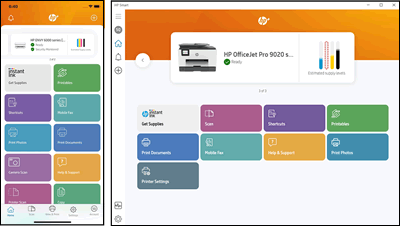
The HP Smart app is the most reliable method to connect your HP printer to an iPhone without AirPrint.
Steps to Download and Install HP Smart:
- Open the App Store on your iPhone.
- Search for HP Smart.
- Download and install the app.
- Turn on your HP printer.
- Make sure your iPhone is connected to Wi-Fi.
- Open HP Smart and tap “Add Printer.”
- Follow on-screen instructions to complete setup.
Benefits of HP Smart:
- Easy printer setup
- Scan and copy features
- Monitor ink levels
- Print from cloud storage
- Printer troubleshooting tools
Method 2: Connect Using Wi-Fi Direct


4
Wi-Fi Direct allows your iPhone to connect directly to the printer without a router.
Steps to Use Wi-Fi Direct:
- Enable Wi-Fi Direct from the printer control panel.
- On your iPhone, open Settings > Wi-Fi.
- Find your printer name in the list of networks.
- Enter the Wi-Fi Direct password (found on the printer).
- Open HP Smart or a compatible app and print.
Method 3: Connect Using USB Adapter
If wireless options are unavailable:
Steps:
- Use a Lightning to USB adapter.
- Connect the USB cable from printer to adapter.
- Plug adapter into iPhone.
- Open a supported printing app to print.
Note: Not all printers support USB direct printing from iPhone.
How to Login and Sign Up in HP Smart App
To access full features:
- Open HP Smart app.
- Tap “Sign In” or “Create Account.”
- Enter email and password.
- Verify your account.
- Login to manage printer settings and services.
Creating an account allows you to:
- Register printer
- Access cloud printing
- Manage ink subscription
- Get customer support
How to Download and Install HP Printer Drivers (If Needed)
Although iPhones don’t require traditional drivers, your printer firmware should be updated.
Steps:
- Open HP Smart app.
- Select your printer.
- Tap “Advanced Settings.”
- Check for firmware updates.
- Install updates if available.
Keeping firmware updated ensures better compatibility with iOS devices.
How to Activate HP Printer Services
After setup:
- Login to HP Smart.
- Register your printer.
- Activate web services if available.
- Enable remote printing features.
Activation allows remote printing and device management.
HP Printer Not Working with iPhone – Troubleshooting Guide
If your printer is not connecting or printing:
1. Restart Devices
- Turn off printer.
- Restart iPhone.
- Reconnect to Wi-Fi.
2. Check Network
- Ensure printer and iPhone are on same Wi-Fi network.
- Avoid guest networks.
3. Reset Network Settings on Printer
- Go to printer settings.
- Select “Restore Network Defaults.”
- Reconnect using HP Smart.
4. Update iPhone Software
- Go to Settings > General > Software Update.
- Install latest iOS version.
5. Reinstall HP Smart
- Delete app.
- Reinstall from App Store.
- Reconfigure printer.
How to Update HP Printer for Better Compatibility
Regular updates improve connection stability.
Steps:
- Open HP Smart.
- Go to Printer Settings.
- Check firmware version.
- Update if required.
- Restart printer after update.
Customer Support and Service Options
If troubleshooting does not resolve the issue:
- Use HP Smart app support section.
- Contact HP customer service.
- Visit official HP support page.
- Schedule repair if hardware issue exists.
When contacting support:
- Keep printer model number ready.
- Note error messages.
- Confirm iPhone model and iOS version.
Benefits of Connecting HP Printer Without AirPrint
- Works with older HP models
- No dependency on Apple AirPrint
- More control via HP Smart
- Direct wireless printing
- Easy troubleshooting access
Common Errors and Fixes
| Issue | Possible Cause | Solution |
|---|---|---|
| Printer not found | Different Wi-Fi network | Connect both to same network |
| Printing stuck | Firmware outdated | Update printer |
| App crashing | App glitch | Reinstall HP Smart |
| Wi-Fi Direct not showing | Disabled feature | Enable in printer settings |
Conclusion
Connecting your HP printer to an iPhone without AirPrint is simple using HP Smart, Wi-Fi Direct, or USB connection methods. With proper setup, login, activation, and updates, you can enjoy seamless mobile printing. Regular troubleshooting and firmware updates help maintain smooth performance and prevent connectivity issues.
Leave a Reply