

Configuring a static IP address for your HP printer ensures a stable and reliable network connection. Unlike dynamic IP addresses that change over time, a static IP remains fixed, preventing connection errors and “printer offline” issues.
What is a Static IP Address in HP Printer?
A static IP address is a fixed network address assigned to your HP printer. By default, most printers use DHCP (Dynamic Host Configuration Protocol), which automatically assigns an IP address. However, when the router restarts, the IP may change, causing network interruptions.
Setting a static IP address ensures:
- Stable network printing
- No “Printer Not Found” errors
- Smooth multi-device connectivity
- Better control in office environments
Supported HP Printer Models
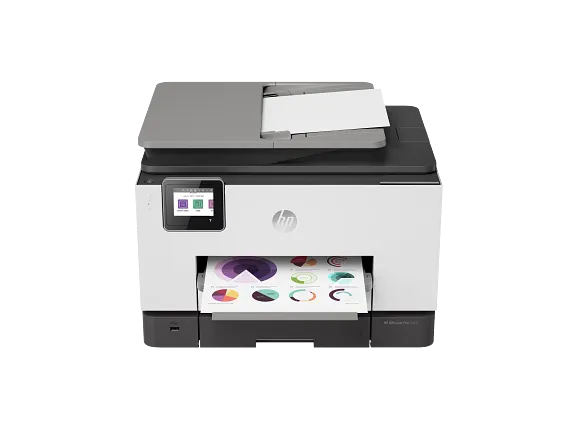
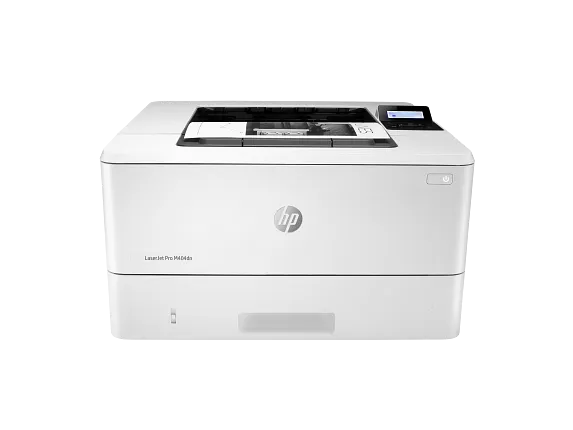
4
You can configure a static IP on most HP network-enabled printers, including:
- HP OfficeJet Pro 9025
- HP LaserJet Pro M404dn
- HP ENVY 6055
- HP DeskJet Plus 4155
Step-by-Step: How to Configure HP Printer Static IP Address?
Step 1: Print Network Configuration Page
- On the printer control panel, go to Network Settings.
- Select Print Network Configuration or Wireless Details.
- Note the current IP address.
Step 2: Access HP Printer Embedded Web Server (EWS)
- Open a web browser on your computer.
- Enter the printer’s current IP address in the address bar.
- Press Enter to access the printer login page.
HP Printer Login Process
To configure network settings, you must log in to the printer’s Embedded Web Server.
- Enter the administrator username (default is usually “admin”).
- Enter the password (check printer label or previously set credentials).
- Click Login.
If you forgot the password, you may need to reset the printer network settings.
Configure Static IP Settings
- After login, go to Network tab.
- Select IPv4 Configuration.
- Choose Manual IP or Static IP option.
- Enter the following details:
- IP Address (Example: 192.168.1.200)
- Subnet Mask (Usually 255.255.255.0)
- Default Gateway (Router IP)
- Click Apply or Save Settings.
Restart the printer to apply changes.
HP Printer Signup & Account Setup
To manage advanced features and updates:
- Visit HP Smart setup on your computer.
- Create an HP account using email and password.
- Verify your email.
- Add your printer to the account.
An HP account allows remote management, firmware updates, and customer service access.
Download and Install HP Printer Software
To ensure proper configuration, download the latest HP printer software.
Installation Steps:
- Download HP Smart software compatible with your operating system.
- Run the setup file.
- Follow on-screen instructions.
- Connect the printer via Wi-Fi or USB when prompted.
- Complete installation.
After installation, confirm the printer shows “Ready” status.
Activate HP Printer Network Services
After setting a static IP:
- Open HP Smart application.
- Select your printer.
- Enable Web Services (if required).
- Confirm printer is connected to the same network.
Activation ensures remote printing and cloud features work correctly.
HP Printer Not Working After Static IP Setup?
If your printer stops responding:
- Verify IP address is within router range.
- Ensure no other device uses the same IP.
- Restart router and printer.
- Reinstall printer driver.
- Reset network settings if needed.
HP Printer Troubleshooting Guide
Printer Offline Issue
- Check static IP matches router subnet.
- Update printer port settings in Windows.
Cannot Access Printer Login Page
- Confirm correct IP address.
- Disable firewall temporarily.
Network Not Detected
- Reconnect Wi-Fi.
- Move printer closer to router.
Update HP Printer Firmware
Keeping firmware updated prevents network issues.
- Open HP Smart app.
- Go to Advanced Settings.
- Select Printer Update.
- Install available updates.
Firmware updates improve compatibility and performance.
HP Printer Customer Support & Service
If configuration fails:
- Contact HP Customer Support.
- Use HP Smart diagnostics tool.
- Schedule service appointment.
- Reset printer to factory settings if required.
Professional assistance may be necessary for complex network environments.
Benefits of Setting Static IP on HP Printer
- Stable long-term connectivity
- Faster network detection
- Reduced offline errors
- Ideal for office and shared environments
- Easier troubleshooting
Conclusion
Configuring an HP printer static IP address is a smart way to ensure uninterrupted printing. By logging into the printer’s Embedded Web Server, assigning a manual IP, installing updated drivers, and enabling network services, you can maintain a reliable connection. Regular updates and troubleshooting checks help extend printer performance and reduce connectivity errors.
Leave a Reply