

Configuring your HP printer print driver settings for color printing ensures vibrant, accurate, and high-quality output for documents and photos. Whether you’re printing presentations, graphics, or images, adjusting the correct driver settings can significantly improve color performance and prevent common issues like grayscale-only printing.
Understanding HP Printer Print Driver for Color Printing
The HP print driver is software that allows your computer to communicate with your printer. It controls essential printing preferences such as:
- Color or Black & White printing
- Paper type and size
- Print quality (Draft, Normal, Best)
- Advanced color management
- Ink usage settings
Proper configuration ensures your printer produces accurate and consistent color prints.
Steps to Configure HP Printer Print Driver Settings for Color Printing (Windows)
Step 1: Open Printer Properties
- Click Start and open Control Panel.
- Select Devices and Printers.
- Right-click your HP printer.
- Choose Printing Preferences.
Step 2: Enable Color Printing
- Go to the Paper/Quality or Color tab.
- Select Color instead of Black & White or Grayscale.
- Choose the desired print quality (Best for photos).
Step 3: Adjust Advanced Color Settings
- Click Advanced or Color Options.
- Adjust:
- Color management
- Ink density
- Print resolution (DPI)
- Click Apply and then OK.
Configure HP Printer Color Settings on Mac
- Open System Settings (or System Preferences).
- Select Printers & Scanners.
- Choose your HP printer.
- Click Options & Supplies.
- Under the print dialog box, select Color Matching.
- Ensure Color is selected instead of Grayscale.
- Save settings as default if needed.
Download and Install HP Printer Driver for Color Printing
Correct driver installation is essential for full color functionality.
Step 1: Identify Your Printer Model
Check your printer label or packaging.
Example HP Color Inkjet Models:
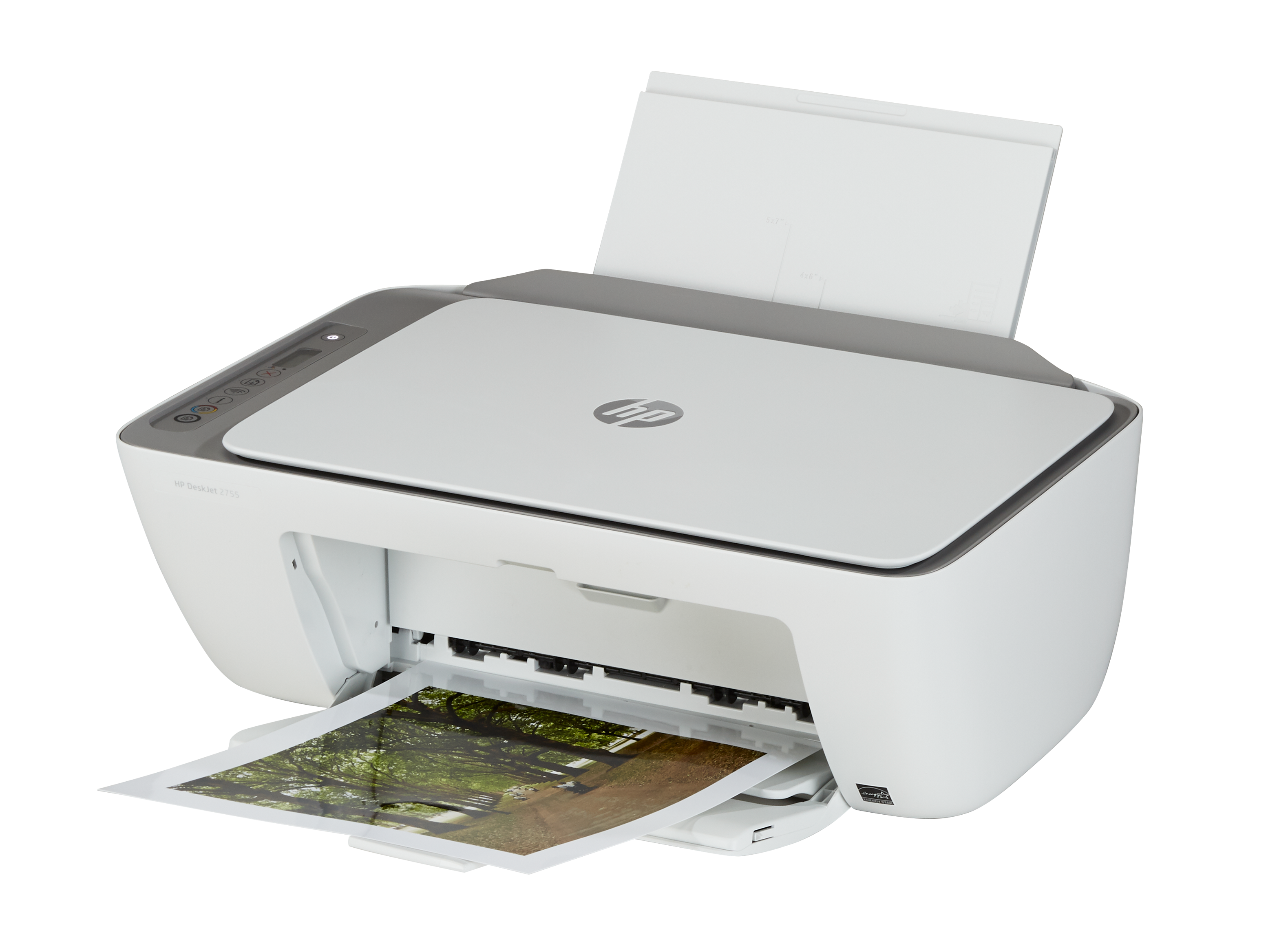
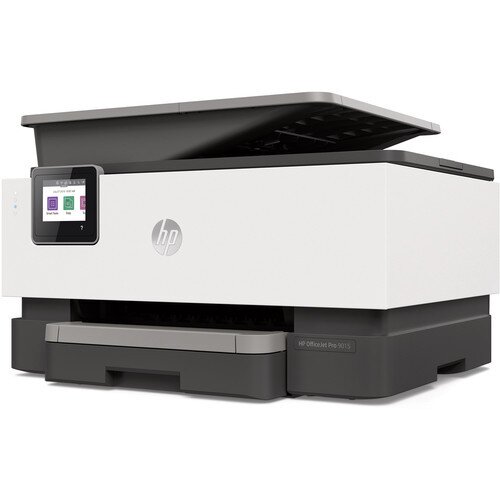
4
Step 2: Download the Latest Driver
- Visit HP official support.
- Enter your printer model.
- Download the latest full-feature driver package compatible with your operating system.
Step 3: Install the Driver
- Run the downloaded file.
- Follow on-screen instructions.
- Connect printer via USB or Wi-Fi when prompted.
- Complete installation and restart your computer.
Updating drivers ensures improved color calibration and bug fixes.
How to Update HP Printer Driver for Better Color Output
Outdated drivers may cause:
- Missing colors
- Washed-out prints
- Grayscale-only output
Update via Device Manager (Windows)
- Open Device Manager.
- Expand Printers.
- Right-click your HP printer.
- Select Update Driver.
- Choose automatic search.
Update via HP Software
Open HP Smart or installed HP printer software and check for driver updates.
HP Printer Color Printing Not Working – Troubleshooting Guide
If your HP printer is not printing in color, try these fixes:
1. Check Print Settings
Ensure Color is selected in printing preferences.
2. Verify Ink Levels
Low or empty color cartridges prevent color printing.
3. Run Printhead Cleaning
Use built-in maintenance tools to clean clogged nozzles.
4. Disable Grayscale Mode
Check:
- Print dialog box
- Advanced printer settings
- Application print settings
5. Reinstall Printer Driver
Uninstall the current driver and reinstall the latest version.
6. Set Printer as Default
Incorrect default printer selection may cause issues.
HP Printer Login and Setup via HP Smart
HP Smart software allows easy configuration and monitoring.
Steps to Sign Up or Login:
- Install HP Smart.
- Open the app.
- Create an HP account or sign in.
- Add your printer.
- Manage color settings and print preferences.
This helps maintain optimal color performance and monitor ink levels.
HP Printer Activation and Service Setup
After installing drivers:
- Register your printer using HP Smart.
- Activate warranty.
- Configure automatic updates.
- Enable print diagnostics.
Activation ensures access to firmware updates and customer service support.
Contact HP Customer Support for Color Printing Issues
If troubleshooting doesn’t fix the issue:
- Use HP Smart diagnostic tools.
- Access HP virtual assistant.
- Contact HP customer support for guided assistance.
- Schedule printer servicing if hardware issues are suspected.
Support can assist with:
- Driver conflicts
- Firmware updates
- Cartridge compatibility
- Internal hardware errors
Best Practices for High-Quality Color Printing
- Use genuine HP ink cartridges.
- Select appropriate paper type (Photo, Glossy, Plain).
- Choose higher DPI for image printing.
- Keep firmware updated.
- Perform regular maintenance.
Conclusion
Configuring HP printer print driver settings for color printing ensures vibrant, professional-quality results. By properly adjusting driver preferences, updating software, and performing regular maintenance, you can prevent color printing issues and extend your printer’s lifespan.
If color printing problems persist, updating the driver, cleaning the printhead, or contacting HP customer support can quickly restore performance.
Leave a Reply