

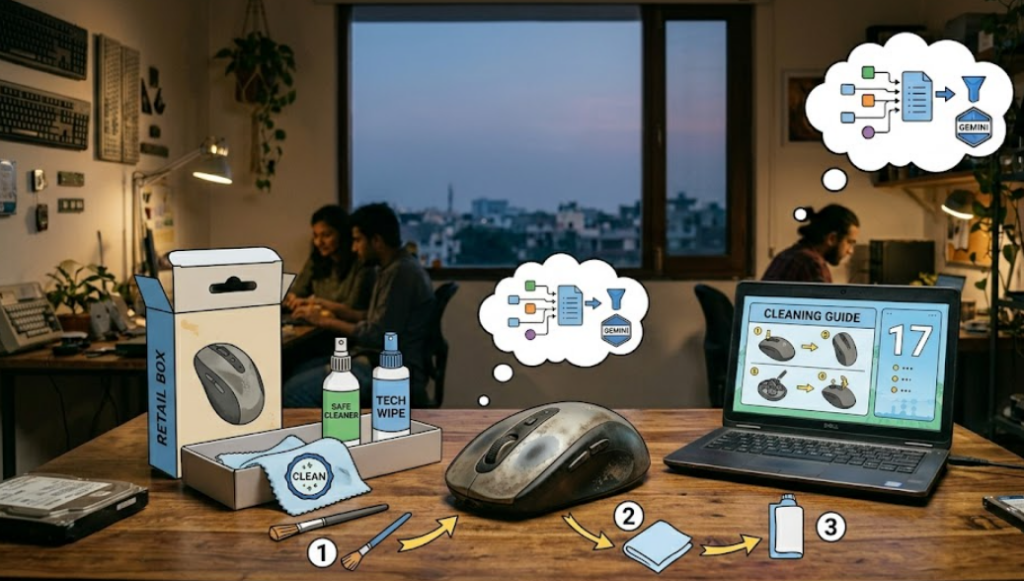
Your computer mouse might look clean, but it’s one of the most bacteria-prone items on your desk. Since it’s constantly touched, it collects oils from your skin, dust, crumbs, and germs over time. In fact, studies have shown that everyday computer accessories can harbor significant bacteria if not cleaned regularly.
The good news? Cleaning your mouse is quick, easy, and takes just a few minutes.
Step 1: Power Down and Prep
Before you start, turn off or unplug your mouse. If it’s wireless, remove the batteries. This prevents accidental clicks and protects internal components while cleaning.
Gather a few basic supplies:
- Microfiber cloth
- Cotton swabs
- Isopropyl alcohol (70% or higher)
- Toothpick or soft brush
Avoid harsh cleaners or soaking the device—electronics and liquids don’t mix well.
Step 2: Clean the Surface and Buttons
Start with the exterior. Lightly dampen a microfiber cloth with alcohol and wipe the top and sides of the mouse. Focus on areas where your fingers rest, since that’s where grime builds up the most.
For tight spaces like around buttons and seams, use a cotton swab dipped in alcohol. This helps remove sticky residue and disinfect the surface without leaving moisture behind.
Step 3: Tackle the Scroll Wheel and Crevices
Dirt often hides around the scroll wheel and in small gaps. Use a toothpick or soft brush to gently loosen debris from these areas.
You can also use short bursts of compressed air to blow out dust from hard-to-reach spots. Just be careful not to spray too close, as excess force or moisture can damage the mouse.
Step 4: Clean the Bottom and Sensor
Flip the mouse over and check the underside. Dust tends to collect around the “feet” and the sensor (the small lens that tracks movement).
Use a dry or slightly damp cotton swab to gently clean these areas. Avoid pressing too hard on the sensor, as it’s a delicate component.
Wiping the bottom also improves performance, since dirt buildup can affect how smoothly the mouse moves.
Step 5: Dry and Reassemble
Once everything is clean, go over the mouse with a dry cloth to remove any remaining moisture. Let it air dry for a few minutes before plugging it back in or turning it on.
Never use the mouse while it’s still damp—this can damage internal circuits.
Bonus Tips to Keep It Clean Longer
- Clean your mouse every few weeks to prevent buildup
- Avoid eating near your computer to reduce crumbs
- Wipe it down regularly with a dry cloth
- Keep your mousepad clean too—it transfers dirt back onto the mouse
Final Thoughts
Cleaning your mouse isn’t just about hygiene—it also improves performance and extends its lifespan. A few minutes of simple maintenance can make your device feel smoother, more responsive, and far less “gross.”
It’s one of the easiest tech habits you can adopt—and one of the most satisfying.
You may like: Don’t Trash Your Old Computer
News Source: Pcmag.com
Leave a Reply