

After performing a factory reset, your HP printer returns to its default settings, which means it disconnects from your Wi-Fi network. To resume wireless printing, scanning, and other features, you must reconnect it to your network.
What Happens After an HP Printer Factory Reset?
A factory reset removes:
- Saved Wi-Fi network credentials
- Custom printer settings
- Connected device information
- Web Services configuration
After reset, the printer enters setup mode, allowing you to reconnect it to Wi-Fi using a computer or smartphone.
How to Connect HP Printer to Wi-Fi Using HP Smart App


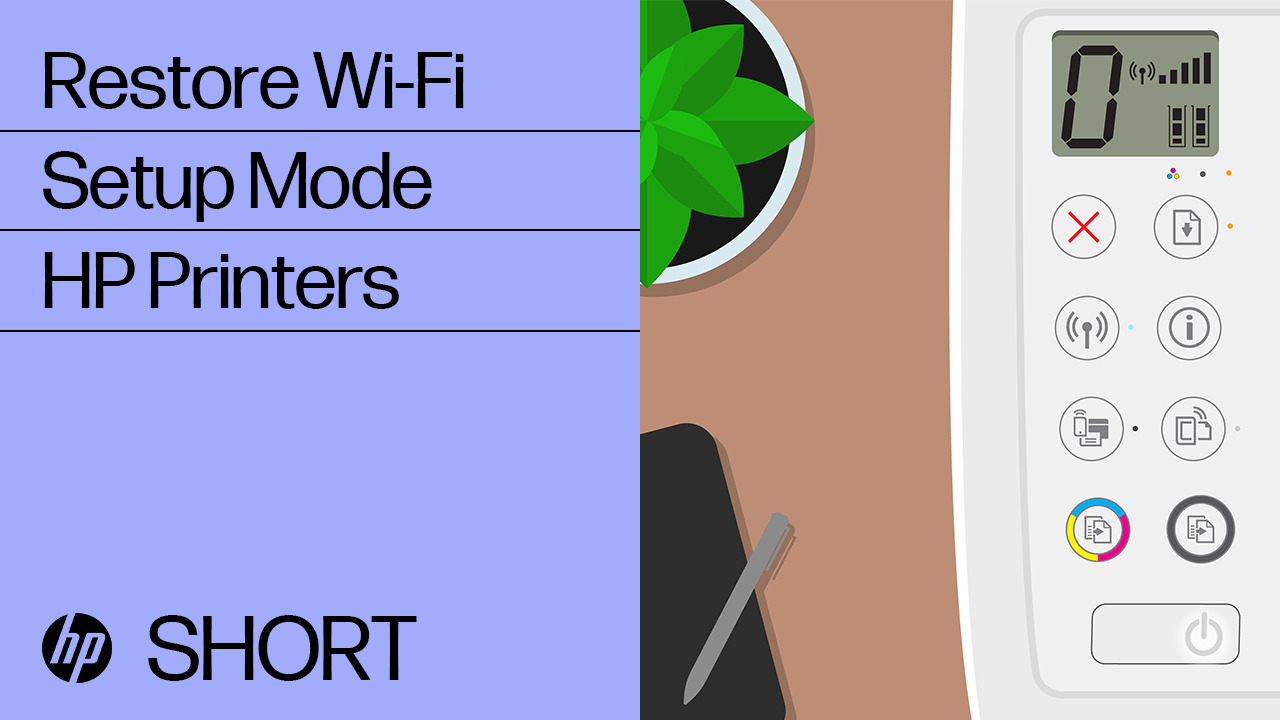
The easiest way to reconnect your HP printer is by using the HP Smart app.
Step-by-Step Wi-Fi Setup Process
Step 1: Put Printer in Setup Mode
- Turn on the printer.
- If not already blinking blue, press and hold the Wireless button for 5 seconds until the light starts blinking.
Step 2: Download HP Smart
- Install the HP Smart app on your Windows, Mac, Android, or iOS device.
- Open the app and select Add Printer.
Step 3: Connect to Wi-Fi Network
- Choose your Wi-Fi network.
- Enter your Wi-Fi password.
- Wait for confirmation that the printer is connected.
Step 4: Complete Setup
- Follow on-screen instructions to finish installation.
- Print a test page to confirm connectivity.
Connect HP Printer to Wi-Fi Without HP Smart (Control Panel Method)
If your HP printer has a touchscreen display:
- Tap Wireless or Network Settings.
- Select Wireless Setup Wizard.
- Choose your Wi-Fi network.
- Enter the password.
- Confirm connection.
This method works for most HP wireless printer models with built-in displays.
HP Printer Login and Account Setup
To manage printer services and cloud features:
- Create or log in to your HP account through HP Smart.
- Register your printer to enable scanning, remote printing, and firmware updates.
- Sign in to activate web services and cloud printing.
Creating an HP account helps you access support, monitor printer status, and manage devices remotely.
Download and Install HP Printer Drivers After Reset
A factory reset may require reinstalling drivers.
Steps to Install HP Printer Software:
- Open HP Smart.
- Select your printer.
- Follow prompts to install drivers automatically.
- Restart your device after installation.
Ensure your system is compatible and updated before installing printer software.
Activate HP Printer Services After Wi-Fi Setup
After connecting to Wi-Fi:
- Enable Web Services.
- Activate Instant Ink (if applicable).
- Register warranty details.
- Enable automatic firmware updates.
Activation ensures full functionality and ongoing support coverage.
HP Printer Not Connecting to Wi-Fi – Troubleshooting Guide
If your printer fails to connect after factory reset, try these solutions:
1. Restart Devices
- Turn off the printer.
- Restart your Wi-Fi router.
- Restart your computer or smartphone.
2. Move Printer Closer to Router
Weak signals can prevent connection.
3. Check Wi-Fi Password
Re-enter the correct password carefully.
4. Reset Network Settings Again
Hold the Wireless + Cancel buttons together for 5 seconds (varies by model).
5. Update Printer Firmware
Outdated firmware may block connection. Use HP Smart to check for updates.
HP Printer Firmware Update After Factory Reset
Keeping firmware updated ensures:
- Improved security
- Better Wi-Fi stability
- Bug fixes
- Performance improvements
To update:
- Open HP Smart.
- Select Printer Settings.
- Choose Advanced Settings.
- Click Firmware Update.
Install updates and restart your printer.
HP Printer Customer Support and Service Options
If you are still experiencing issues:
- Use HP Smart diagnostic tools.
- Contact HP customer service through the support section in the app.
- Schedule service if hardware issues are suspected.
- Check warranty status after activation.
HP support can help with connection errors, driver installation problems, or hardware faults.
Common Reasons HP Printer Wi-Fi Setup Fails
- Incorrect Wi-Fi band (use 2.4 GHz for older models)
- Router firewall blocking connection
- Outdated drivers
- Printer not in setup mode
- Network congestion
Correcting these issues usually restores connectivity quickly.
Benefits of Reconnecting HP Printer Properly
- Wireless printing from multiple devices
- Remote scanning and document sharing
- Automatic updates
- Access to HP cloud services
- Improved overall performance
Conclusion
Connecting your HP printer to Wi-Fi after a factory reset is simple when using HP Smart or the Wireless Setup Wizard. After reconnecting, remember to reinstall drivers, activate services, update firmware, and log in to your HP account for full functionality.
Leave a Reply