

The Print from Anywhere feature allows you to send print jobs to your HP printer even when you are not connected to the same local network. This feature works through your HP account and cloud services, giving you the flexibility to print documents, photos, and files remotely from your smartphone, tablet, or computer.
What is HP Print from Anywhere Feature?
The Print from Anywhere feature is part of HP’s cloud printing services that allow remote printing over the internet. Once activated, you can:
- Print from mobile devices
- Send print jobs remotely
- Monitor printer status
- Check ink levels
- Manage printer settings online
This feature works with compatible HP printers connected to Wi-Fi and registered to your HP account.
Requirements to Enable HP Print from Anywhere
Before enabling the feature, make sure:
- Your HP printer is connected to Wi-Fi
- You have a stable internet connection
- You have an HP account (login credentials)
- HP Smart app is installed on your device
- Web services are enabled on the printer
Step 1: Create or Login to Your HP Account (Sign Up / Login)
To use Print from Anywhere, you must create or sign in to your HP account.
- Open the HP Smart app on your device.
- Click on Sign In.
- If you do not have an account, select Create Account (Sign Up).
- Enter your email address and create a password.
- Verify your email and complete registration.
- Login using your registered credentials.
Once logged in, your printer can be linked to your account for remote access.
Step 2: Download and Install HP Smart App
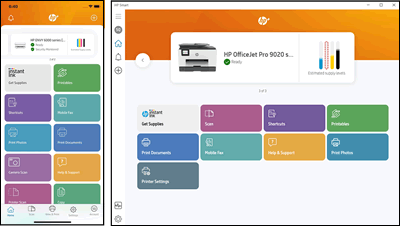
To activate Print from Anywhere, you need the official HP software.
4
How to Download HP Smart App:
- Visit your device’s app store.
- Search for HP Smart.
- Click Download.
- Install the app on your device.
After installation, open the app and add your printer.
Step 3: Add and Register Your HP Printer
- Open HP Smart.
- Click Add Printer.
- Select your printer from the list.
- Follow on-screen instructions to complete setup.
- Enable Web Services if prompted.
Your printer must be connected to the internet to activate cloud printing.
Step 4: Activate Print from Anywhere Feature
Once the printer is added:
- Go to HP Smart dashboard.
- Click on your printer name.
- Navigate to Printer Settings.
- Select Advanced Settings.
- Enable Web Services.
- Turn on Print from Anywhere.
After activation, you can send print jobs remotely from any location.
How to Use HP Print from Anywhere
After activation:
- Open HP Smart on your mobile or computer.
- Select the file or document you want to print.
- Choose your registered HP printer.
- Click Print.
The document will be sent to your printer via cloud servers.
How to Update HP Printer for Remote Printing
Keeping your printer updated ensures smooth functionality.
Update Steps:
- Open HP Smart.
- Go to Printer Settings.
- Select Printer Updates.
- Check for available firmware updates.
- Install updates if available.
Updating firmware helps fix bugs, improve performance, and enhance remote printing stability.
HP Printer Not Working with Print from Anywhere? (Troubleshooting Guide)
If Print from Anywhere is not working, follow these steps:
1. Check Internet Connection
Ensure both your printer and device are connected to the internet.
2. Restart Devices
- Turn off printer.
- Restart router.
- Reboot your device.
3. Re-login to HP Account
Sign out and sign back into HP Smart.
4. Re-enable Web Services
Disable and enable Web Services again from printer settings.
5. Update Printer Firmware
Install latest updates to resolve compatibility issues.
6. Remove and Re-add Printer
Delete printer from HP Smart and add it again.
HP Printer Login Issues (Fix Account Problems)
If you cannot login:
- Verify email and password.
- Reset password if forgotten.
- Clear app cache.
- Reinstall HP Smart app.
- Ensure your email is verified.
HP Printer Download and Installation Errors
If installation fails:
- Disable antivirus temporarily.
- Run installer as administrator.
- Check system compatibility.
- Ensure sufficient storage space.
- Download the latest version of HP Smart.
HP Printer Activation Issues
If Print from Anywhere won’t activate:
- Confirm Web Services is enabled.
- Make sure printer is linked to your HP account.
- Check firewall settings.
- Ensure correct region settings.
- Update printer firmware.
HP Printer Customer Support and Service
If troubleshooting does not fix the issue, contact official support.
You can:
- Use HP Smart app support section.
- Visit official HP support website.
- Contact HP customer service via phone.
- Schedule service appointment if hardware issue exists.
HP service technicians can help resolve advanced connectivity or activation issues.
Benefits of Using HP Print from Anywhere
- Remote printing convenience
- Real-time printer monitoring
- Secure cloud-based printing
- Reduced dependency on local network
- Easy mobile printing
- Improved productivity
Preventive Tips to Avoid Future Issues
- Keep printer firmware updated.
- Maintain stable Wi-Fi connection.
- Regularly check HP Smart app updates.
- Keep login credentials secure.
- Restart printer occasionally.
Conclusion
Enabling the HP Printer Print from Anywhere feature allows you to print remotely and manage your printer easily from any location. By properly logging in, installing HP Smart, activating Web Services, and keeping your printer updated, you can enjoy seamless cloud printing without interruptions.
Leave a Reply