

Connecting your HP printer to a laptop via Bluetooth is a convenient way to print wirelessly without needing a Wi-Fi network or USB cable. While not all HP printer models support Bluetooth, many modern HP printers offer Bluetooth Low Energy (BLE) for setup and direct printing.
What is HP Printer Bluetooth Connectivity?
Bluetooth connectivity allows your laptop to communicate directly with your HP printer over short distances. Unlike Wi-Fi, Bluetooth does not require a router. It is especially useful for quick setup and mobile printing.
Some HP printers use Bluetooth primarily for setup through the HP Smart app, while others support direct Bluetooth printing.
Check If Your HP Printer Supports Bluetooth
Before starting, confirm that your HP printer model supports Bluetooth.
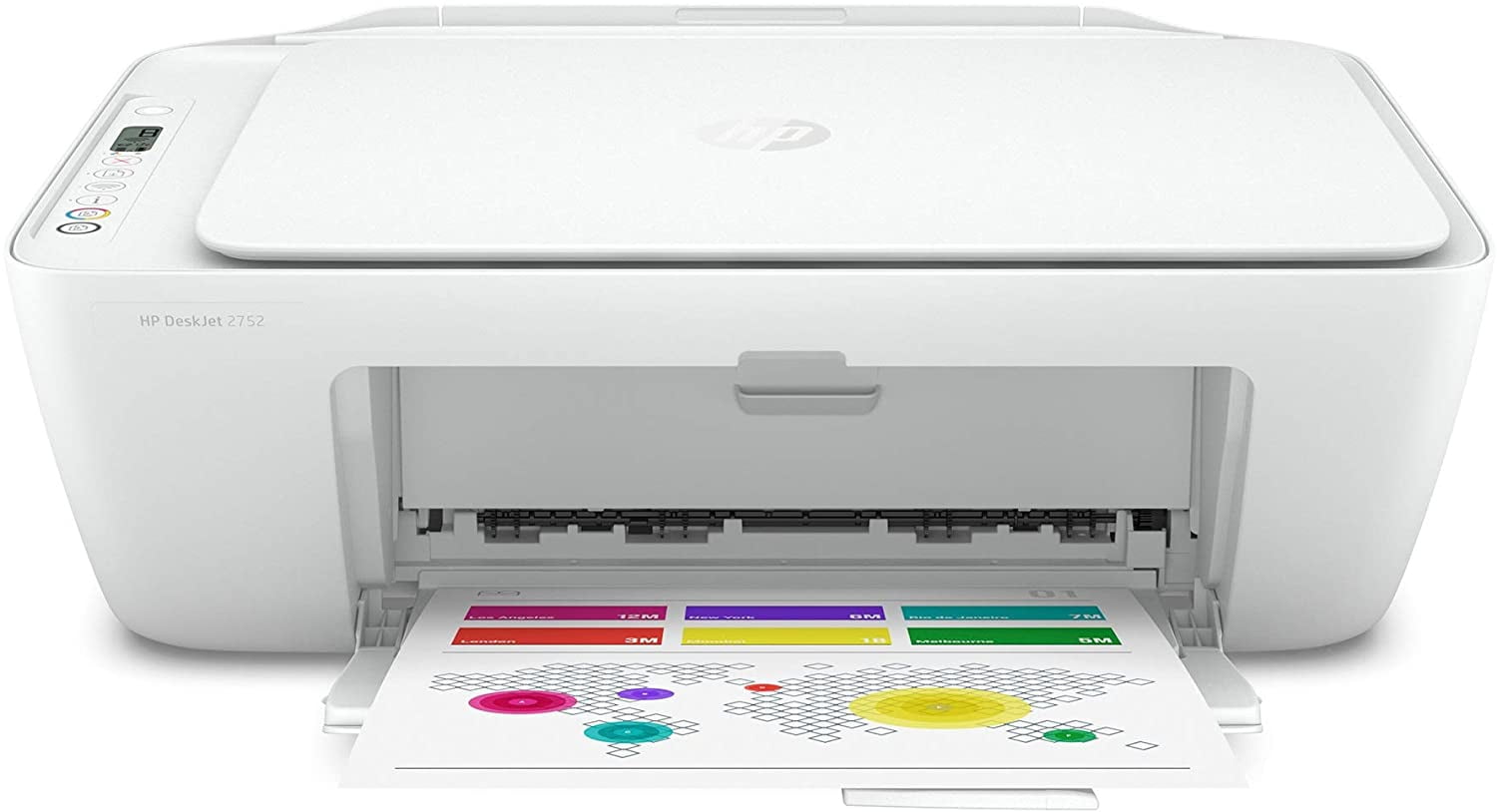

4
Popular Bluetooth-enabled HP printers include:
- HP DeskJet 2700 / 4100 series
- HP ENVY 6000 / 6400 series
- HP OfficeJet Pro 8020 / 9010 series
Check your printer control panel for a Bluetooth icon or review your printer manual.
Requirements to Connect HP Printer to Laptop via Bluetooth
Before beginning the setup:
- Ensure Bluetooth is enabled on your laptop
- Keep the printer within 10 meters of the laptop
- Install updated HP printer drivers
- Make sure the printer is powered on
Step-by-Step Guide to Connect HP Printer to Laptop via Bluetooth
Step 1: Enable Bluetooth on Your Laptop
On Windows:
- Go to Settings
- Select Bluetooth & Devices
- Turn Bluetooth ON
On Mac:
- Open System Settings
- Click Bluetooth
- Enable Bluetooth
Step 2: Turn On Bluetooth on HP Printer
- Power on your HP printer
- Press and hold the Wireless or Bluetooth button (if available)
- The Bluetooth light should start blinking, indicating pairing mode
If no dedicated button is available, Bluetooth setup can be enabled through the HP Smart app.
Step 3: Download and Install HP Printer Software
To ensure proper Bluetooth pairing, install the HP Smart application on your laptop.
Search for HP Smart in your system app store and install it.
The HP Smart app helps:
- Detect nearby HP printers
- Complete Bluetooth pairing
- Install necessary drivers automatically
- Activate printer services
HP Printer Login and Signup for Setup
To fully activate printer features:
- Open HP Smart
- Create or log in to your HP account
- Register your printer
- Complete setup instructions
HP account login allows you to:
- Access printer services
- Enable HP+ features
- Manage printer remotely
- Get firmware updates
Pair HP Printer with Laptop via Bluetooth
Once Bluetooth is enabled on both devices:
- Go to Bluetooth settings on your laptop
- Click Add Device
- Select your HP printer from the list
- Click Pair
- Confirm pairing code if prompted
After pairing, your printer should appear under connected devices.
Activate HP Printer After Installation
After pairing:
- Open HP Smart
- Select your printer
- Run test print
- Complete printer alignment (if prompted)
Activation ensures your printer is ready for printing tasks.
Update HP Printer Drivers for Better Connectivity
Outdated drivers can prevent Bluetooth connections.
To update:
- Open HP Smart
- Check for printer updates
- Install firmware updates
- Restart printer and laptop
Keeping software updated improves:
- Connectivity stability
- Print quality
- Error prevention
HP Printer Not Working with Bluetooth – Troubleshooting Guide
If your HP printer is not connecting via Bluetooth, try the following solutions:
1. Restart Devices
Turn off both printer and laptop, then restart them.
2. Reset Bluetooth Settings
Remove the printer from Bluetooth devices and pair again.
3. Check Printer Compatibility
Not all HP printers support direct Bluetooth printing.
4. Reinstall HP Smart
Uninstall and reinstall the HP Smart app.
5. Update Printer Firmware
Install the latest firmware update.
6. Move Devices Closer
Keep devices within Bluetooth range.
HP Printer Service and Customer Support
If Bluetooth connection issues continue:
- Contact HP Customer Support
- Schedule printer service if hardware issue is suspected
- Use HP Smart diagnostic tools
HP support can assist with:
- Account login issues
- Printer activation problems
- Driver installation errors
- Bluetooth pairing failures
Benefits of Connecting HP Printer via Bluetooth
- Quick wireless setup
- No router required
- Easy mobile printing
- Secure short-range connection
- Simple driver installation
When to Use Bluetooth Instead of Wi-Fi?
Bluetooth is ideal when:
- No Wi-Fi network is available
- You need quick temporary setup
- Printing from a single laptop nearby
- Performing initial printer activation
For regular multi-device printing, Wi-Fi is usually recommended.
Conclusion
Connecting your HP printer to a laptop via Bluetooth is a simple and efficient process when your printer supports it. By enabling Bluetooth, installing HP Smart, completing login and activation, and keeping drivers updated, you can ensure smooth wireless printing.
Leave a Reply