

Installing an HP printer on a Windows computer usually requires administrative privileges. However, in workplaces, schools, or shared systems, users often do not have admin access. The good news is that there are legitimate methods to install and configure your HP printer even without full administrator rights—depending on system policies set by your organization.
What Does “Without Admin Rights” Mean?
When you don’t have administrative rights on Windows, you cannot:
- Install system-wide drivers
- Modify advanced system settings
- Add hardware requiring elevated permissions
However, you may still be able to:
- Connect to a network-shared printer
- Use pre-installed drivers
- Install user-mode drivers (if allowed by system policy)
Method 1: Install HP Printer via Network (Shared Printer)
If your HP printer is already connected to the network or shared from another PC:
Step-by-Step Installation
- Press Windows + R and type: \\ComputerName (Replace ComputerName with the PC sharing the printer.)
- Locate the shared HP printer.
- Double-click the printer name.
- Windows may automatically install the required driver (if already available in the system).
If drivers are pre-approved by IT, installation completes without admin rights.
Method 2: Use Windows Built-in Drivers
Windows includes basic HP printer drivers for many models.
Steps:
- Go to Control Panel
- Select Devices and Printers
- Click Add a Printer
- Choose “The printer that I want isn’t listed”
- Select Add a local printer or network printer with manual settings
- Choose an existing port (USB or TCP/IP)
- From Manufacturer list, select HP
- Choose your printer model
If the driver is already in Windows, it installs without admin privileges.
Method 3: Use HP Smart App (If Allowed)
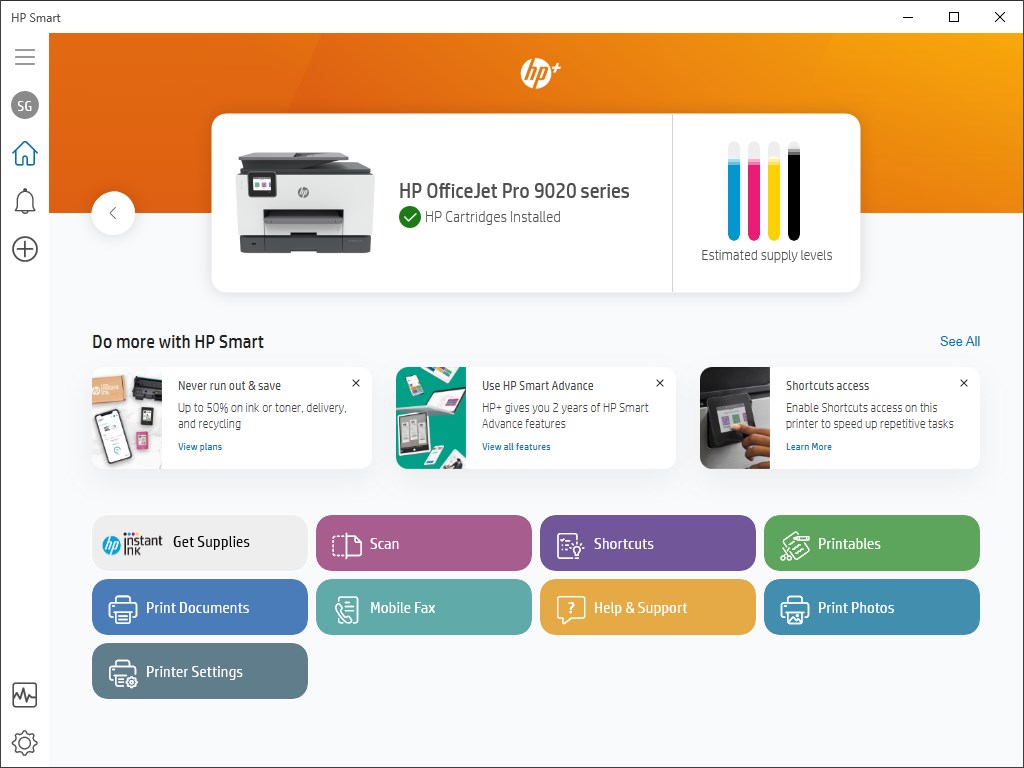
HP Smart is HP’s official printer management application that allows setup, scanning, printing, and troubleshooting.

4
Steps:
- Open Microsoft Store
- Search for HP Smart
- Install the app (if Store installation is allowed)
- Launch and click Add Printer
- Follow on-screen instructions
In many cases, HP Smart can configure printers using user-level permissions.
HP Printer Login and Signup Process
To access full printer features like scanning to cloud or remote printing, you may need an HP account.
How to Sign Up:
- Open HP Smart
- Click Sign In / Create Account
- Enter your email and create password
- Verify email
How to Login:
- Open HP Smart
- Enter registered email
- Enter password
- Access printer dashboard
This allows cloud services, firmware updates, and printer monitoring.
How to Download and Install HP Printer Drivers
If you do not have admin rights, downloading drivers may require IT approval.
Steps:
- Identify your HP printer model
- Search for official HP driver download page
- Select your Windows version
- Download basic driver package
- Right-click installer → Try running normally
If blocked, you must contact your system administrator.
How to Activate HP Printer After Installation
After installation:
- Turn on the printer
- Connect to Wi-Fi or USB
- Open HP Smart
- Complete printer registration
- Enable Web Services (if required)
Activation ensures proper communication between Windows and your HP printer.
HP Printer Not Working After Installation?
Common issues include:
- Printer not detected
- Driver installation failed
- Printer shows offline
- Print jobs stuck in queue
Quick Fixes:
- Restart printer and PC
- Check USB cable or Wi-Fi connection
- Set printer as default
- Clear print queue
- Reinstall using HP Smart
How to Update HP Printer Drivers Without Admin Rights
Driver updates typically require admin permission. However:
- HP Smart may auto-update firmware
- Windows Update may push approved driver updates
- Network printers managed by IT update automatically
If update is blocked, request access from IT support.
HP Printer Troubleshooting Guide
1. Printer Offline Issue
- Open Devices and Printers
- Right-click printer
- Uncheck “Use Printer Offline”
2. Print Spooler Error
- Press Windows + R
- Type: services.msc
- Restart Print Spooler
(Admin rights may be required)
3. Wireless Connection Failed
- Restart router
- Reconnect printer to Wi-Fi
- Use HP Smart to reconfigure network
HP Printer Customer Support and Service Options
If installation fails due to restricted permissions:
- Contact your company IT administrator
- Reach HP official customer service
- Request remote support session
- Visit authorized HP service center
HP support can guide you through:
- Driver compatibility
- Activation problems
- Installation errors
- Firmware update issues
Important Notes Before Installing Without Admin Rights
- Some enterprise systems block all printer installations
- USB printer installation usually requires admin approval
- Network-shared printers are easiest without admin access
- Always use official HP software
Conclusion
Installing an HP printer on Windows without admin rights is possible in certain situations, especially when using network-shared printers or built-in Windows drivers. Tools like HP Smart can simplify setup and management, but administrative restrictions may still apply depending on system policies.
If you are unable to proceed due to permission limitations, the best solution is to contact your system administrator or HP customer support for assistance. Proper installation ensures smooth printing, scanning, updates, and long-term printer performance.
Leave a Reply