

Printing high-quality photos requires accurate color reproduction. If your HP printer is printing wrong colors on photos such as greenish skin tones, faded reds, or blue-tinted images it can be frustrating. Color issues are usually caused by clogged printheads, incorrect settings, outdated drivers, or ink cartridge problems.
Common Causes of HP Printer Printing Wrong Colors
Before fixing the issue, it’s important to understand what may be causing it:
- Low or empty ink cartridges
- Clogged or misaligned printhead
- Incorrect color settings
- Outdated printer drivers
- Wrong paper type selected
- Corrupted printer software
Identifying the root cause helps you apply the correct solution.
Check Ink Levels and Cartridges
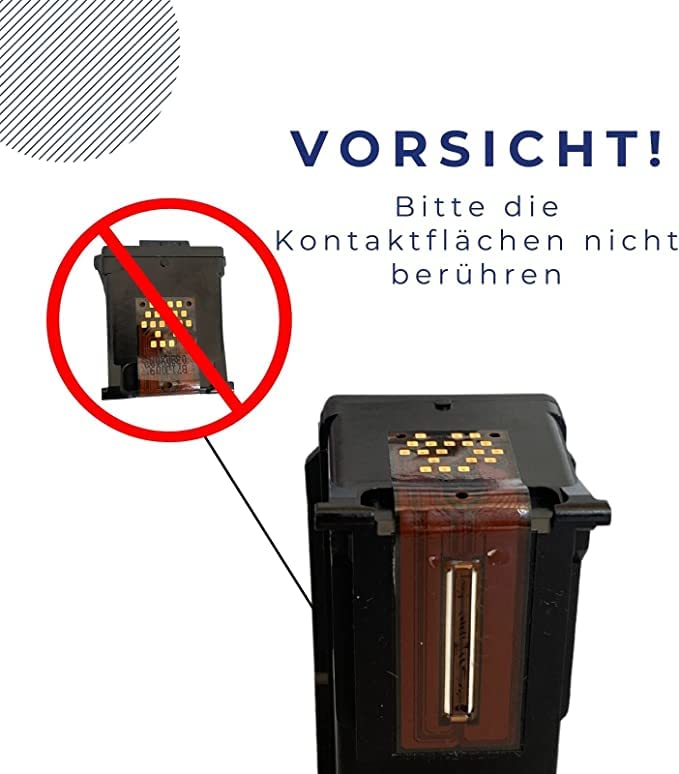

Low or empty ink cartridges are one of the most common reasons for incorrect photo colors.
Steps to check ink levels:
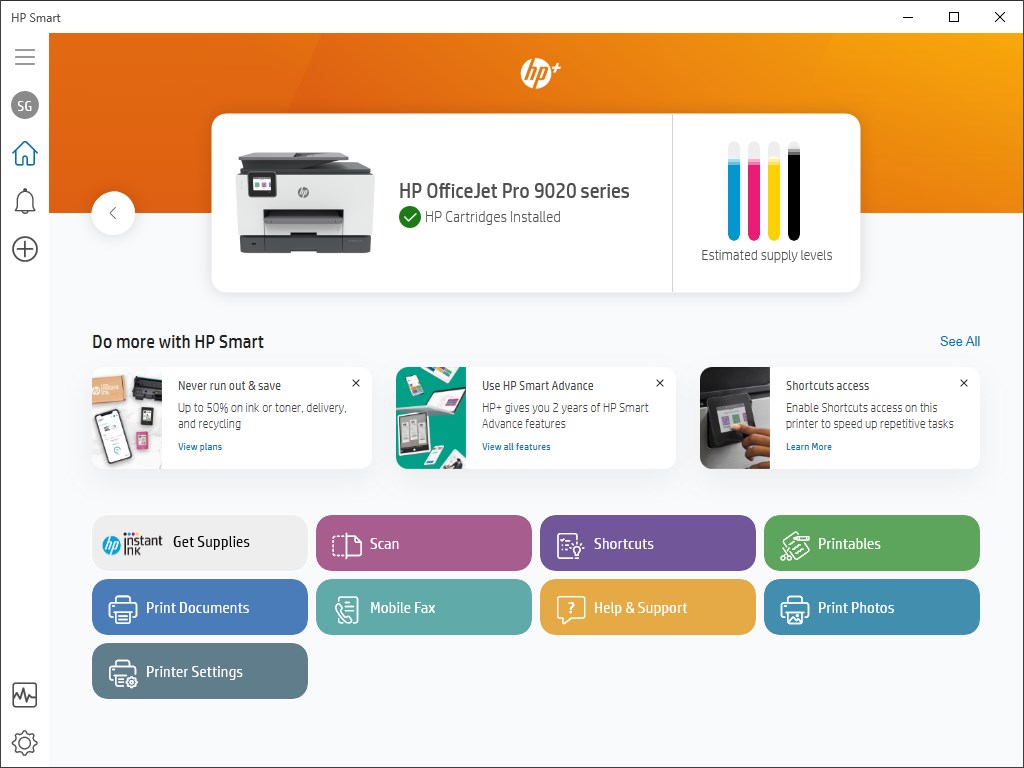
- Open the HP printer software on your computer.
- Go to Estimated Ink Levels.
- Replace any cartridge that is low or empty.
Make sure you are using genuine HP cartridges compatible with your printer model. Using refilled or incompatible cartridges can cause color distortion.
Run Printhead Cleaning


Clogged printheads can block certain colors, leading to faded or incorrect tones.
To clean the printhead:
- Open HP printer software.
- Select Printer Maintenance or Tools.
- Click Clean Printhead.
- Print a test page to check improvement.
You may need to run the cleaning cycle 1–2 times for better results.
Align the Printhead
Misalignment can cause blurry or uneven color output.
Steps to align printhead:
- Go to Printer Maintenance.
- Select Align Printhead.
- Follow on-screen instructions.
After alignment, print a photo to verify color correction.
Adjust Color Settings for Photo Printing
Sometimes the issue is related to incorrect settings.
Check these settings before printing photos:
- Select Photo Paper as paper type
- Choose Best or Maximum DPI quality
- Disable Grayscale printing
- Ensure correct color profile is selected
Using normal paper settings for photo paper can result in dull or inaccurate colors.
Update HP Printer Drivers
Outdated drivers can cause color mismatches.
To update drivers:
- Open Device Manager on your computer.
- Locate your HP printer.
- Select Update Driver.
- Restart your computer after installation.
You can also update firmware through the HP Smart app.
Reset Printer to Default Settings
If colors remain incorrect, resetting the printer may help.
How to reset:
- Turn off the printer.
- Unplug it from power for 2–3 minutes.
- Plug it back in and restart.
This clears temporary errors affecting color output.
Calibrate Color Settings
Some HP printer models offer manual color calibration.
- Open Printer Settings
- Go to Color Management
- Run Color Calibration (if available)
Calibration ensures accurate color balance for photo printing.
Use High-Quality Photo Paper
Printing photos on regular paper can result in poor color reproduction.
Always use HP-recommended photo paper and match the paper setting in the print dialog box.
HP Printer Troubleshooting for Color Issues
If your HP printer is still not printing correct colors:
- Remove and reinstall ink cartridges
- Perform deep cleaning (if available)
- Check for firmware updates
- Test with a different photo file
- Try printing from another device
If none of these steps resolve the issue, the printhead may need servicing.
When to Contact HP Customer Support
If troubleshooting does not fix the problem, contact HP customer service for assistance. Provide:
- Printer model number
- Type of ink cartridges used
- Description of color issue
- Troubleshooting steps already performed
Support can guide you through advanced diagnostics or recommend repair options.
Conclusion
Wrong colors in photo printing are usually caused by ink, printhead, or software-related issues. By checking ink levels, cleaning and aligning the printhead, updating drivers, and adjusting photo settings, you can restore accurate color output.
Leave a Reply