

Installing an HP printer using its IP address is one of the most reliable ways to connect your printer to a computer or network. This method is especially useful when the printer is not automatically detected or when you are setting it up in an office network environment. By using the printer’s IP address, you can manually add the device and ensure a stable connection.
What Does Installing an HP Printer Using IP Address Mean?
When you install an HP printer using an IP address, you manually connect your printer to your computer through your local network. Every printer connected to a Wi-Fi or wired network is assigned a unique IP address. Using this address allows your system to directly communicate with the printer without relying on automatic detection tools.
This method works well for:
- Office or shared networks
- When HP Smart cannot detect the printer
- Fixing “printer not found” issues
- Advanced troubleshooting
How to Find the HP Printer IP Address

4
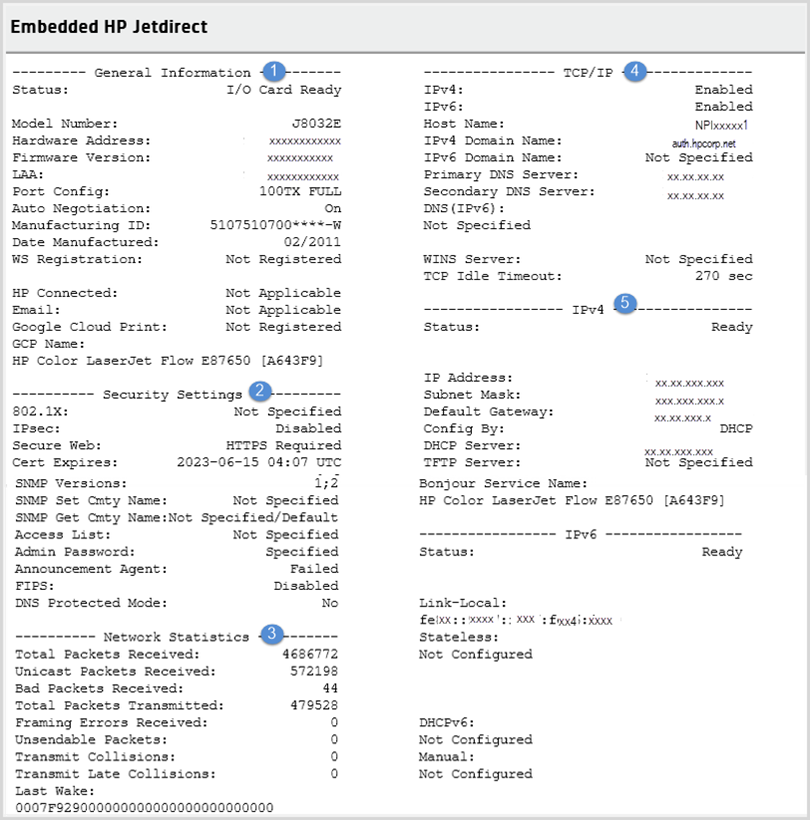
Before installing, you need the printer’s IP address.
You can find it by:
Method 1: From Printer Display
- Go to the printer’s control panel.
- Open Wireless Settings or Network Setup.
- Select View Network Details.
- Note the IP address (example: 192.168.1.25).
Method 2: Print Network Configuration Page
- Press the Wireless + Information button together (model dependent).
- Print the Network Configuration page.
- Locate the IP address on the printout.
Steps to Install HP Printer Using IP Address (Windows)
Step 1: Open Printer Settings
- Go to Control Panel.
- Click Devices and Printers.
- Select Add a Printer.
Step 2: Add Printer Manually
- Click The printer that I want isn’t listed.
- Choose Add a printer using a TCP/IP address or hostname.
- Click Next.
Step 3: Enter IP Address
- Device type: Select TCP/IP Device.
- Enter the printer’s IP address.
- Click Next.
Step 4: Install Driver
- Windows may automatically install the driver.
- If not, download the latest driver from HP’s official support page.
- Complete installation and print a test page.
Steps to Install HP Printer Using IP Address (Mac)
- Open System Settings → Printers & Scanners.
- Click the + icon to add a printer.
- Select the IP tab.
- Enter the printer’s IP address.
- Choose the correct driver (AirPrint or HP driver).
- Click Add.
HP Printer Login and Signup Process
HP Smart Account Login
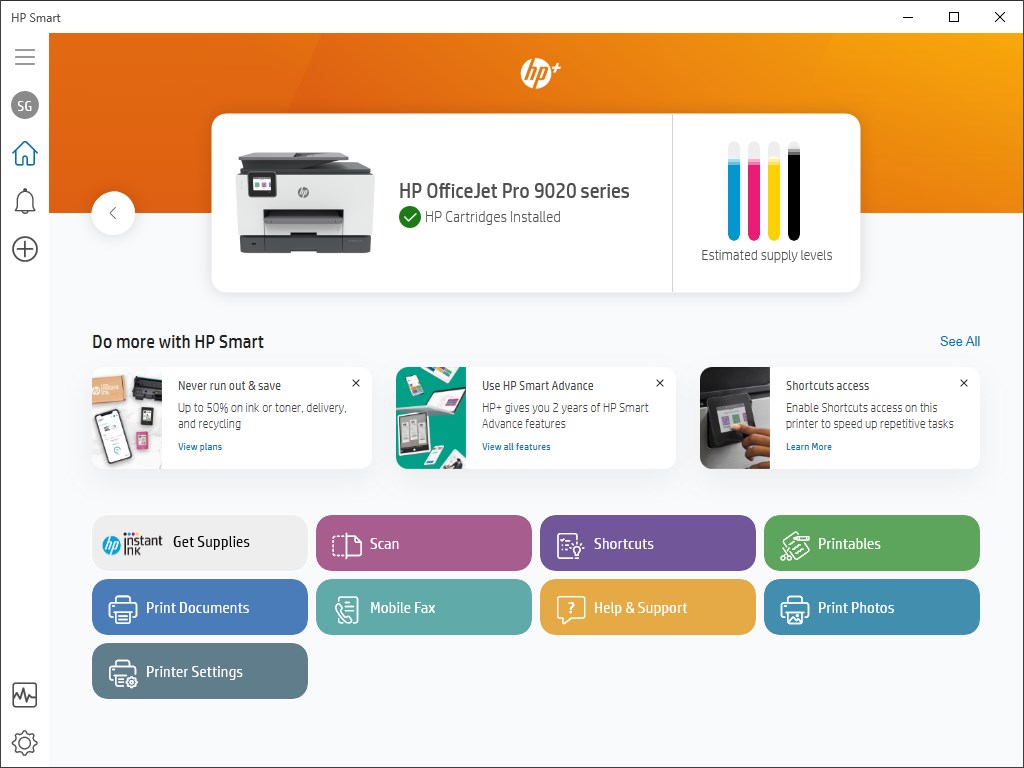
To manage your printer remotely or use scanning/cloud features, you may need to log in to HP Smart.
- Open HP Smart app.
- Click Sign In.
- Enter your registered email and password.
HP Account Signup
If you do not have an account:
- Open HP Smart.
- Select Create Account.
- Enter name, email, and password.
- Verify email and complete setup.
An HP account allows:
- Printer management
- Firmware updates
- Ink subscription services
- Cloud printing
HP Printer Driver Download and Install

4
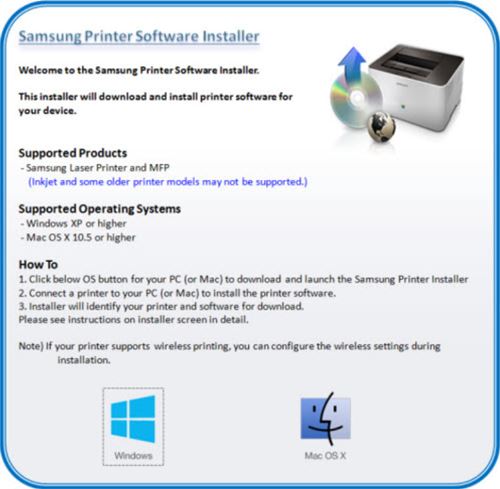
Proper driver installation ensures smooth communication between printer and computer.
Steps to Download HP Printer Driver
- Visit HP’s support page.
- Enter your printer model.
- Select your operating system.
- Download the latest driver package.
Install the Driver
- Open the downloaded file.
- Follow on-screen instructions.
- Connect printer when prompted.
- Complete installation and restart system if required.
How to Activate HP Printer After Installation
After installing using IP address:
- Turn on printer.
- Ensure Wi-Fi is connected.
- Open HP Smart.
- Add the printer.
- Complete setup prompts.
Activation may include:
- Firmware update
- Account login
- Ink registration
HP Printer Not Working After IP Installation – Fix
If the printer does not respond:
1. Check Network Connection
Ensure printer and computer are on the same Wi-Fi network.
2. Ping the Printer IP
Open Command Prompt:
ping 192.168.x.x
If no reply, printer is offline.
3. Restart Devices
- Restart router
- Restart printer
- Restart computer
4. Reinstall Using Updated Driver
Remove printer from settings and reinstall using latest driver.
HP Printer Troubleshooting Guide
Common issues and solutions:
Printer Offline
- Set printer as default
- Disable “Use Printer Offline” option
- Restart Print Spooler service
Cannot Connect to IP Address
- Check firewall settings
- Assign static IP to printer
- Reconnect Wi-Fi
Print Jobs Stuck
- Clear print queue
- Restart spooler
- Reinstall driver
How to Update HP Printer Firmware
Keeping firmware updated improves performance and security.
Update via HP Smart
- Open HP Smart.
- Go to Advanced Settings.
- Select Printer Update.
- Install available updates.
Manual Update
- Download firmware file
- Access printer IP via browser
- Upload firmware update file
HP Printer Customer Support and Service
If installation using IP address fails, HP support can assist.
Support Services Include:
- Remote troubleshooting
- Driver assistance
- Network configuration help
- Warranty service
You can contact HP through:
- HP Smart app support section
- Official support website
- Phone support (region specific)
Benefits of Installing HP Printer Using IP Address
- Stable network connection
- Works in shared office setups
- Faster troubleshooting
- Manual control over printer setup
- Bypasses automatic detection errors
Conclusion
Installing an HP printer using an IP address is a reliable and effective method, especially when automatic setup fails. By manually adding the printer through TCP/IP settings, you gain better control over network configuration and avoid common connection errors.
Leave a Reply