

Scanning to email directly from your HP printer is a convenient way to send documents without using a computer. Most modern HP printers support the Scan to Email feature through the printer control panel or the HP Smart app.
What is Scan to Email on HP Printer?
The Scan to Email feature allows you to scan a document and send it directly to an email address from your HP printer. This feature is especially useful in offices, schools, and home environments where quick document sharing is required.
To use this feature, you typically need:
- An HP printer with scanning capability
- A stable Wi-Fi connection
- HP Smart app installed
- An active email account
Download and Install HP Smart App for Scan to Email
To enable Scan to Email, you must first download and install the HP Smart application.
Step 1: Download HP Smart
- Visit the official HP support page.
- Search for your printer model.
- Download the latest version of HP Smart compatible with your device (Windows, Mac, Android, or iOS).
Step 2: Install the Application
- Open the downloaded file.
- Follow the on-screen instructions.
- Grant necessary permissions during installation.
Step 3: Add Your Printer
- Open HP Smart.
- Click Add Printer.
- Select your HP printer from the list.
- Complete the setup process.
HP Account Login and Signup for Scan to Email
To activate Scan to Email, you need an HP account.
How to Sign Up:
- Open HP Smart.
- Click Create Account.
- Enter your email address and create a password.
- Verify your email through the confirmation link.
How to Login:
- Open HP Smart.
- Enter your registered email and password.
- Sign in to access printer features.
An HP account is required to enable web services and scanning features.
Activate Scan to Email on HP Printer
Once logged in, follow these steps to activate the feature:
- Open HP Smart.
- Select your printer.
- Click on Scan.
- Choose Scan to Email.
- Enter sender email details.
- Verify your email address if prompted.
- Save the settings.
On some models, activation is done directly from the printer’s control panel under Web Services.
How to Scan to Email from HP Printer Control Panel

4
Follow these simple steps:
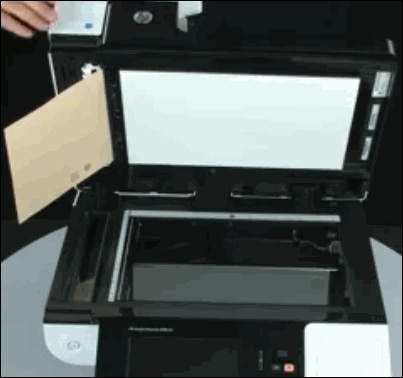
- Place your document on the scanner glass or in the Automatic Document Feeder (ADF).
- Tap Scan on the printer screen.
- Select Email or Scan to Email.
- Choose the email profile you set up.
- Adjust settings like color, resolution, or file type.
- Enter recipient email address.
- Press Send.
Your scanned document will be delivered directly to the recipient’s inbox.
HP Printer Not Working for Scan to Email? (Common Issues)
Sometimes Scan to Email may stop working. Here are common reasons:
- Printer not connected to Wi-Fi
- Web Services disabled
- Incorrect email configuration
- Outdated firmware
- HP Smart not updated
Troubleshooting Scan to Email Issues
1. Check Internet Connection
Ensure both printer and device are connected to the same Wi-Fi network.
2. Enable Web Services
- Open printer control panel.
- Navigate to Web Services Setup.
- Enable Web Services if disabled.
3. Update Printer Firmware
Outdated firmware can cause email scanning errors. Update it via HP Smart or printer settings.
4. Reconfigure Email Settings
Remove and re-add your email account in HP Smart.
5. Restart Devices
Turn off the printer and router. Wait 60 seconds, then restart.
Update HP Printer for Better Performance
Keeping your printer updated ensures smooth scanning performance.
- Open HP Smart.
- Go to Advanced Settings.
- Select Printer Updates.
- Install any available updates.
Regular updates fix bugs and improve compatibility.
HP Printer Customer Support and Service
If troubleshooting doesn’t fix the issue, contact HP Customer Support.
Support Options:
- Live Chat Support
- Phone Support
- Virtual Assistant
- Service Center Appointment
Have the following details ready:
- Printer model number
- Serial number
- Error message (if any)
HP service technicians can help resolve advanced configuration or hardware problems.
Benefits of Using Scan to Email on HP Printer
- Quick document sharing
- No computer required (in some models)
- Secure email transmission
- Saves time and paper
- Ideal for business and home use
Conclusion
The Scan to Email feature on HP printers is a powerful and convenient tool for sending documents instantly. By downloading HP Smart, creating an account, activating web services, and properly configuring email settings, you can easily scan and send files directly from your printer.
If you experience issues, basic troubleshooting steps like updating firmware, checking internet connectivity, or reconfiguring email settings usually resolve the problem. For advanced issues, HP customer support is always available to assist.
Leave a Reply