

If your HP printer is printing lines on paper, it can affect the quality of documents, photos, and important prints. Lines may appear as vertical streaks, horizontal bands, faded areas, or black marks across the page. This issue is common in inkjet and laser printers and is usually caused by clogged printheads, low ink levels, dirty rollers, or outdated drivers.
Common Reasons Why HP Printer Is Printing Lines
Understanding the cause helps you apply the correct solution. Here are the most common reasons:
- Clogged or dirty printhead
- Low or empty ink cartridges
- Misaligned printhead
- Dirty scanner glass (for copies)
- Damaged drum (laser printers)
- Outdated or corrupted printer drivers
- Incorrect print settings
1. Check Ink Levels and Replace Cartridges


4
Low or dried ink cartridges often cause faded lines or streaks.
Steps to fix:
- Open the HP printer control panel.
- Check ink levels from the display.
- Replace any low or empty cartridges.
- Ensure cartridges are properly installed.
- Use genuine HP cartridges for best results.
After replacing cartridges, print a test page to check if the lines are gone.
2. Clean the Printhead


4
Clogged printheads are the most common cause of horizontal lines.
How to clean printhead:
- Go to your printer’s control panel.
- Select Setup or Maintenance.
- Choose Clean Printhead.
- Run the cleaning cycle.
- Print a diagnostic page.
If the issue continues, run a second cleaning cycle. Avoid excessive cleaning as it consumes ink.
3. Align the Printhead
Misalignment can cause uneven vertical lines.
Steps to align printhead:
- Open Printer Settings on your computer.
- Select Tools or Printer Maintenance.
- Click Align Printhead.
- Follow on-screen instructions.
Proper alignment improves print clarity and removes uneven streaks.
4. Update or Reinstall HP Printer Drivers
Outdated drivers can cause printing errors including line issues.
How to update HP printer drivers:
- Open Device Manager on your computer.
- Locate your HP printer.
- Select Update Driver.
- Restart your computer.
If updating doesn’t help, uninstall and reinstall the printer driver completely.
5. Download and Install HP Printer Software Properly
Incorrect installation may cause performance issues.
Steps to install HP printer software:
- Remove old printer drivers.
- Restart your computer.
- Install the latest HP printer software.
- Connect the printer via USB or Wi-Fi.
- Complete the setup process.
Proper installation ensures smooth printer performance and reduces print quality problems.
6. Check Paper and Print Settings
Sometimes the issue isn’t hardware-related.
Things to check:
- Use high-quality paper.
- Ensure correct paper size is selected.
- Set print quality to “Best” or “Normal.”
- Avoid using damp or wrinkled paper.
Incorrect paper settings can create unwanted lines on prints.
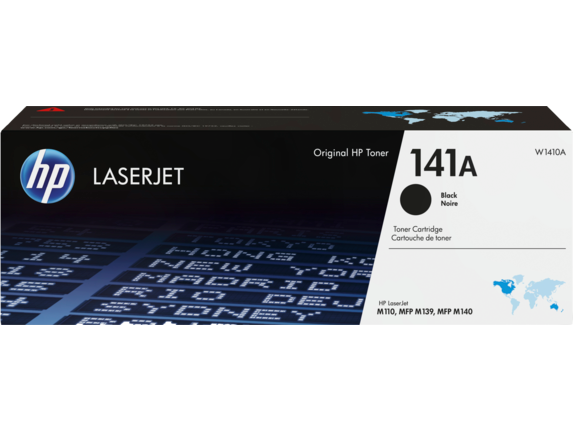
7. Fix HP Laser Printer Printing Lines

4
If you use an HP laser printer, the issue may be related to:
- Damaged toner cartridge
- Dirty drum unit
- Fuser problems
Solution:
- Remove and gently shake the toner cartridge.
- Replace the toner if lines persist.
- Clean internal components carefully.
8. HP Printer Login and Activation Issues
If you are using HP Smart features and facing printing problems:
- Ensure you are logged into your HP account.
- Verify printer activation is complete.
- Reconnect printer to Wi-Fi.
- Re-add printer in the HP Smart application.
Account sync problems can sometimes interfere with print commands.
9. HP Printer Not Working – Complete Troubleshooting
If lines appear along with other issues:
Basic troubleshooting steps:
- Restart printer and computer.
- Disconnect and reconnect cables.
- Reset printer to factory settings.
- Check for firmware updates.
- Run printer diagnostic tools.
Performing a full reset often clears hidden software glitches.
10. Contact HP Customer Support and Service
If none of the above steps fix the issue:
- Contact HP customer service.
- Request technical troubleshooting assistance.
- Schedule printer servicing if hardware damage is suspected.
- Check warranty status before repairs.
Professional support may be required if the drum, printhead, or internal parts are damaged.
Preventive Tips to Avoid Printing Lines
- Print regularly to prevent ink from drying.
- Keep printer covered to avoid dust.
- Use genuine HP ink or toner.
- Perform routine maintenance cleaning.
- Keep drivers updated.
Conclusion
Fixing HP printer printing lines on paper is usually simple with the right troubleshooting steps. Whether the issue is caused by clogged printheads, low ink, alignment problems, outdated drivers, or toner defects, following the correct maintenance process can restore print quality quickly.
Regular cleaning, proper installation, software updates, and timely cartridge replacement will help maintain smooth performance and extend the lifespan of your HP printer. If problems continue, contacting HP customer support ensures professional assistance and reliable service.
Leave a Reply