

Scanning multiple pages on an HP printer is simple when you use the correct method and software. Whether you are scanning contracts, school assignments, office files, or ID documents, HP printers allow you to combine multiple pages into a single PDF file for easy sharing and storage.
Understanding HP Multi-Page Scanning Feature
Most modern HP printers support multi-page scanning using:
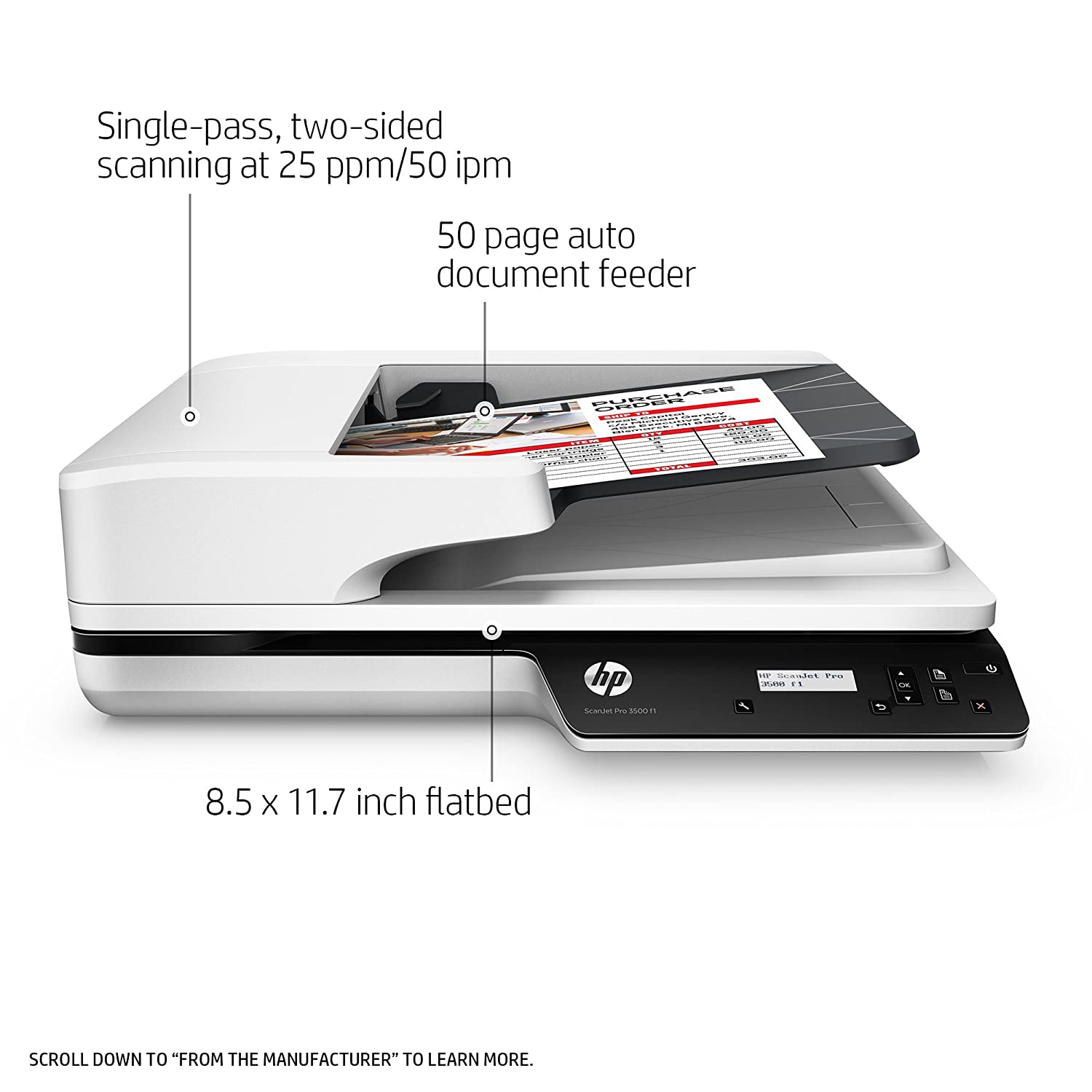
- Automatic Document Feeder (ADF)
- Flatbed scanner (manual multi-page scan)
- HP Smart App (Windows, Mac, Android, iOS)
The feature allows users to scan several pages into one PDF document instead of separate files.
Download and Install HP Smart App for Multi-Page Scanning
To scan multiple pages efficiently, install the official HP software.
Steps to Download and Install:
- Turn on your HP printer.
- Connect it to WiFi or USB.
- Download the HP Smart app on your device.
- Run the installer.
- Follow on-screen instructions.
- Complete printer setup.
After installation, open the app and add your printer.
HP Login and Signup Process
To access full scanning features and cloud storage options:
- Open HP Smart.
- Click Sign In.
- Enter your HP account credentials.
- If you don’t have an account, select Sign Up.
- Verify your email and activate your account.
Logging in enables:
- Scan to cloud
- Save to HP account
- Remote scanning
- Scan history access
How to Scan Multiple Pages Using Automatic Document Feeder (ADF)


4
If your HP printer has an ADF:
- Place all pages in the document feeder.
- Adjust paper guides.
- Open HP Smart.
- Click Scan.
- Select Document Scan.
- Choose PDF format.
- Click Scan.
The printer will automatically scan all pages and combine them into one file.
How to Scan Multiple Pages Using Flatbed Scanner

4
If your printer does not have an ADF:
- Open the scanner lid.
- Place the first page face-down on the glass.
- Click Scan in HP Smart.
- After scanning, select Add Page.
- Replace the page with the next one.
- Repeat until all pages are scanned.
- Click Save.
Choose PDF format to combine pages into one document.
Activate Multi-Page Scan Feature
If the multi-page option is not visible:
- Ensure HP Smart is updated.
- Log into your HP account.
- Install full-feature drivers.
- Restart printer and computer.
Activation is automatic once proper drivers are installed.
Update HP Printer Drivers for Smooth Scanning
Outdated drivers can prevent multi-page scanning.
To update:
- Open Device Manager (Windows) or Printer Settings (Mac).
- Check for driver updates.
- Install latest version.
- Restart device.
Updated drivers improve:
- Scan speed
- PDF merging
- Wireless performance
- Error resolution
HP Printer Not Scanning Multiple Pages – Troubleshooting Guide
If multi-page scanning is not working:
1. Printer Not Detected
- Check WiFi connection.
- Restart router and printer.
- Re-add printer in HP Smart.
2. Add Page Option Missing
- Use PDF format instead of JPG.
- Update HP Smart app.
- Reinstall full driver package.
3. Scanner Not Responding
- Check USB cable.
- Run Windows troubleshooter.
- Restart spooler service.
4. Pages Saving Separately
- Select “Combine into single file”.
- Choose PDF before scanning.
Common Multi-Page Scan Errors and Fixes
| Issue | Solution |
|---|---|
| Scanner busy error | Restart printer |
| Communication error | Reconnect WiFi |
| Driver unavailable | Reinstall driver |
| Scan button disabled | Login to HP Smart |
HP Printer Customer Support and Service Options
If troubleshooting does not resolve the issue:
- Contact HP customer support.
- Use HP Smart diagnostic tool.
- Schedule printer service.
- Request remote assistance.
Support helps with:
- Driver reinstallation
- Scanner hardware check
- Firmware updates
- Account login recovery
Benefits of Scanning Multiple Pages on HP Printer
- Saves time
- Creates single PDF document
- Easy email attachment
- Organized digital records
- Professional document management
Conclusion
Scanning multiple pages on an HP printer is easy when you use the correct software and settings. Whether you use an Automatic Document Feeder or flatbed scanner, HP Smart allows you to combine pages into a single PDF file.
Make sure your printer drivers are updated, your account is activated, and your printer is properly connected. If scanning is not working, follow the troubleshooting steps or contact HP customer support for assistance.
Leave a Reply