

Connecting your HP printer using a USB cable is one of the simplest and most reliable methods to set up printing. A wired USB connection ensures stable communication between your computer and printer without relying on Wi-Fi.
What is USB Connection for HP Printer?
A USB connection allows direct communication between your computer and HP printer using a compatible USB cable. This method is ideal for:
- First-time printer setup
- Fixing wireless connection issues
- Quick driver installation
- Stable and uninterrupted printing
Most HP printers support plug-and-play installation, but in some cases, you may need to download and install the correct drivers.
Requirements Before Connecting HP Printer via USB
Before starting the setup process, make sure you have:
- A compatible USB cable (usually USB-A to USB-B)
- A working USB port on your computer
- HP printer powered ON
- Updated operating system (Windows or macOS)
- Stable internet connection (for driver download if needed)
Steps to Connect HP Printer Using USB Cable (Windows)


4
Step 1: Power On the Printer
Turn on your HP printer and wait until it becomes idle.
Step 2: Connect the USB Cable
Insert one end of the USB cable into the printer’s USB port and the other end into your computer.
Step 3: Automatic Driver Installation
Windows will automatically detect the printer and attempt to install the necessary drivers.
Step 4: Download HP Printer Driver (If Needed)
If the driver does not install automatically, download the latest driver from HP support through your browser and install it manually.
Step 5: Complete Setup
Follow on-screen instructions to complete installation. Once finished, print a test page to confirm successful setup.
Steps to Connect HP Printer Using USB Cable (Mac)

4
Step 1: Connect Printer to Mac
Plug the USB cable into both the printer and your Mac device.
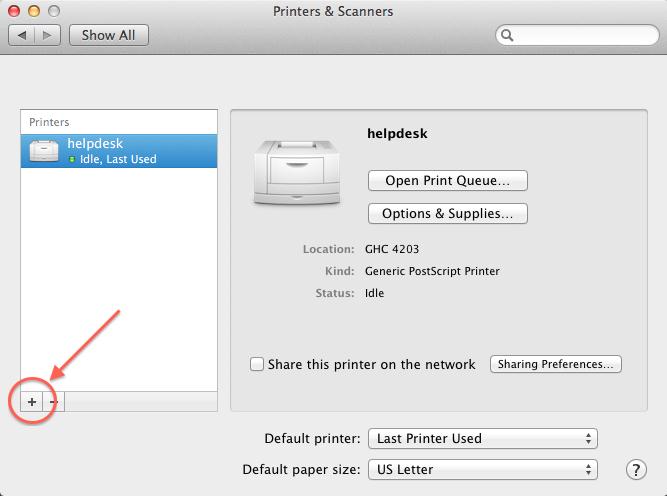
Step 2: Open Printer Settings
Go to System Settings → Printers & Scanners.
Step 3: Add Printer
Click “Add Printer” and select your HP printer from the list.
Step 4: Install Required Driver
If prompted, download and install the correct HP driver package.
Step 5: Print Test Page
After installation, print a test document to ensure proper connectivity.
HP Printer Driver Download and Install via USB
If your printer is not detected automatically:
- Search for your HP printer model driver.
- Download the full-feature driver package.
- Run the installer and select USB Connection when prompted.
- Connect the USB cable only when instructed during installation.
Installing the correct driver ensures optimal printing performance and compatibility.
HP Printer Login and Signup for Activation
To activate and manage your printer:
- Create an HP account (Signup) using your email.
- Login to your HP account for device management.
- Register your printer using the serial number.
- Enable warranty and service benefits.
Having an account allows access to driver updates, support services, and troubleshooting tools.
HP Printer Activation After USB Setup
Once connected:
- Complete printer registration.
- Install HP software suite (if required).
- Set the printer as default in system settings.
- Update firmware if prompted.
Activation ensures your printer functions properly with all features enabled.
HP Printer Not Working After USB Connection?
If your HP printer is not working after connecting via USB, try the following troubleshooting steps:
1. Check USB Cable
Ensure the cable is not damaged. Try a different USB port.
2. Restart Devices
Restart both printer and computer.
3. Reinstall Printer Driver
Uninstall existing driver and reinstall the latest version.
4. Set as Default Printer
Go to Printer Settings and set your HP printer as default.
5. Run Troubleshooter
Use built-in Windows or Mac troubleshooting tools to detect issues.
HP Printer Driver Update for Better Performance
Keeping drivers updated prevents connectivity issues. To update:
- Open Device Manager (Windows) or Printer Settings (Mac).
- Check for driver updates.
- Install available updates.
Updated drivers improve compatibility and print quality.
HP Printer Customer Support and Service
If USB connection issues persist, contact HP customer support. Services include:
- Technical troubleshooting assistance
- Driver installation help
- Warranty support
- Repair and service center guidance
Customer support ensures quick resolution of hardware or software-related problems.
Benefits of Connecting HP Printer via USB
- Stable and reliable connection
- No Wi-Fi interference
- Easy driver setup
- Faster initial installation
- Ideal for troubleshooting wireless issues
Conclusion
Connecting your HP printer using a USB cable is a simple and efficient way to complete the setup process. Whether you need to download drivers, activate the printer, troubleshoot connection issues, or contact customer support, following the correct steps ensures smooth printing performance.
Leave a Reply