

Keeping your HP printer in top working condition requires regular maintenance, especially when you start noticing faded prints, streaks, missing colors, or uneven ink distribution. Manually cleaning the printhead is one of the most effective troubleshooting steps to restore print quality and prevent long-term damage.
What Is an HP Printer Printhead?
The printhead is a crucial component of your HP printer that sprays ink onto paper to create text and images. Over time, dried ink, dust, or air bubbles can clog the printhead nozzles, resulting in:
- Blurry prints
- Missing colors
- Streaked output
- Light or faded text
- Incomplete images
Manual cleaning helps restore proper ink flow and improves overall performance.
Signs Your HP Printer Printhead Needs Manual Cleaning
You should clean your HP printer printhead manually if you experience:
- Printer not working properly after cartridge replacement
- Ink cartridge full but printing light
- Black ink not printing
- Alignment issues
- Error messages related to print quality
Before manual cleaning, always try the built-in cleaning option through your HP printer settings or control panel.
How to Clean HP Printer Printhead Manually – Step-by-Step Guide


4
Step 1: Turn Off and Unplug the Printer
- Power off the HP printer.
- Unplug it from the electrical outlet.
- Wait a few minutes before opening the cartridge access door.
Step 2: Remove Ink Cartridges
- Open the printer cover carefully.
- Remove all ink cartridges.
- Place them on a clean paper towel to avoid ink leakage.
Step 3: Remove the Printhead (If Removable)
- Some HP printers allow printhead removal.
- Gently release the latch and lift out the printhead.
- If your model does not support removal, clean it inside the printer carefully.
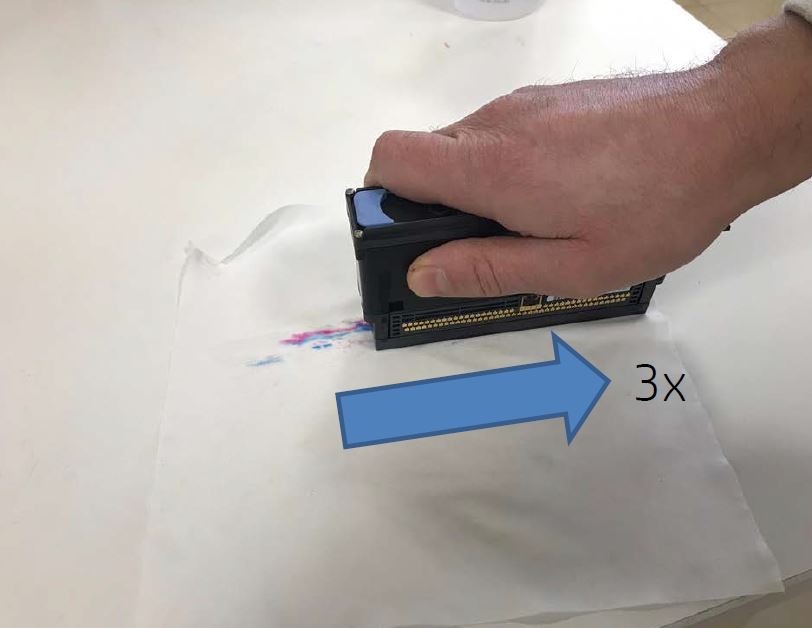
Step 4: Clean the Printhead
- Use a lint-free cloth slightly dampened with distilled water.
- Gently wipe the copper contacts and nozzle area.
- Do not touch the nozzles with fingers.
- Avoid excessive water.
For deeper cleaning:
- Soak the bottom part (nozzles only) in warm distilled water for 5–10 minutes.
- Let it dry completely before reinstalling.
Step 5: Reinstall and Test
- Place the printhead back securely.
- Reinstall ink cartridges.
- Plug in and power on the printer.
- Print a test page to check print quality.
HP Printer Download and Install Setup
To ensure your printer works correctly after cleaning:
- Download the latest HP printer driver from the official HP support page.
- Install the printer software compatible with your Windows or Mac system.
- Follow on-screen instructions for setup and configuration.
- Connect via USB or wireless network as required.
Updating printer software improves performance and prevents future issues.
HP Printer Login and Signup for Smart Services
Many HP printers support HP Smart services that require:
- HP account login
- Signup for new users
- Printer registration
- Device activation
Creating an account allows you to:
- Monitor ink levels
- Manage printer settings
- Access troubleshooting tools
- Contact customer support
Make sure your printer is properly connected to Wi-Fi before activation.
Activate HP Printer After Installation
After driver installation:
- Open HP printer software.
- Add your printer device.
- Complete activation steps.
- Align the printhead if prompted.
- Run a test print.
Activation ensures full functionality including wireless printing and scanning.
HP Printer Not Working After Printhead Cleaning?
If your HP printer is still not working properly, try these troubleshooting steps:
- Restart printer and computer
- Update printer drivers
- Run automatic printhead cleaning utility
- Check ink cartridge compatibility
- Reset printer to factory settings
- Ensure firmware is updated
Persistent issues may indicate a damaged printhead that needs replacement.
HP Printer Troubleshooting and Update Guide
Regular updates prevent many technical problems. Follow these best practices:
- Check for firmware updates monthly
- Keep drivers up to date
- Use genuine HP ink cartridges
- Avoid low-quality refill inks
- Perform automatic cleaning periodically
Routine maintenance helps extend printer lifespan and improves performance.
HP Printer Customer Support and Service Options
If manual cleaning does not fix the issue:
- Contact HP customer support for technical assistance
- Schedule authorized service
- Request warranty repair if eligible
- Replace faulty printhead components
Professional servicing may be necessary for severe clogs or internal damage.
Benefits of Manual HP Printer Printhead Cleaning
- Restores clear and sharp printing
- Fixes faded or streaked output
- Improves ink flow
- Prevents costly repairs
- Extends printer life
- Reduces downtime
Manual cleaning is a cost-effective maintenance solution when done correctly.
Conclusion
Cleaning your HP printer printhead manually is an effective way to resolve print quality issues such as streaks, faded text, or missing colors. Combined with proper driver download, installation, login setup, activation, regular updates, and timely troubleshooting, you can keep your HP printer running smoothly for years.
Leave a Reply