

Connecting your HP printer to a Chromebook is simple and does not require installing traditional printer drivers. ChromeOS supports wireless printing through built-in services, making it easy to download, install, activate, and manage your HP printer without complicated setup steps.
Understanding HP Printer Compatibility with Chromebook
Most modern HP printers support wireless printing through Wi-Fi and IPP (Internet Printing Protocol), which works seamlessly with Chromebook devices. Unlike Windows or Mac, ChromeOS does not require separate driver downloads in most cases.
Before starting, ensure:
- Your HP printer supports wireless connectivity
- Printer and Chromebook are connected to the same Wi-Fi network
- Printer firmware is updated
- Printer is powered on and ready
Methods to Connect HP Printer to Chromebook
There are two main ways to connect:
- Automatic Setup (Recommended)
- Manual Printer Add Setup
Let’s go step-by-step.
Method 1: Automatic HP Printer Setup on Chromebook
4
Step 1: Connect HP Printer to WiFi
- Turn on your HP printer.
- Go to the printer control panel.
- Open Wireless Settings.
- Connect to your WiFi network.
If your printer is not connected, Chromebook will not detect it.
Step 2: Open Chromebook Settings
- Click the time in the bottom-right corner.
- Select Settings.
- Scroll down and click Advanced.
- Choose Printing.
- Select Printers.
Step 3: Add HP Printer Automatically
If your HP printer appears under “Available Printers”:
- Click Save.
- Your printer is now installed and activated for printing.
This completes the download and install process automatically within ChromeOS.
Method 2: Manual HP Printer Setup on Chromebook
If your HP printer does not appear automatically:
Step 1: Get Printer IP Address
- Print a Network Configuration Page from your printer.
- Note the IP address (example: 192.168.1.25).
Step 2: Add Printer Manually
- Open Chromebook Settings.
- Go to Printing → Printers.
- Click Add Printer.
- Enter:
- Printer Name
- IP Address
- Protocol: IPP
- Click Add.
Your HP printer should now be connected and ready to use.
HP Printer Login and Signup Process
While Chromebook does not require driver login, you may need an HP account for additional services.
Create HP Account (Signup)
- Open your browser.
- Visit HP account page.
- Click Sign Up.
- Enter email and create password.
- Verify your account.
HP Printer Login
- Use your registered email.
- Enter password.
- Access support, firmware updates, and service features.
Creating an HP account helps you manage updates, activate services, and contact customer support.
How to Download and Install HP Printer Updates on Chromebook
Chromebooks automatically manage printer compatibility, but printer firmware may need updating.
Steps to Update:
- Open printer control panel.
- Go to Settings.
- Select Printer Update or Firmware Update.
- Install latest update.
Keeping firmware updated prevents connection issues and improves performance.
Activate HP Printer Services on Chromebook
Activation simply means ensuring your printer is:
- Connected to WiFi
- Added in Chromebook settings
- Set as default printer
To set default printer:
- Go to Settings → Printing.
- Select your HP printer.
- Click “Set as Default.”
Now your printer is fully activated for use.
HP Printer Not Working with Chromebook – Troubleshooting Guide
4
If your HP printer is not working, try these solutions:
1. Printer Not Showing in Chromebook
- Restart printer.
- Restart Chromebook.
- Check WiFi connection.
- Reconnect printer to network.
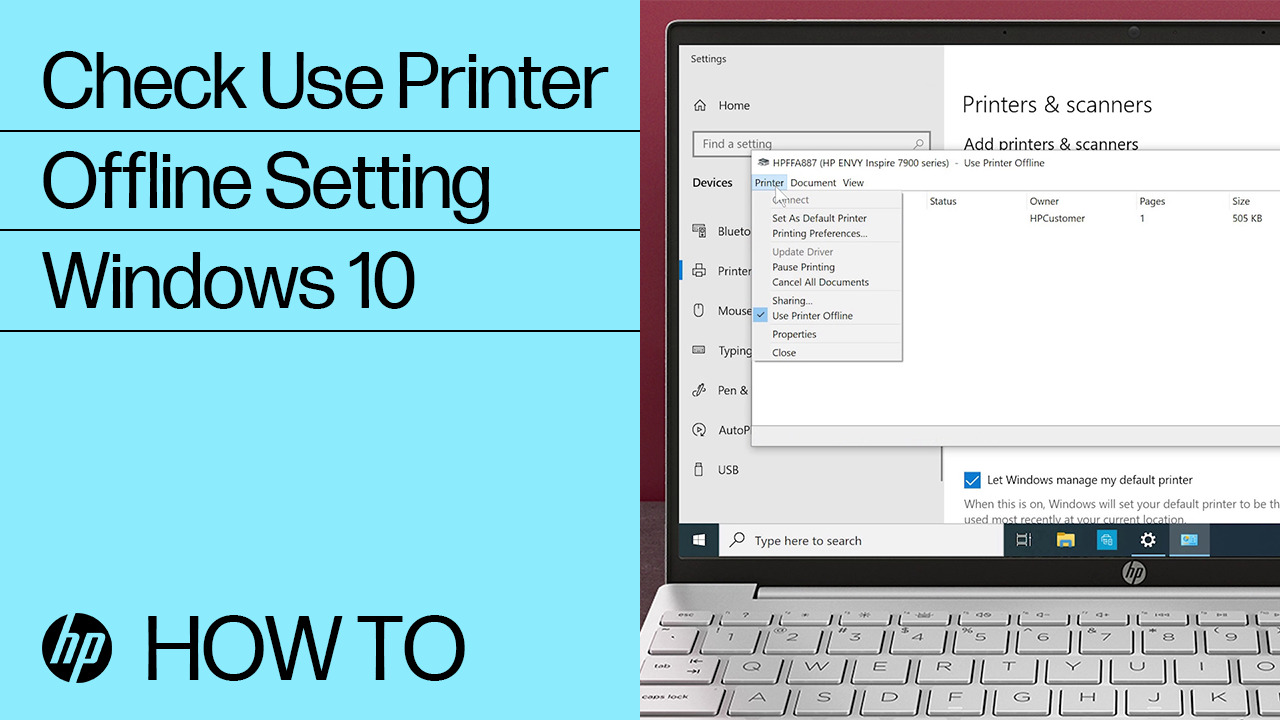
2. Printer Offline Issue
- Ensure printer and Chromebook are on same WiFi.
- Remove printer from Chromebook settings.
- Re-add printer manually.
3. Printing Error or Job Stuck
- Clear print queue.
- Turn printer off for 60 seconds.
- Reconnect to WiFi.
4. Wireless Connection Problem
- Reset printer network settings.
- Reconnect using WiFi setup wizard.
HP Printer Customer Support and Service Options
If troubleshooting does not resolve the issue, you can contact HP customer service.
Support options include:
- Live chat support
- Phone support
- Virtual assistant
- Service center assistance
Having your printer model number and serial number ready helps speed up support requests.
Benefits of Connecting HP Printer to Chromebook
- No driver installation required
- Quick wireless setup
- Easy firmware updates
- Cloud-based printing support
- Simple troubleshooting process
Chromebook printing is designed to be minimal and user-friendly.
Preventive Maintenance Tips
To avoid printer connection problems:
- Keep printer firmware updated.
- Maintain stable WiFi connection.
- Restart printer occasionally.
- Clean printer hardware regularly.
- Use genuine HP ink cartridges.
Regular maintenance improves printer lifespan and reduces errors.
Conclusion
Connecting your HP printer to a Chromebook is straightforward and does not require complex downloads or installations. By ensuring proper WiFi setup, adding the printer in Chromebook settings, and keeping firmware updated, you can enjoy smooth and uninterrupted printing.
If your HP printer is not working, simple troubleshooting steps like restarting devices, reconnecting WiFi, or updating firmware can resolve most issues quickly. For advanced support, HP customer service is always available to assist.
Leave a Reply