

Setting up your HP printer using the HP Smart App on an Android device is one of the easiest ways to enable wireless printing, scanning, and printer management. The HP Smart App allows you to quickly connect your printer to Wi-Fi, complete setup, activate services, and manage troubleshooting directly from your smartphone.
What is HP Smart App for Android?
The HP Smart is HP’s official mobile application designed to help users set up, manage, and troubleshoot HP printers. It allows you to:
- Set up new HP printers
- Connect printers to Wi-Fi
- Print and scan documents
- Check ink or toner levels
- Update firmware
- Access HP customer support
- Activate HP+ services (if supported)
The app is available for Android smartphones and tablets and works with most modern HP wireless printers.
Features of HP Smart App for HP Printer Setup
Easy Wireless Setup
HP Smart guides you step-by-step to connect your printer to a wireless network without needing a computer.
HP Account Login & Signup
You can create a new HP account or log in to activate cloud features, remote printing, and HP+ services.
Printer Activation
The app allows activation of supported HP printers for warranty registration and cloud-based services.
Print & Scan from Android
Print photos, documents, PDFs, and scan directly from your mobile device.
Ink & Toner Monitoring
Track ink levels and receive low-ink alerts.
Customer Support Access
Access built-in troubleshooting tools and contact HP support if needed.
Firmware Updates
Keep your printer updated with the latest firmware for better performance and security.
How to Download and Install HP Smart App on Android?
Follow these steps to install the HP Smart App on your Android device:
- Open Google Play Store on your Android phone.
- Search for HP Smart.
- Select the official HP Smart App.
- Tap Install.
- Wait for the installation to complete.
- Open the app.
Make sure your Android device is connected to Wi-Fi before starting setup.
How to Sign Up or Login to HP Smart App?
After opening the app:
- Tap Sign In.
- If you already have an HP account, enter your email and password.
- If you are a new user, tap Create Account.
- Enter required details (email, password, verification code).
- Verify your email address.
- Log in to complete activation.
Creating an account enables cloud printing, warranty registration, and remote management features.
How to Set Up HP Printer Using HP Smart App on Android Device?
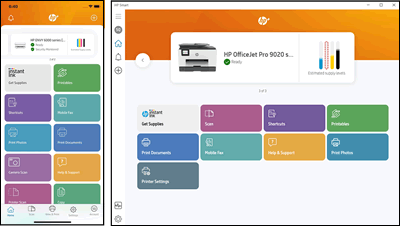

4
Follow these step-by-step instructions:
Step 1: Prepare the Printer
- Turn on your HP printer.
- Place it near your Wi-Fi router.
- Ensure the printer is in setup mode (blue light blinking).
- If not in setup mode, press and hold the Wireless button for 5 seconds.
Step 2: Open HP Smart App
- Launch the HP Smart App.
- Tap Set Up a New Printer or Add Printer.
Step 3: Connect to Wi-Fi
- The app will search for nearby printers.
- Select your printer from the list.
- Choose your Wi-Fi network.
- Enter the Wi-Fi password.
- Wait for confirmation.
Step 4: Complete Activation
- Sign in to your HP account (if not already).
- Follow on-screen instructions.
- Finish setup.
Your printer is now ready for wireless printing from your Android device.
How to Activate HP Printer Using HP Smart?
Printer activation ensures access to advanced services:
- Open HP Smart App.
- Select your printer.
- Go to Printer Settings.
- Tap Activate (if available).
- Follow prompts to register your printer.
- Confirm activation.
Activation helps with warranty, updates, and HP+ features.
HP Printer Not Working After Setup – How to Fix?
If your HP printer is not working after setup, try these troubleshooting steps:
Check Wi-Fi Connection
Ensure both your Android device and printer are connected to the same Wi-Fi network.
Restart Devices
- Turn off printer.
- Restart router.
- Restart Android device.
- Turn printer back on.
Reset Printer Network Settings
Restore network settings and reconnect via HP Smart App.
Update HP Smart App
Go to Play Store and update the app to the latest version.
Update Printer Firmware
Open HP Smart → Printer Settings → Advanced Settings → Update Firmware.
HP Printer Customer Support and Service Options
If troubleshooting does not resolve the issue, you can:
- Use built-in Diagnose & Fix tool in HP Smart.
- Access support section in the app.
- Check warranty status.
- Contact HP customer service through the app interface.
HP Smart provides guided troubleshooting to resolve common issues such as:
- Printer offline
- Wi-Fi connection failure
- Print job stuck
- Ink cartridge errors
- Activation issues
Common HP Smart App Troubleshooting Tips
App Not Detecting Printer
- Ensure Bluetooth is enabled.
- Keep printer close to phone during setup.
- Reset network settings and retry.
Login Issues
- Verify email address.
- Reset password if needed.
- Clear app cache in Android settings.
Printer Offline Error
- Check router connection.
- Reconnect printer to Wi-Fi.
- Restart devices.
Printing Issues
- Check ink levels.
- Clean printhead via app tools.
- Reinstall HP Smart App if necessary.
Benefits of Using HP Smart App for Android Setup
- Fast wireless setup without computer
- Secure login and printer activation
- Easy firmware updates
- Built-in troubleshooting tools
- Access to HP customer service
- Remote printing capabilities
- Improved printer performance management
Using HP Smart ensures your printer stays updated and properly configured for long-term performance.
Conclusion
Setting up your HP printer using the HP Smart App on an Android device is simple and efficient. From download and installation to login, activation, troubleshooting, and customer support, the app provides everything needed to manage your printer easily.
By following the steps above, you can quickly connect your HP printer to Wi-Fi, activate services, resolve common issues, and keep your printer running smoothly. Regular updates and maintenance through the HP Smart App help improve performance, prevent errors, and extend the lifespan of your HP printer.
Leave a Reply