

Setting up your HP printer using Wireless Direct is a convenient way to print from your desktop PC without connecting the printer to a router. HP Wireless Direct (also known as Wi-Fi Direct on newer models) allows your computer to connect directly to the printer’s wireless signal, enabling printing, scanning, and basic management features.
What is HP Wireless Direct?
HP Wireless Direct is a feature available in many HP printers that allows devices like desktop PCs, laptops, and smartphones to connect directly to the printer without using a traditional Wi-Fi network.
It works similarly to a Wi-Fi hotspot. Your HP printer creates its own wireless network, and your desktop connects to it for printing tasks.
Supported HP Printers with Wireless Direct
Most modern HP DeskJet, OfficeJet, and LaserJet models support Wireless Direct or Wi-Fi Direct.


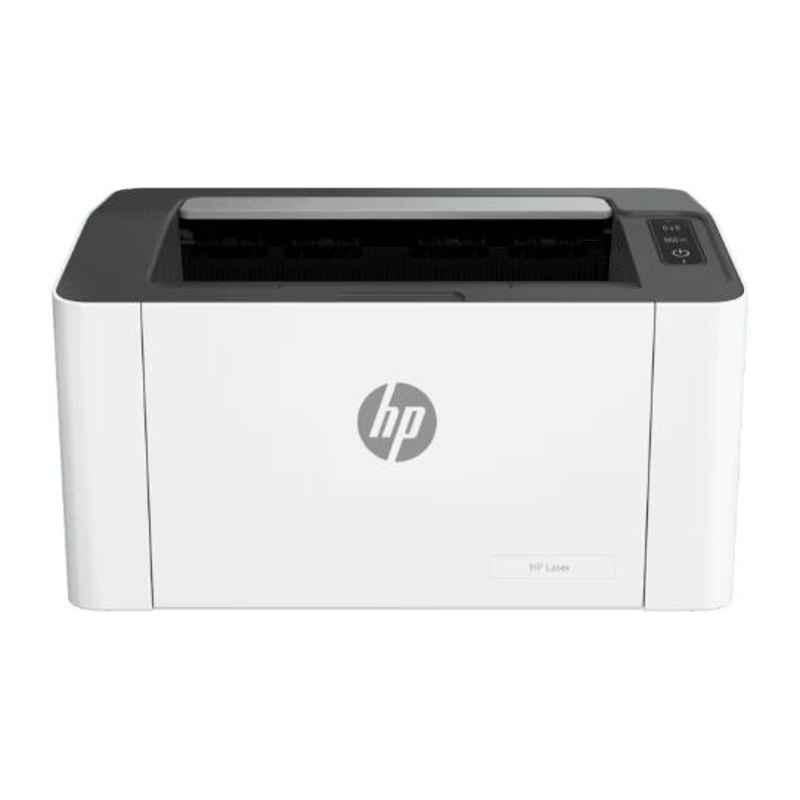
4
If you’re unsure whether your printer supports Wireless Direct, check your printer’s control panel for “Wi-Fi Direct” or “Wireless Direct” settings.
How to Activate HP Wireless Direct on Printer
Before connecting your desktop PC, you must activate Wireless Direct on your printer.
Steps to Enable Wireless Direct:
- Turn on your HP printer.
- On the printer control panel, navigate to Wireless Settings.
- Select Wi-Fi Direct or HP Wireless Direct.
- Turn it ON.
- Note the Wi-Fi Direct name and password displayed on the screen.
If your printer does not have a screen:
- Press and hold the Wireless button for a few seconds until the blue light starts blinking.
How to Connect Desktop PC to HP Wireless Direct
Once Wireless Direct is activated, follow these steps on your desktop PC:
Step 1: Open Wi-Fi Settings on Desktop
- Click on the Network icon in the system tray.
- Open Wi-Fi settings.
Step 2: Select HP Wireless Direct Network
- Look for a network name like:
DIRECT-xx-HP-Printer-Model - Click Connect.
Step 3: Enter Password
- Enter the Wi-Fi Direct password shown on your printer display.
- Click Connect.
Your desktop is now directly connected to the HP printer.
Download and Install HP Printer Drivers
To print successfully, you must download and install the correct HP printer drivers on your desktop PC.
How to Download HP Printer Software:
- Open your browser.
- Search for your specific HP printer model.
- Download the Full Feature Software and Driver.
- Save the file on your desktop.
Install the HP Printer Driver:
- Double-click the downloaded file.
- Follow on-screen instructions.
- Choose Wireless Connection when prompted.
- Complete installation.
After installation, your printer will be ready to print using Wireless Direct.
HP Account Login and Signup Process
Some HP printer features like firmware updates, scanning to cloud, and remote management require an HP account.
How to Sign Up for HP Account:
- Open HP Smart application.
- Click Sign Up.
- Enter your email and create a password.
- Verify your email address.
How to Login to HP Account:
- Open HP Smart.
- Click Sign In.
- Enter your registered email and password.
- Access printer settings and advanced features.
Creating an account helps manage printer updates, monitor ink levels, and receive customer support.
Activate HP Printer After Installation
After installing drivers:
- Open HP Smart App.
- Click Add Printer.
- Select your HP printer from the list.
- Complete on-screen setup instructions.
- Print a test page to confirm activation.
Your HP printer is now fully activated and ready to use.
HP Printer Not Working with Wireless Direct – Troubleshooting
If your HP printer is not working after setup, try the following troubleshooting steps:
1. Restart Devices
- Turn off printer.
- Restart desktop PC.
- Turn printer back on.
2. Reconnect to Wireless Direct
- Disconnect from current network.
- Reconnect to DIRECT-xx-HP network.
- Re-enter password.
3. Check Printer Status
- Ensure printer is not in offline mode.
- Set printer as default printer.
4. Update Printer Drivers
- Open Device Manager.
- Update printer driver.
- Restart computer.
5. Disable Firewall Temporarily
Sometimes firewall settings block printer communication.
HP Printer Driver Update Process
Keeping your printer updated improves performance and fixes bugs.
Steps to Update HP Printer:
- Open HP Smart.
- Go to Printer Settings.
- Select Printer Updates.
- Check for firmware updates.
- Install available updates.
You can also update drivers through Windows Update.
HP Customer Support and Service Options
If issues persist, HP provides multiple support options:
Available Support Services:
- Online troubleshooting tools
- Driver download support
- Warranty services
- Virtual assistant
- Phone and chat support
Before contacting support:
- Keep printer model number ready.
- Note error messages displayed.
- Confirm warranty status.
Common Issues and Solutions
| Issue | Solution |
|---|---|
| Printer not visible in Wi-Fi list | Restart printer and enable Wireless Direct |
| Incorrect password error | Recheck password on printer screen |
| Printer offline | Set as default printer |
| Unable to print | Reinstall drivers |
Benefits of Using HP Wireless Direct
- No router required
- Quick and easy setup
- Secure direct connection
- Ideal for home and small office
- Works with desktop PCs and laptops
Conclusion
Setting up your HP printer using Wireless Direct on a desktop PC is simple and convenient. By activating Wireless Direct, connecting your PC, installing drivers, and completing account login and activation steps, you can enjoy seamless printing without needing a traditional Wi-Fi network.
Regular updates, proper troubleshooting, and using HP support services ensure your printer continues to function efficiently. If your HP printer is not working, following the above troubleshooting guide will help resolve most common issues quickly.
Leave a Reply