

HP ePrint is a convenient cloud-based printing feature offered by HP Inc. that allows users to print documents from anywhere using email. With ePrint, each HP printer receives a unique email address, and users can send print jobs directly to the printer. However, sometimes HP ePrint may stop working due to connectivity issues, incorrect settings, or outdated firmware.
What is HP Printer ePrint and How Does It Work?
HP ePrint is a cloud printing service that allows users to print files by sending emails to their printer’s dedicated email address. This feature eliminates the need for direct cable connections or local network access.
Key Functions of HP ePrint:
- Print documents from anywhere using email
- Works with smartphones, tablets, and computers
- Supports PDF, Word, Excel, and image files
- Secure cloud-based printing system
- Easy remote printer access
HP ePrint is ideal for home users, offices, and businesses that require flexible printing options.
Common Reasons Why HP Printer ePrint is Not Working
If HP ePrint is not functioning properly, the issue may be caused by one of the following:
- Printer is not connected to the internet
- HP ePrint feature is disabled
- Incorrect printer email address
- Outdated printer firmware
- HP Smart account login issues
- Firewall or network blocking services
- Printer not registered properly
Identifying the cause is the first step in fixing the problem.
How to Login and Signup for HP ePrint Account
To use HP ePrint, you must create and log in to your HP Smart or HP Connected account.
Steps to Signup and Login:
- Install and open the HP Smart app on your computer or mobile device.
- Create a new HP account using your email address.
- Verify your email and sign in to your account.
- Add your HP printer to the account.
- Enable Web Services on your printer.
- Activate HP ePrint feature.
Once logged in, your printer will receive its unique ePrint email address.
How to Enable and Activate HP ePrint on Your Printer

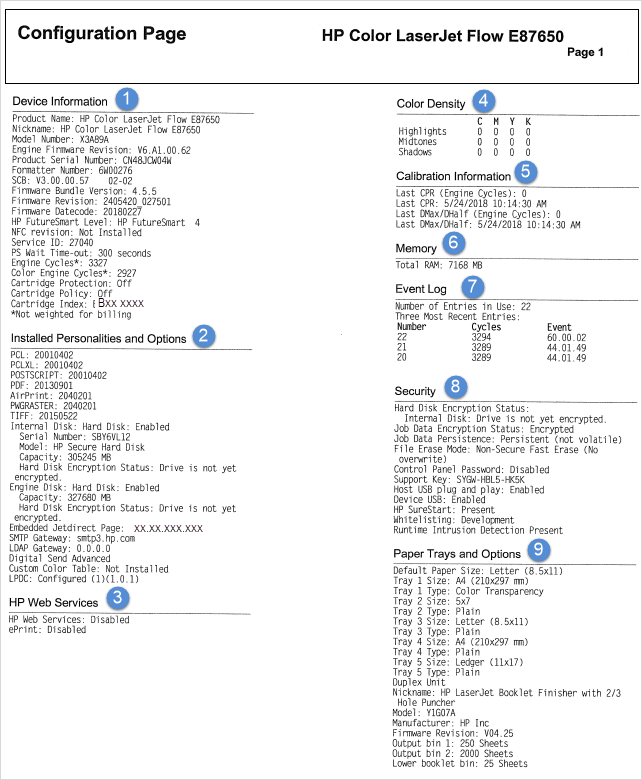
HP ePrint must be activated before use.
Steps to Activate HP ePrint:
- Turn on your HP printer.
- Go to the printer control panel.
- Select Settings or Network Setup.
- Tap Web Services Setup.
- Select Enable Web Services.
- Follow on-screen instructions.
- Print the information page to get your printer email address.
Once activated, your printer is ready for remote printing.
How to Download and Install HP Smart App for ePrint Setup
HP Smart app is required for managing HP ePrint settings.
Steps to Download and Install:
- Open your computer or mobile device.
- Download HP Smart app from your device’s app store.
- Install the application.
- Open HP Smart and sign in.
- Add your printer.
- Enable ePrint and Web Services.
The HP Smart app helps manage printer settings and troubleshoot problems.
How to Fix HP Printer ePrint Not Working – Troubleshooting Steps
If HP ePrint stops working, follow these troubleshooting steps:
Check Internet Connection
Ensure your printer is connected to a stable Wi-Fi network.
Enable Web Services
Make sure Web Services is enabled on your printer.
Restart Printer and Router
Restart both devices to refresh connections.
Verify Printer Email Address
Ensure you are sending emails to the correct printer email address.
Update Printer Firmware
Outdated firmware can cause ePrint issues. Update your printer software.
Check HP Smart Account Login
Make sure your HP account is active and properly connected.
Remove and Re-Add Printer
Delete the printer from HP Smart and add it again.
These steps resolve most ePrint problems.
How to Update HP Printer Firmware to Fix ePrint Issues
Firmware updates improve performance and fix bugs.
Steps to Update Firmware:
- Open HP Smart app.
- Select your printer.
- Go to Advanced Settings.
- Select Printer Update.
- Download and install updates.
- Restart printer after update.
Updated firmware ensures proper ePrint functionality.
How to Fix HP ePrint Activation and Registration Problems
Sometimes HP ePrint cannot activate due to registration issues.
Solutions:
- Reset Web Services and enable again
- Sign out and sign back into HP Smart account
- Connect printer to a different network
- Restore printer network settings
- Update printer drivers
Reactivation often resolves the issue.
HP Printer ePrint Customer Support and Service Options
If troubleshooting does not resolve the issue, HP customer support can help.
HP Support Services Include:
- Printer setup assistance
- ePrint activation help
- Firmware update support
- Account login and signup help
- Troubleshooting remote printing issues
HP support technicians can guide you through advanced solutions.
Benefits of Fixing and Using HP Printer ePrint
Remote Printing Convenience
Print documents from anywhere using email.
Improved Productivity
No need to connect directly to printer.
Secure Cloud Printing
HP provides secure cloud communication.
Easy Printer Management
HP Smart app simplifies setup and troubleshooting.
Reliable Performance
Proper setup ensures consistent printing.
Preventive Tips to Avoid HP ePrint Issues
Follow these tips to prevent future problems:
- Keep printer firmware updated
- Maintain stable internet connection
- Use correct printer email address
- Regularly restart printer
- Keep HP Smart app updated
- Ensure Web Services remain enabled
These practices ensure smooth ePrint operation.
Conclusion
HP ePrint is a powerful feature that allows users to print remotely using cloud technology. However, login issues, activation errors, outdated firmware, or network problems can prevent ePrint from working properly. By following the steps outlined in this guide—including signup, login, download, installation, activation, troubleshooting, updates, and support—you can fix HP Printer ePrint not working and restore full functionality.
Leave a Reply