

Incorrect colors in printed photos can be frustrating, especially when you expect vibrant and accurate results from your HP printer. Whether your images appear faded, overly dark, tinted (green/pink/yellow), or completely off-tone, the issue is usually related to ink cartridges, printhead alignment, driver settings, or outdated software.
Understanding the Problem: Why HP Printer Prints Wrong Colors
Before applying fixes, it’s important to understand the common causes behind incorrect photo colors:
- Clogged or partially blocked printhead
- Low or empty ink cartridges
- Incorrect paper type selected in print settings
- Outdated or corrupted printer drivers
- Color management settings mismatch
- Printer alignment issues
Most color issues can be resolved with proper maintenance and software adjustments.
Check and Replace HP Ink Cartridges
Incorrect colors often happen due to low or dried ink.
Steps to Fix:
- Open the HP printer control panel.
- Check ink levels from the display or HP printer software.
- Replace any low or empty color cartridges.
- Ensure you are using genuine HP ink cartridges.
- Reinstall cartridges properly to avoid alignment issues.
After replacing cartridges, print a test photo to verify improvement.
Run HP Printhead Cleaning Utility
Blocked nozzles prevent proper ink flow, causing color distortion.
How to Clean Printhead:
- Open HP printer software on your computer.
- Go to Printer Maintenance.
- Select Clean Printhead.
- Allow the cleaning process to complete.
- Print a diagnostic page.
If colors are still incorrect, run the cleaning cycle one more time.
Align the Printhead for Accurate Color Output
Misaligned printheads result in blurry or uneven colors.
Steps:
- Open HP printer settings.
- Select Tools or Printer Maintenance.
- Choose Align Printhead.
- Follow on-screen instructions.
Alignment improves color balance and sharpness.
Update HP Printer Drivers for Color Correction
Outdated drivers may cause incorrect color mapping.

4
How to Update HP Printer Driver:
- Open Device Manager on Windows.
- Locate your HP printer.
- Right-click and select Update Driver.
- Choose automatic search for updates.
- Restart your computer after installation.
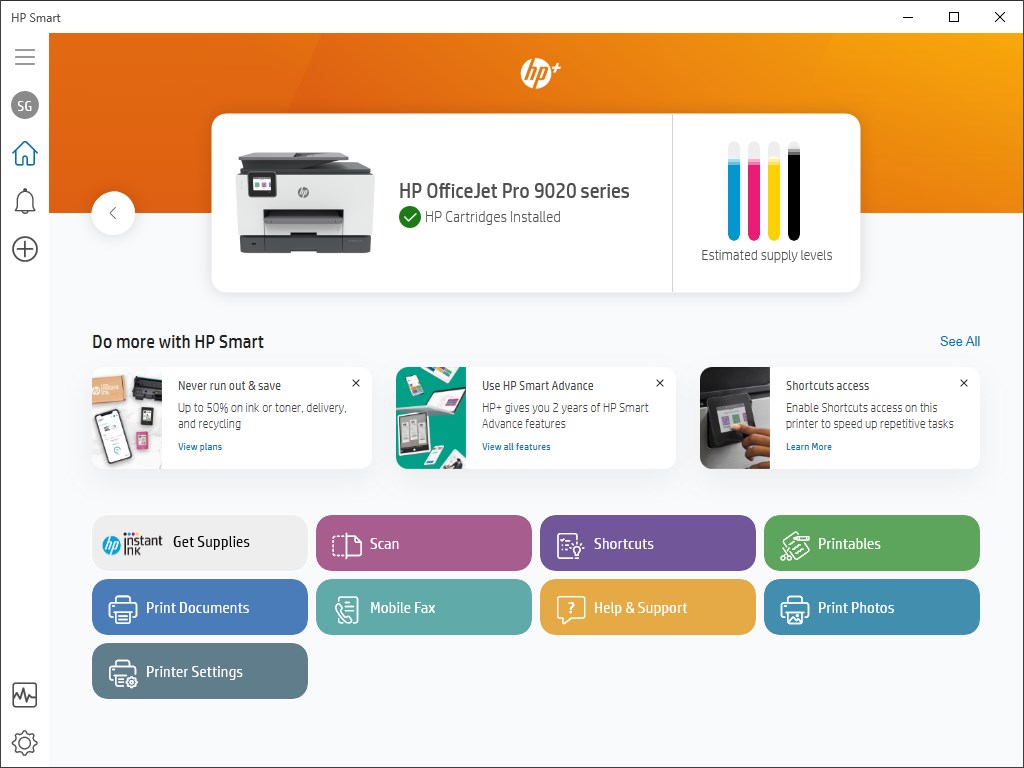
You can also update through the HP Smart app.
Adjust HP Printer Color Settings for Photos
Sometimes the issue lies in print preferences.
Fix via Print Settings:
- Open the photo you want to print.
- Click Print.
- Select Printer Properties.
- Choose Photo Paper as media type.
- Set print quality to Best.
- Disable grayscale printing.
- Ensure color mode is selected.
Using the correct paper type significantly improves color accuracy.
Reset HP Printer to Default Settings
If color issues persist, resetting the printer may help.
Steps:
- Turn off the printer.
- Disconnect power cord.
- Wait 60 seconds.
- Reconnect and power on.
This refreshes internal calibration.
HP Printer Login and Account Setup (HP Smart)
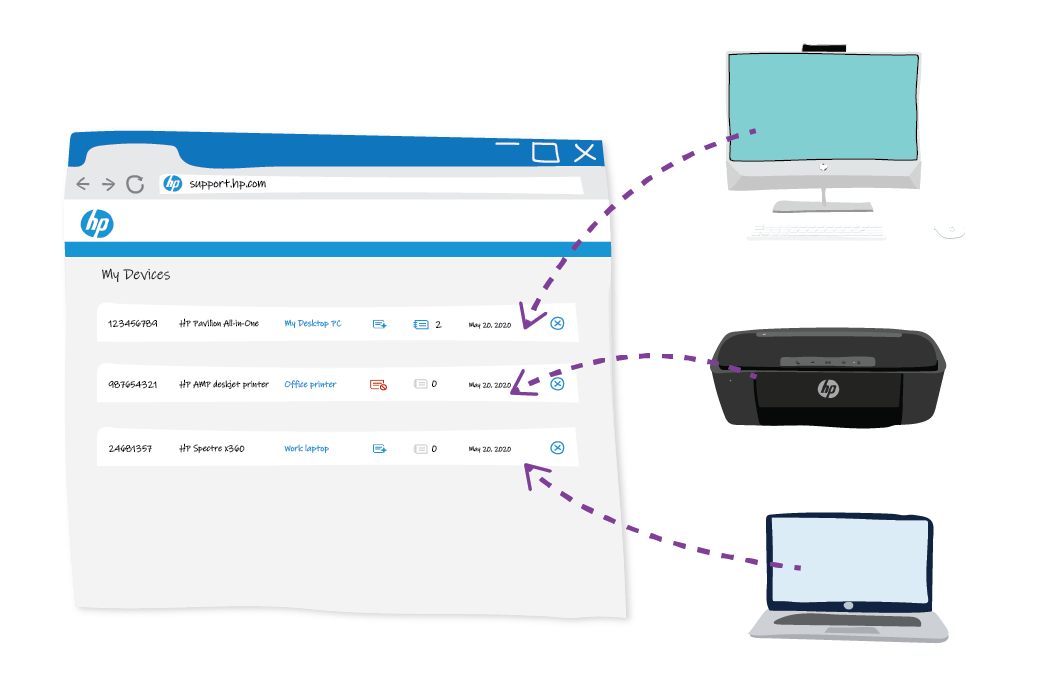
Managing your printer through HP Smart improves troubleshooting and updates.

How to Sign Up for HP Account
- Install HP Smart.
- Click Sign Up.
- Enter email and create password.
- Verify email address.
- Add your printer to the account.
How to Login
- Open HP Smart.
- Enter email and password.
- Access printer dashboard and maintenance tools.
Download and Install HP Printer Software
Proper installation ensures accurate color profiles.
Installation Steps:
- Download HP printer software compatible with your model.
- Run the setup file.
- Follow installation instructions.
- Connect printer via USB or Wi-Fi.
- Complete setup wizard.
After installation, restart your computer and print a test image.
Activate HP Printer After Installation
Activation ensures full feature access.
Steps to Activate:
- Connect printer to Wi-Fi.
- Login to HP Smart.
- Register printer using serial number.
- Confirm activation through dashboard.
Activation enables firmware updates and support access.
Update HP Printer Firmware
Firmware updates improve color calibration and performance.
To Update Firmware:
- Open HP Smart.
- Select printer.
- Go to Advanced Settings.
- Check for firmware updates.
- Install available updates.
Do not turn off printer during update process.
HP Printer Not Working or Still Printing Wrong Colors?
If the problem continues:
- Try printing from another device.
- Test with different photo paper.
- Perform deep printhead cleaning.
- Reinstall printer drivers.
- Check for operating system updates.
Persistent color problems may indicate hardware failure.
HP Printer Customer Support and Service Options
If troubleshooting does not resolve the issue, contact HP customer support.
Support services typically include:
- Remote troubleshooting assistance
- Printer diagnostics
- Warranty repair services
- Replacement guidance
Before contacting support, keep your printer model number and serial number ready.
Advanced Troubleshooting for Incorrect Photo Colors
For deeper troubleshooting:
- Calibrate monitor to match printer output.
- Disable third-party color management software.
- Use original HP photo paper.
- Ensure proper ICC color profile selection.
- Perform factory reset from printer settings.
These steps help professional photo users achieve accurate color output.
Prevent Future Color Printing Issues
To avoid recurring problems:
- Print regularly to prevent ink drying.
- Use genuine HP cartridges.
- Keep firmware updated.
- Store photo paper in dry conditions.
- Clean printhead monthly.
Regular maintenance ensures long-term print quality.
Conclusion
Fixing HP printer printing incorrect colors on photos usually involves checking ink levels, cleaning and aligning the printhead, updating drivers, adjusting print settings, and ensuring firmware updates are installed. Most color issues can be resolved with basic troubleshooting and proper printer maintenance.
Leave a Reply