

Remote Wi-Fi printing allows you to print documents from anywhere using your HP printer and an internet connection. Whether you’re working from home, traveling, or managing office tasks remotely, HP provides reliable cloud-based printing solutions that make remote access simple and secure.
What Is HP Remote Wi-Fi Printing?
HP Remote Wi-Fi Printing allows users to send print jobs to their printer over the internet instead of being connected to the same local network. This feature is powered through HP’s cloud services and works with most modern HP wireless printers.
Remote printing is commonly enabled using HP Smart App and HP’s cloud-based printing services. Once activated, you can print from laptops, smartphones, or tablets from virtually anywhere.
Requirements Before Setup
Before starting the setup process, ensure you have:
- A compatible HP wireless printer
- Stable internet connection (Wi-Fi)
- A computer or smartphone
- HP account (for login and activation)
- Latest printer drivers installed
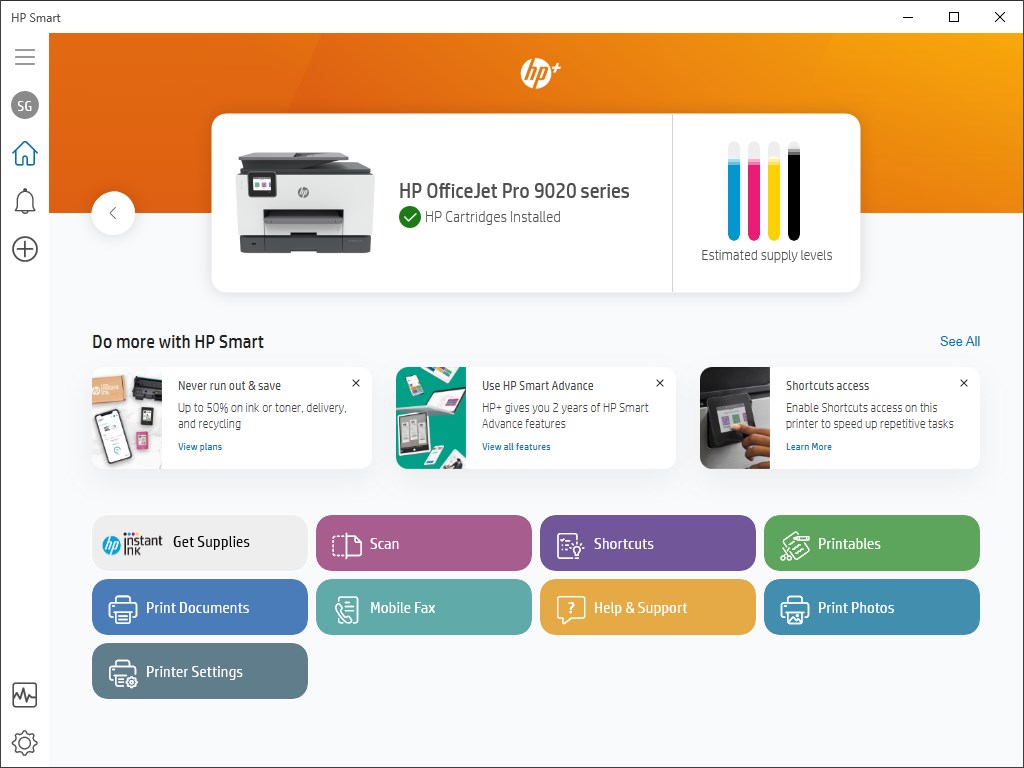
Download and Install HP Smart App

4
To enable remote Wi-Fi printing, you must install the HP Smart application.
Steps to Download and Install:
- Open your device’s app store or official HP software page.
- Search for “HP Smart.”
- Download the application compatible with your operating system.
- Run the installer and follow on-screen instructions.
- Launch the app after installation.
The HP Smart app is available for Windows, macOS, Android, and iOS devices.
HP Printer Login and Sign Up Process
To activate remote printing, you must log in or create an HP account.
Sign Up for HP Account:
- Open HP Smart.
- Click on Sign Up.
- Enter your email address and create a password.
- Verify your email to activate the account.
Login to HP Account:
- Open HP Smart.
- Select Sign In.
- Enter your registered email and password.
- Click Login to continue.
Your HP account links your printer to cloud services for remote access.
Connect HP Printer to Wi-Fi Network
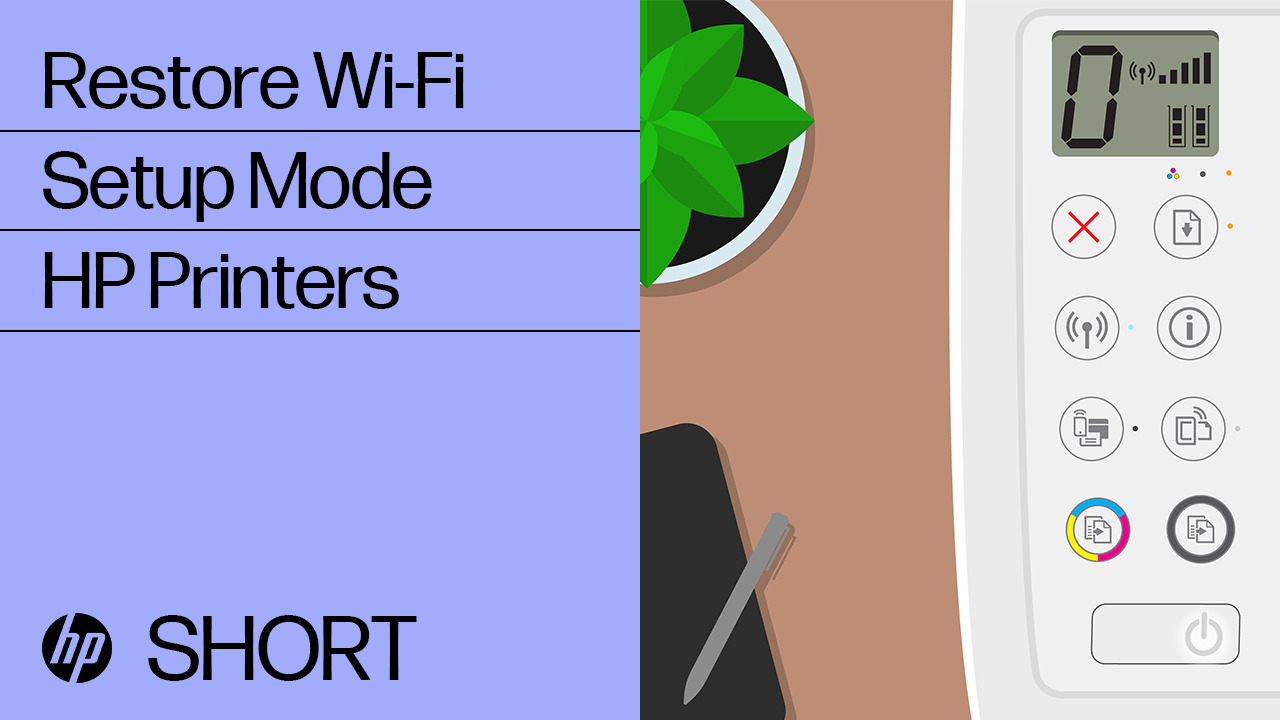

Before enabling remote printing, your HP printer must be connected to Wi-Fi.
Steps to Connect:
- Turn on your HP printer.
- Go to the printer’s Wireless Settings menu.
- Select Wireless Setup Wizard.
- Choose your Wi-Fi network.
- Enter your Wi-Fi password.
- Confirm connection.
Ensure the wireless indicator light remains steady, indicating successful connection.
Activate Remote Wi-Fi Printing
After connecting your printer and logging in:
- Open HP Smart.
- Add your printer (if not already added).
- Select your printer model.
- Enable Remote Printing or Cloud Printing option.
- Follow on-screen activation prompts.
Once activated, you can send print jobs from anywhere through HP Smart.
How to Update HP Printer Software
Keeping your printer updated ensures smooth remote printing performance.
Update Steps:
- Open HP Smart.
- Go to Printer Settings.
- Select Advanced Settings.
- Click Printer Update.
- Install available firmware updates.
Updating drivers and firmware prevents connectivity and performance issues.
HP Printer Not Working for Remote Printing – Common Issues
If your HP printer is not working remotely, check the following:
1. Internet Connection Issue
Ensure both your printer and device have stable internet access.
2. Printer Offline Status
Restart your printer and router to refresh the connection.
3. HP Account Not Logged In
Confirm you are signed in to HP Smart.
4. Outdated Firmware
Install the latest updates from printer settings.
5. Firewall or Antivirus Blocking
Temporarily disable security software to test connectivity.
Troubleshooting HP Remote Wi-Fi Printing Issues
If problems persist, try these troubleshooting steps:
- Restart printer, router, and device.
- Remove and re-add the printer in HP Smart.
- Reset printer network settings.
- Reinstall HP Smart application.
- Ensure printer firmware is current.
Network resets often resolve remote connectivity errors.
HP Customer Support and Service Options
If troubleshooting does not fix the issue, contact HP customer support for assistance. HP provides:
- Online troubleshooting guides
- Live chat support
- Phone assistance
- Authorized service centers
- Warranty repair services
Before contacting support, keep your printer model number and serial number ready.
Benefits of Setting Up HP Remote Wi-Fi Printing
- Print documents from anywhere
- Convenient mobile printing
- Secure cloud-based access
- Time-saving remote document management
- Ideal for home and office use
Remote Wi-Fi printing increases productivity and flexibility for users who need access to printing services outside their local network.
Conclusion
Setting up HP printer for remote Wi-Fi printing is a straightforward process when using the HP Smart app and an active HP account. By downloading the app, connecting your printer to Wi-Fi, logging in, and activating remote printing, you can print from virtually anywhere. Regular updates and proper troubleshooting ensure long-term performance and reliability.
Leave a Reply