

HP printers are widely known for their reliability, wireless functionality, and seamless compatibility with modern devices. If you want to set up your HP printer for wireless printing on a Chromebook, the process is simple and does not require complicated drivers or software installations. Chromebooks support native printing through Wi-Fi, allowing you to print documents, assignments, and photos directly from your device.
Understanding Wireless Printing on Chromebook
Chromebooks use built-in printing services instead of traditional printer drivers. Most modern HP wireless printers are compatible with ChromeOS and can connect through the same Wi-Fi network.
Before starting the setup process, make sure:
- Your HP printer supports wireless connectivity
- Your Chromebook is connected to Wi-Fi
- The printer and Chromebook are on the same network
Step 1: Connect HP Printer to Wi-Fi

4
To begin wireless printing, first connect your HP printer to your Wi-Fi network.
- Turn on the printer.
- Go to the printer’s control panel.
- Select Wireless Settings or Network Setup.
- Choose your Wi-Fi network name.
- Enter the Wi-Fi password.
- Wait for the blue wireless light to remain steady (this confirms connection).
If the printer was previously connected to another network, use the Wireless Setup Wizard to reconnect.
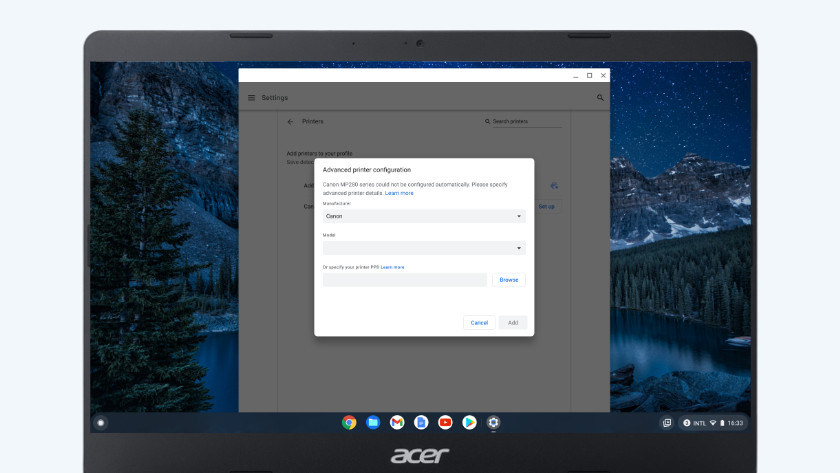
Step 2: Add HP Printer to Chromebook
4
Once your HP printer is connected to Wi-Fi:
- Click the time in the bottom-right corner of your Chromebook screen.
- Select Settings.
- Scroll down and click Advanced.
- Under “Printing,” click Printers.
- Your HP printer should appear automatically under “Available Printers.”
- Click Save to add the printer.
If it does not appear automatically, select Add Printer Manually and enter the printer’s IP address.
HP Account Login and Signup (Optional but Recommended)
For advanced features such as remote printing, firmware updates, and printer management, creating an HP account is helpful.
- Visit HP account portal from your browser.
- Click Sign Up if you are a new user.
- Enter your email and create a password.
- Verify your account.
- Log in to manage printer settings and services.
Login access allows you to monitor ink levels, check printer status, and manage connected devices.
Download and Install HP Smart (If Required)
Although Chromebooks do not require traditional drivers, some HP printers work better with the HP Smart app.
To install:
- Open Google Play Store on your Chromebook.
- Search for HP Smart.
- Click Install.
- Open the app and follow on-screen setup instructions.
- Add your printer when detected.
HP Smart helps with scanning, firmware updates, and troubleshooting.
Activate HP Printer Services
After adding your printer:
- Ensure wireless printing is enabled.
- Check printer status from Chromebook settings.
- Print a test page to confirm activation.
If using HP Smart, follow activation prompts inside the app to complete setup.
How to Update HP Printer Firmware
Keeping firmware updated ensures better compatibility with Chromebook.
- Open HP Smart app.
- Go to Printer Settings.
- Select Advanced Settings.
- Choose Printer Updates.
- Install any available updates.
Updates fix bugs, improve connectivity, and enhance performance.
HP Printer Not Working on Chromebook?
If your HP printer is not working wirelessly, try these solutions:
Restart Devices
- Restart printer
- Restart Chromebook
- Restart Wi-Fi router
Check Network
- Confirm both devices are on the same Wi-Fi network.
- Move printer closer to router if signal is weak.
Remove and Re-Add Printer
- Go to Chromebook printer settings.
- Remove the printer.
- Add it again manually.
Check IP Address
- Print a Network Configuration page from the printer.
- Verify IP address and use it for manual setup.
HP Printer Troubleshooting Tips
Common wireless printing issues include:
- Printer offline
- Print jobs stuck in queue
- Chromebook not detecting printer
- Slow printing speed
Troubleshooting steps:
- Clear print queue
- Reset wireless connection
- Update printer firmware
- Power cycle devices
- Check for ChromeOS updates
Regular maintenance ensures consistent performance.
HP Customer Support and Service Options
If setup fails or printer continues not working:
- Contact HP Customer Support through official support portal.
- Use live chat or phone support options.
- Schedule service if hardware issues are detected.
Before contacting support, keep the following details ready:
- Printer model number
- Serial number
- Chromebook version
- Description of the issue
HP service teams assist with advanced troubleshooting, warranty claims, and repairs.
Benefits of Wireless Printing on Chromebook
- No need for driver installation
- Quick device pairing
- Cable-free printing
- Easy classroom or home office setup
- Remote printer management
Wireless printing increases productivity and reduces setup complexity.
Conclusion
Setting up an HP printer for wireless printing on a Chromebook is simple and efficient. By connecting your printer to Wi-Fi, adding it through Chromebook settings, and optionally using HP Smart for advanced features, you can enjoy seamless printing without installing traditional drivers.
Leave a Reply